
Troubleshooting WhatsApp Connection Problems
Most failed WhatsApp connections come down to a handful of causes: a blocked Facebook window, a phone that is not to hand, an out-of-date WhatsApp Business app, or a WhatsApp Business Account that belongs somewhere else. This guide lists the problems in the order you are likely to meet them, with the exact message SmartEngage shows, what causes it and what to do.
SmartEngage
Connecting your number happens on the Connect page, through Meta's Embedded Signup. Everything you choose, from the business portfolio to the phone number, is chosen inside Meta's own window, and SmartEngage only takes over once Meta hands the result back. So a failed connection can come from your browser, from Meta's window, or from SmartEngage's checks at the end.
Some problems are simple mistakes you can fix in a minute. Others are eligibility problems, where Meta or SmartEngage is refusing the connection on purpose. Each section below says which kind it is.
Before You Start Troubleshooting
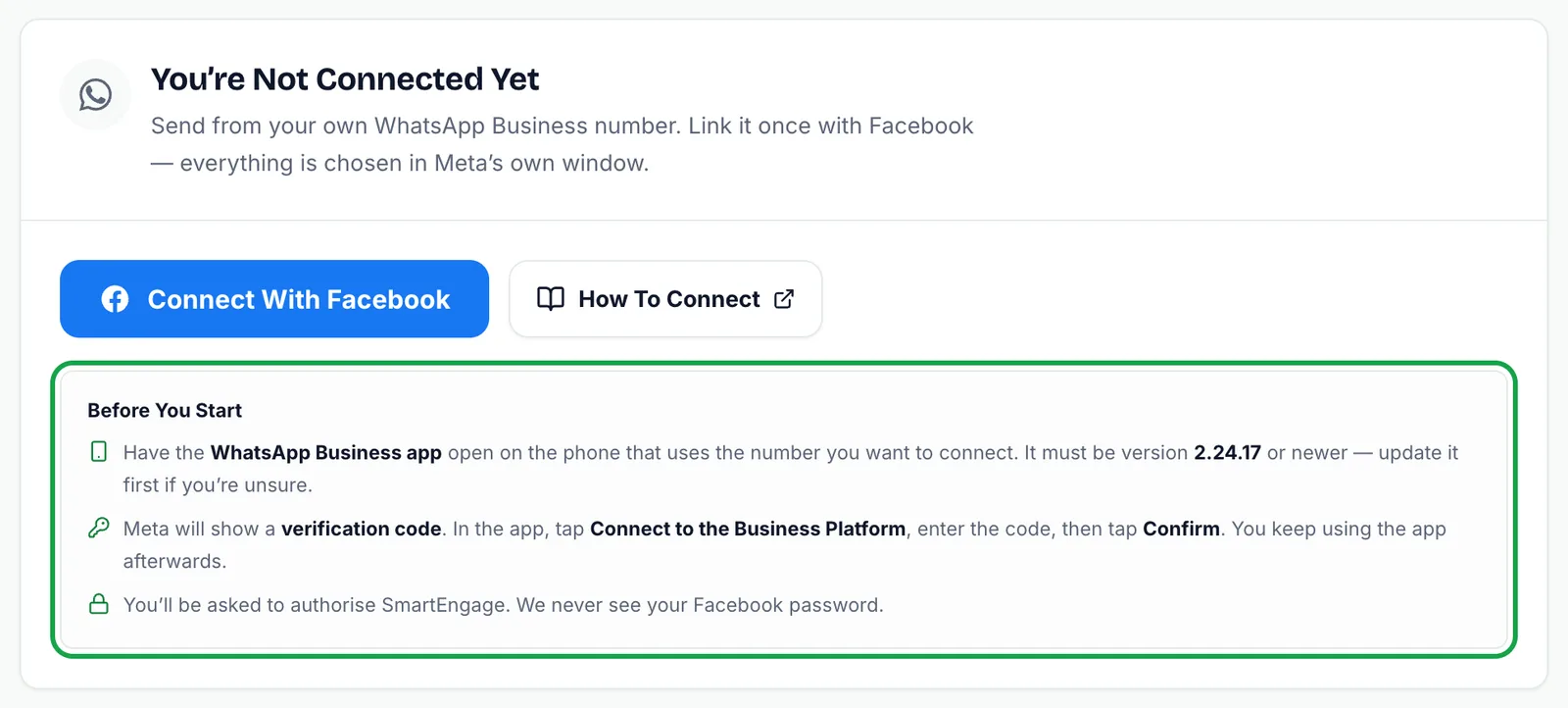
Check the three things on the Connect page's Before you start list. They cause more failures than everything else combined:
- If you are keeping the WhatsApp Business app, have it open on the phone that uses the number, and make sure it is version 2.24.17 or newer.
- Be ready to enter or scan the code Meta shows. In the app you tap Connect to the Business Platform, enter the code, then tap Confirm.
- Sign in to Facebook with the account that manages your business.
The How To Connect button beside Connect With Facebook opens a step-by-step guide with a picture of every screen.
Connect With Facebook Does Nothing
Message: Could not load Facebook. Check your connection or any ad blocker, then retry.
Cause: your browser could not load Facebook's sign-in script. Ad blockers, privacy extensions and some company networks block it.
Fix: allow Facebook on this page or try a different browser, then reload the Connect page and try again. This is a mistake, not an eligibility problem.
Message: Facebook is still loading, try again in a moment.
Cause and fix: you pressed the button before Facebook's script finished loading. Wait a few seconds and press it again.
Meta's Window Closed Before the End
Messages: Setup was closed at the step named in the message, followed by: Nothing was saved, you can start again. You may also see Setup was cancelled or Facebook sign-in was not completed.
Cause: Meta's window was closed, or permission was declined, before the final step. A common reason is closing it to go and find the phone.
Fix: have the phone in your hand before you begin, then press Connect With Facebook again and keep the window open until Meta's final screen. Nothing from the earlier attempt was kept, so you start cleanly. If Meta itself reported an error, its own message is shown instead, and it usually names the problem.
Your Number Is Not Offered or Is Refused
The phone number step is where eligibility problems usually appear. Which one you hit depends on whether you are keeping the WhatsApp Business app.
Keeping the app (coexistence):
- The Phone number list opens on Enter a new phone number, and the country box has a default. Open the list and pick your existing number. Carrying on with a new number starts a different flow.
- If the link will not complete, update the WhatsApp Business app to 2.24.17 or newer and try again. An older version cannot complete it.
- If the code prompt does not appear on your phone, open the app and look for the message from the official Facebook Business Account. If it is not there, go to Menu or Settings, then Account, then Business Platform.
Connecting a brand-new number:
- The number must not be signed in to WhatsApp or WhatsApp Business anywhere. If it is, Meta refuses it. This is an eligibility rule, and connecting such a number as new would end its use in the app for good.
- Meta sends a six-digit code by SMS or a call. If it does not arrive, you can request another after thirty seconds. The phone or SIM has to be with you.
SmartEngage Refuses the Link
These appear in a panel headed Setup didn't finish, after Meta's window closes. They are eligibility rules, not mistakes, and trying again with the same choices will give the same answer.
- This WhatsApp Business Account is already connected to another account. Another SmartEngage account holds it. One WhatsApp Business Account can belong to only one SmartEngage account.
- That WhatsApp number is already connected to a different SmartEngage account. Disconnect it there first, then link it here.
- You can only connect your previously connected WhatsApp Business Account, followed by a WABA ID. Your SmartEngage account is tied to the WhatsApp Business Account it connected first. Run Embedded Signup again and choose the account with that ID.
If you do not recognise the other account, or believe a WhatsApp Business Account is held in error, contact support rather than creating new Meta assets to get around it.
The Page Says Almost There
Cause: Meta has linked your WhatsApp Business Account but is still confirming your number. The page reads Almost There instead of You're Connected.
Fix: press Check Again. This usually completes within moments. If it stays on Almost There, use Start over and run Embedded Signup again. Until the number is confirmed, campaigns and replies cannot be sent.
We Could Not Check Your Connection
Message: We couldn't check your connection. The topbar badge may read Status unavailable.
Cause: your browser could not reach SmartEngage, so it does not know your connection status. This does not mean your WhatsApp account is disconnected, and nothing has changed on Meta's side.
Fix: press Try again. Do not run Embedded Signup again because of this message alone.
You Were Connected, and Now You Are Not
Cause: when you press Refresh from Meta, SmartEngage checks that its access still works. If Meta refuses it, for example because SmartEngage's access was removed in your Meta business settings, the page switches to You're Not Connected Yet.
Fix: press Connect With Facebook and run Embedded Signup again with the same WhatsApp Business Account. Your templates and number record were kept, so reconnecting restores them.
Connected, but Nothing Sends
If the page shows You're Connected alongside the warning Add a payment method in Meta, the connection is fine and Meta's billing is the problem. Meta charges for messages separately and rejects sends from a WhatsApp Business Account with no payment method. Add one in WhatsApp Manager under Payment settings, on the business portfolio that owns this number, then press Refresh from Meta.
Step by step: How to Add a Payment Method for WhatsApp.
Still Stuck
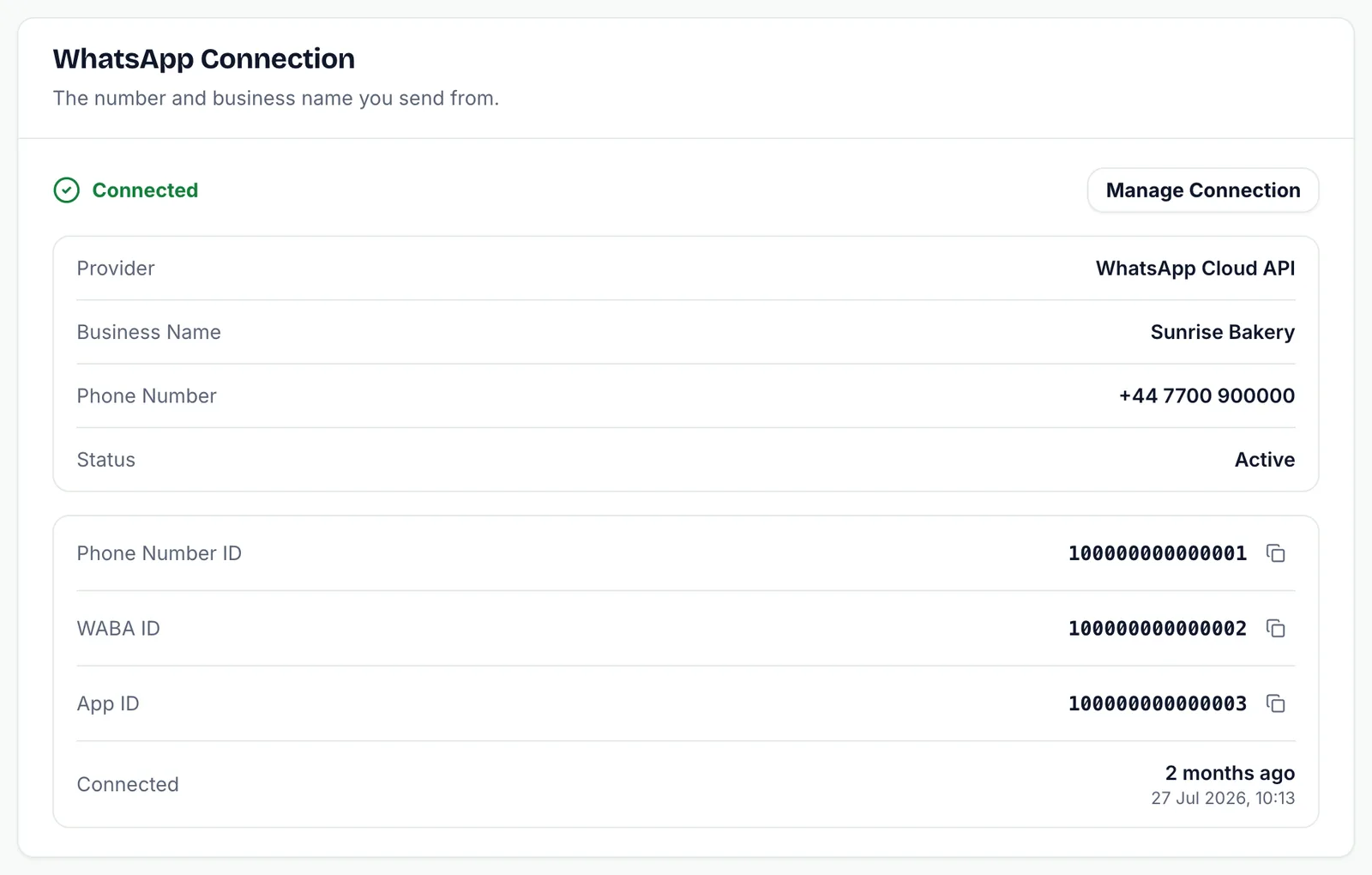
When you contact support, include the exact message you saw and, if the connection got far enough, the WABA ID and Phone Number ID from the Connect page.
Check you have everything ready with Before You Connect WhatsApp: What You Need.
For what refreshing and reconnecting change, read How to Refresh or Disconnect Your WhatsApp Connection.
Need a hand? Contact our support team.
Tagged
Getting StartedSetupTroubleshootingReady to send safely?
Start free — no new number, no setup fee, no card required.
Keep Reading
 Account & WhatsApp Setup5 min read
Before You Connect WhatsApp: What You Need
Most failed WhatsApp connections fail for a reason that could have been fixed beforehand. Here is what to have in hand before you click Connect With Facebook.
Read guide Troubleshooting6 min read
Fixing Contact Import Problems
Symptom-by-symptom fixes for SmartEngage contact imports: files that will not upload, wrong column mapping, rejected numbers, duplicates and imports that stop.
Read guide Account & WhatsApp Setup5 min read
How to Add a Payment Method for WhatsApp
Connected but nothing sends? Meta bills WhatsApp messages itself, and needs a payment method on the right business portfolio. Here is how to add one and confirm it in SmartEngage.
Read guide