
Fixing Contact Import Problems
Most contact import problems in SmartEngage come down to a handful of causes: the wrong file type, a column matched to the wrong field, numbers without a country code, or rows you already hold. This guide lists each symptom you might see, what causes it and how to fix it.
SmartEngage
SmartEngage shows you a preview of every import before anything is written, so most problems can be spotted and fixed before they reach your contact list. Find the symptom that matches what you see, then follow the fix.
The File Will Not Upload
Symptom: a message such as "This importer reads .csv files. That one is .xlsx", or "That file does not look like the format it claims to be".
Cause: each source reads its own formats. CSV file takes .csv only. Excel workbook takes .xlsx, .xls and .xlsm. vCard file takes .vcf and .vcard.
Fix: select Back and choose the source that matches your file, or save the file in a supported format. A .txt or .tsv export should be saved as .csv first.
Symptom: the upload fails for a very large file.
Cause: files larger than 25 MB are not accepted.
Fix: split the list into smaller files, or remove columns you do not need, and import each part.
The File Is Called Empty or Unreadable
Symptom: "That file is empty", "That file has no rows we could read", "That file is not a readable Excel workbook", or a message that the workbook is password-protected.
Cause: the file has no data rows, the contacts are on a sheet the importer cannot see, the file is damaged or not really a spreadsheet, or the workbook is password-protected.
Fix: open the file on your computer and check that it has rows. For a workbook, make sure the contacts are not only on a hidden sheet, as hidden sheets are not offered. Remove any password, save a fresh copy from the original program and upload again.
For how worksheets are chosen, see How to Import Contacts from Excel or a vCard File.
Every Row Lands Under Cannot Import
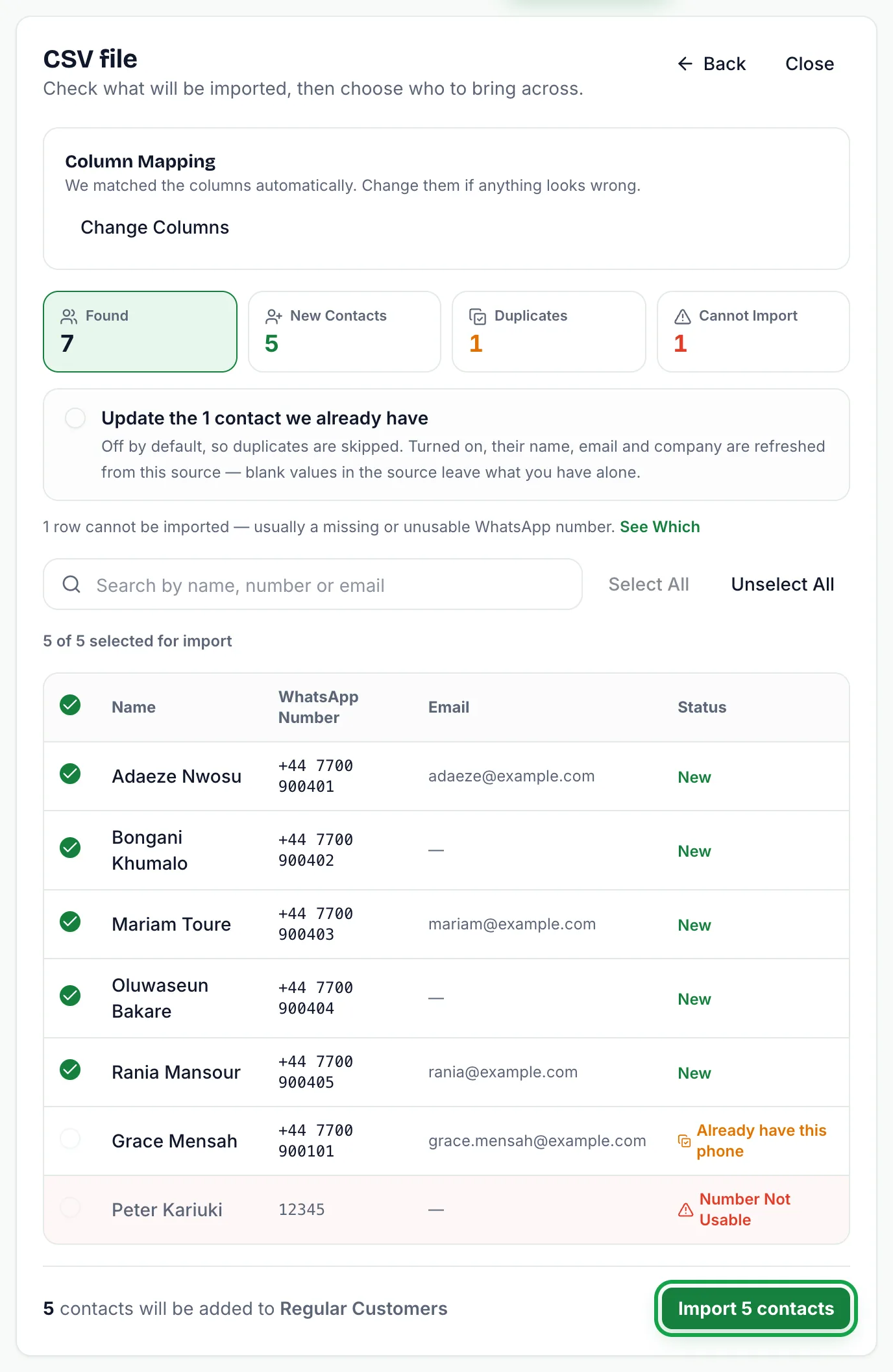
Symptom: the preview warns that without a number column nothing can be imported, or the Cannot import tile holds almost every row.
Cause: the WhatsApp number field is not mapped, or is mapped to the wrong column, such as an ID or a label column.
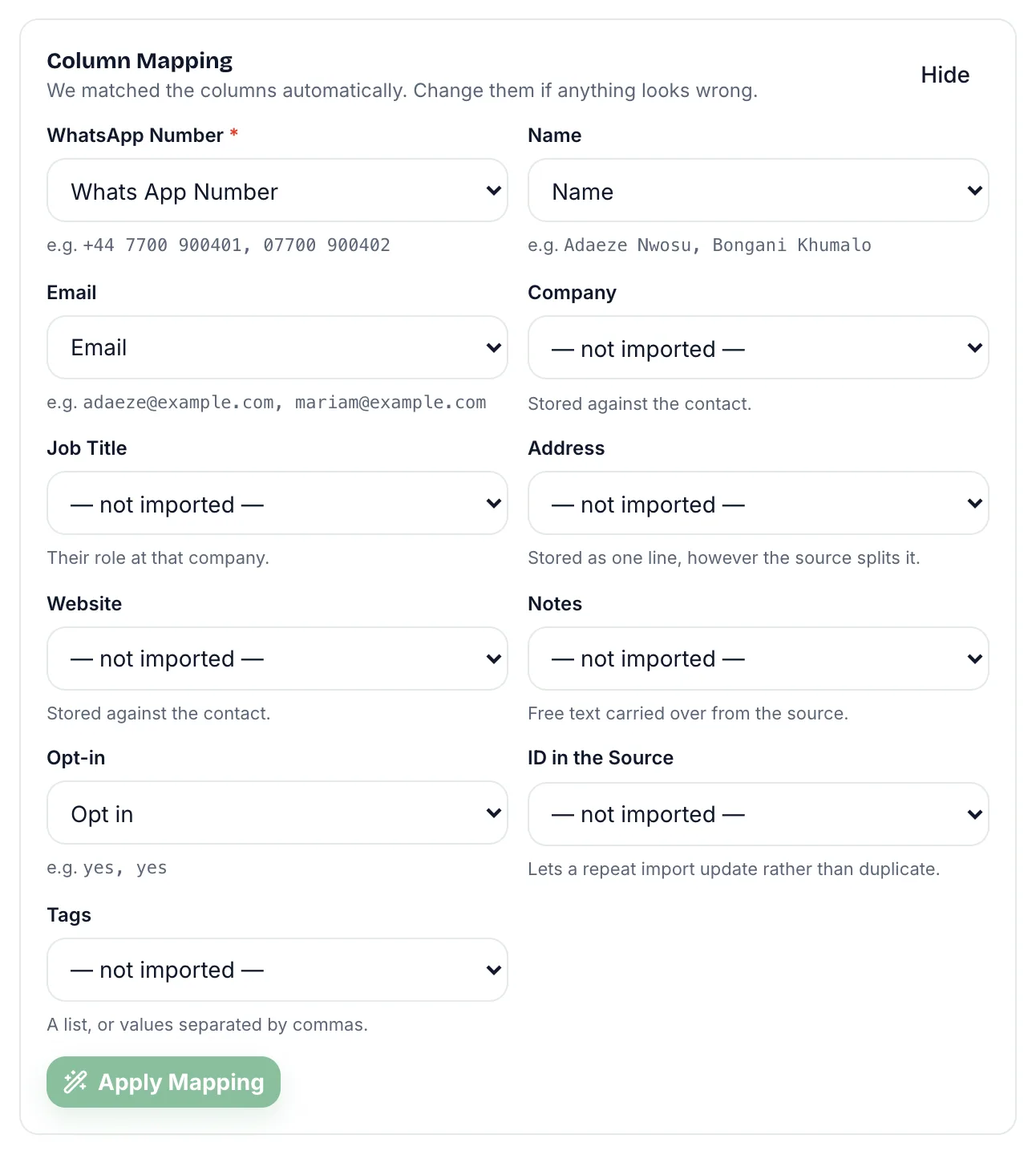
Fix: in the Column mapping box, select "Change Columns". Choose the column holding the numbers for WhatsApp number, using the sample values under each drop-down to confirm, then select "Apply Mapping". The preview is rebuilt from the file you already uploaded.
Names or Details Are in the Wrong Place
Symptom: the preview shows email addresses as names, or a company in the notes.
Cause: a column was matched to the wrong field, usually because its heading was unclear.
Fix: use "Change Columns" to point each field at the right column, or choose "— not imported —" to leave one out. Then select "Apply Mapping". If your file has no header row, every column is listed by position, and you map each one by hand. Adding clear headings such as Phone, Name and Email to the first row lets SmartEngage match them automatically next time.
Numbers Are Rejected as Not Usable
Symptom: rows marked "Number Not Usable".
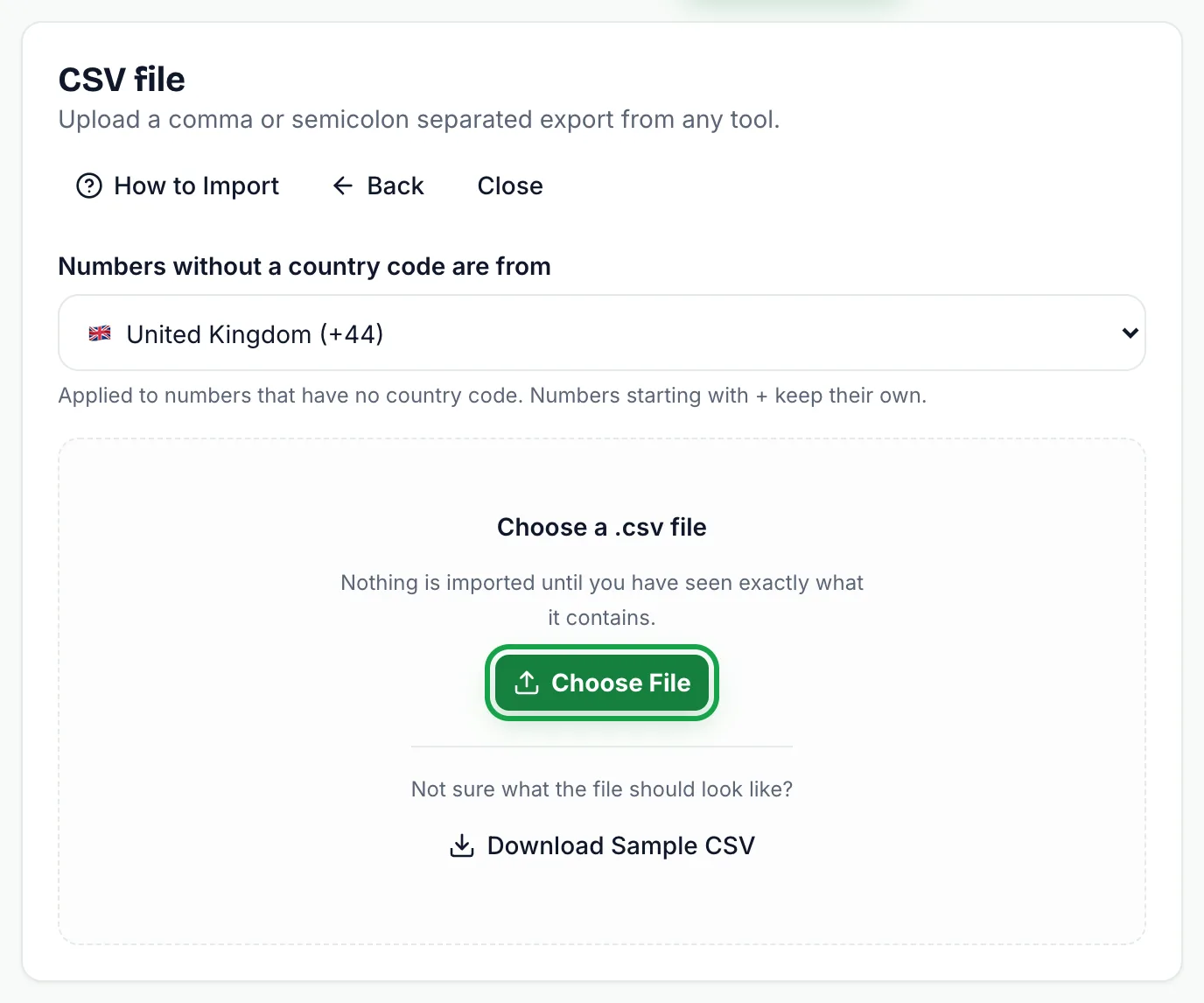
Cause: the number is not valid in international format once tidied. Most often it is a local number without a country code while the wrong country is selected, or the number has too few or too many digits, or contains letters.
Fix: go Back, check "Numbers without a country code are from" and pick the country your local numbers belong to, then upload again. Numbers starting with + keep their own country code, so a list with several countries should have + and the country code on every number. Correct any number with missing digits in the file.
Numbers Show as Damaged by Excel
Symptom: rows marked "Number Damaged by Excel", with numbers like 9.19877E+11.
Cause: the file was opened and saved in Excel, which treated the numbers as quantities and kept only the first six digits.
Fix: the missing digits are gone from that file and cannot be recovered in the import. Export the list again from its source, or re-enter the numbers after formatting the phone column as Text in Excel, then save and upload.
Rows Are Refused Over the Opt-in Value
Symptom: rows marked "Opt-in Value Not Understood".
Cause: the column mapped to Opt-in holds values SmartEngage will not guess at, often because the wrong column was matched to it automatically.
Fix: if the column is not really about consent, set Opt-in to "— not imported —" and apply. If it is, change the values to yes or no, true or false, 1 or 0, or subscribed or unsubscribed, and upload again.
Contacts Are Skipped as Duplicates
Symptom: the result shows many contacts under Skipped, or fewer imported than expected.
Cause: those rows match contacts already in your account by number or by email, or repeat a number earlier in the same file. Duplicates are checked across your whole account, not only the chosen book.
Fix: nothing may be wrong, since the contacts already exist. To refresh their details, or to file them in the book you are importing into, run the import again and tick the box in the preview to update the contacts you already have. For one or two contacts, you can instead press the pencil Edit button on the contact's row on the Contacts page and change its name, email, book or consent there.
The Import Will Not Start or Does Not Finish
- "An import is already running for this account": only one import can run at a time. Wait for it to finish, then try again.
- "That import has expired": an upload stays ready for an hour. Start again and the file is read afresh.
- A contact import limit message: your plan limits how many contacts you can hold, and the new contacts would not fit. Nothing is imported. Untick some contacts, remove contacts you no longer need, or see your plan options.
- A message that your plan ended and the account is read-only: your contacts are safe, but nothing new can be added until you choose a plan.
Plan limits and options are listed on the pricing page.
Still Stuck?
To understand each count in the preview, read Duplicates, Invalid Numbers and Opt-outs Explained.
To read the result screen or fix a failed import, see How to Check an Import's Results and Fix a Failed Import.
To start over with a clean file, follow How to Import Contacts from a CSV File.
If none of these fit, contact our support teamwith the message you see and the file type you used.
Tagged
ContactsTroubleshootingReady to send safely?
Start free — no new number, no setup fee, no card required.
Keep Reading
 Account & WhatsApp Setup5 min read
Before You Connect WhatsApp: What You Need
Most failed WhatsApp connections fail for a reason that could have been fixed beforehand. Here is what to have in hand before you click Connect With Facebook.
Read guide Account & WhatsApp Setup5 min read
How to Add a Payment Method for WhatsApp
Connected but nothing sends? Meta bills WhatsApp messages itself, and needs a payment method on the right business portfolio. Here is how to add one and confirm it in SmartEngage.
Read guide Contacts6 min read
How to Add and Edit a Contact
Add a single WhatsApp contact by hand in SmartEngage, choose their book and consent, then edit a saved contact's name, email, book or consent.
Read guide