
How to Add a Payment Method for WhatsApp
Your WhatsApp number is connected, your template is approved, and yet your messages will not go out. The most common reason is also the simplest: Meta has no payment method for your WhatsApp Business Account. This guide explains why Meta bills you separately from SmartEngage, how to add a card to the right place in WhatsApp Manager, and how to check the fix has worked.
SmartEngage
There are two separate bills when you send WhatsApp campaigns through SmartEngage. Your SmartEngage plan pays for the software. Meta's message charges pay for WhatsApp delivering the messages, and those go to Meta directly.
The second one is set up at Meta, not in SmartEngage, and until it is in place Meta will reject your messages however well everything else is configured.
Why Meta Bills You Separately
Meta charges businesses for sending WhatsApp messages on the WhatsApp Cloud API. It sets those rates itself and collects them itself, from a payment method attached to your WhatsApp Business Account.
SmartEngage is an Official Facebook Tech Provider and adds no markup to Meta's message fees. We never sit in the middle of that payment: you pay Meta's official rates to Meta, and you pay SmartEngage only for your plan. The upside is that you always see Meta's real charges, in Meta's own billing screens.
The Warning on the Connect Page
SmartEngage checks your account's status with Meta when you connect and each time you refresh the connection. If Meta reports that your account is blocked from sending, the Connect page shows a warning above your connection details, titled "Add a Payment Method in Meta". It reads:
"Your WhatsApp Business Account has no payment method attached, so Meta will reject messages. Add one in WhatsApp Manager → Payment settings. You pay Meta directly for message delivery; your SmartEngage plan is separate."
The words WhatsApp Manager → Payment settings are a link that opens Meta's payment settings in a new tab. The warning only appears once your number is connected, and it is shown so you can fix billing before building a campaign rather than after one fails.
Option 1: Add It While You Connect
The last screen of Meta's signup window confirms your account is connected and offers to add a payment method before you choose Finish. If you have a card to hand, this is the quickest route, because Meta already knows which account it is for.
If you skipped it, that is fine. You can add it at any time in WhatsApp Manager, as below.
Option 2: Add It in WhatsApp Manager
Follow these steps in Meta's WhatsApp Manager:
- Open WhatsApp Manager at business.facebook.com/wa/manage and sign in with the Facebook account that manages your business.
- Check the business selector at the top left, and choose the business portfolio that owns the number you connected to SmartEngage.
- Open Settings in the left menu, then choose Payment settings.
- Choose Add payment method and enter your card details.
- Confirm the card is listed against the WhatsApp Business Account you connected.
The link in SmartEngage's warning is a shortcut to step 3. It opens whichever portfolio Meta last had selected, so check the business selector before adding anything.
Make Sure It Is the Right Business Portfolio
This is where most payment problems come from. A business portfolio is the account at Meta that owns your WhatsApp assets and pays for sending. Many businesses end up with more than one, often created by different people at different times.
A card added to the wrong portfolio does not pay for your number, and messages keep failing even though the card is saved and everything looks connected. If you are unsure which portfolio owns your number, look for your WhatsApp Business Account by name in each portfolio's WhatsApp Manager before adding a card.
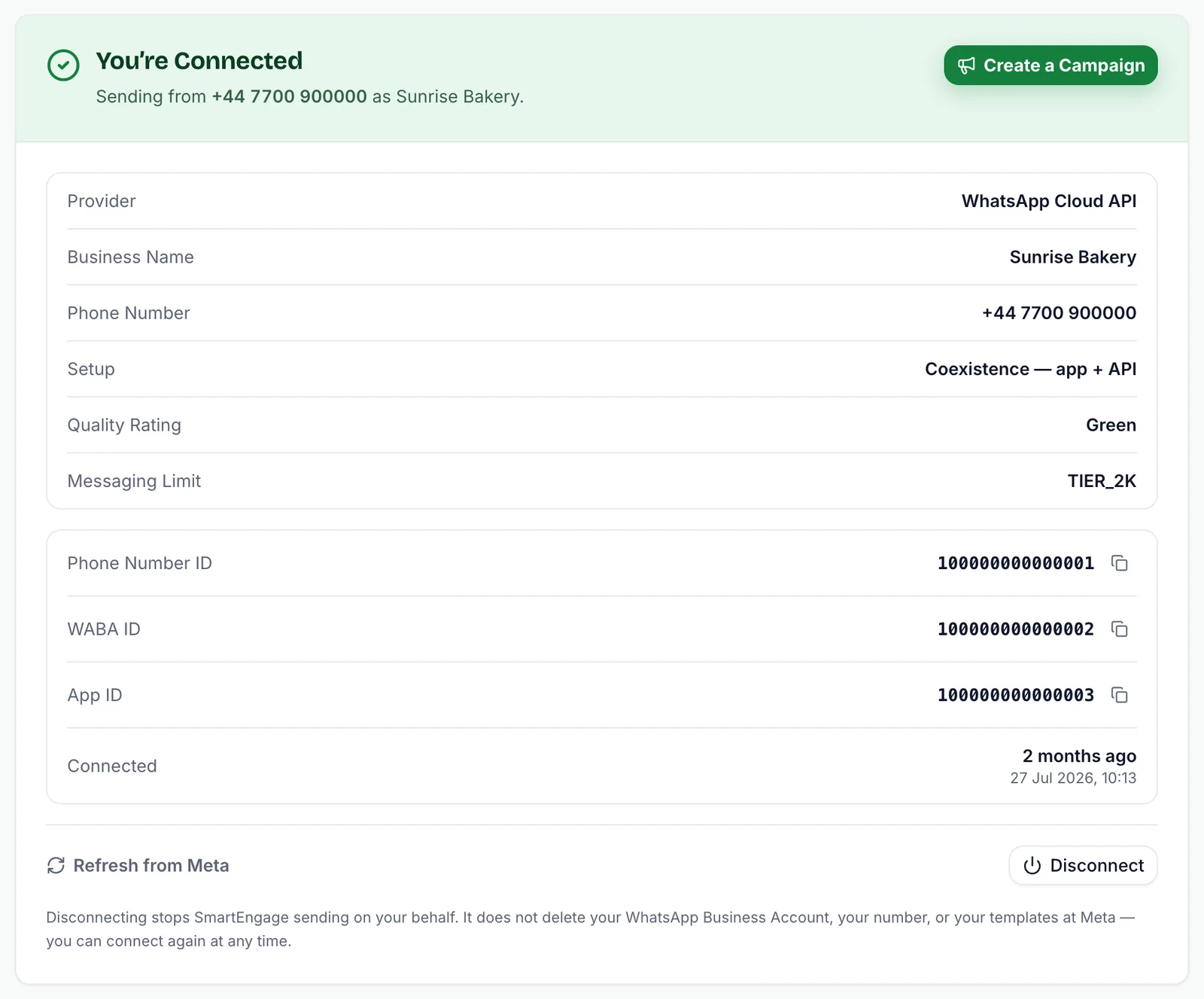
On the SmartEngage Connect page, the WABA ID shown with your connection details is the identifier of the account you connected. Match it against the account in WhatsApp Manager to be certain.
Confirm the Fix in SmartEngage
SmartEngage may not pick up the change straight away, so after adding the card, ask it to check:
- Go back to the Connect page in SmartEngage.
- Choose Refresh from Meta below your connection details.
- Wait for the message "Details refreshed from Meta."
- Check that the "Add a Payment Method in Meta" warning has gone.

If the warning is still there, Meta is still reporting a problem. Check the card was added to the right portfolio and WhatsApp Business Account, and look in WhatsApp Manager for any notice from Meta about the account.
What You Pay, and to Whom
- Meta's message charges: set by Meta, billed by Meta to the card in WhatsApp Manager.
- Your SmartEngage plan: the software, paid to SmartEngage. It does not include or replace Meta's charges.
- SmartEngage's markup on Meta's charges: none.
Current SmartEngage plan prices are on our pricing page.
Common Questions
- Do I need a payment method during the SmartEngage free trial? Yes. The trial covers your SmartEngage plan only. Meta's message charges are separate from it, so your campaigns need the card at Meta even while you are on the trial.
- Can SmartEngage add the card for me? No. Payment methods are added in your own WhatsApp Manager, signed in with your own Facebook account. SmartEngage never sees or stores your card details for Meta.
- Will SmartEngage ever bill me for messages? No. Message charges are always between you and Meta. SmartEngage bills only for your plan.
- I added the card before connecting. Do I need to do anything? Choose Refresh from Meta on the Connect page. If no warning appears, you are set.
Related Guides
Why we do it this way: Why We Add Zero Markup to Your Official WhatsApp Charges.
Still not sending after adding a card? See Why Your Messages Are Not Sending.
For your SmartEngage plan itself, read How Plans, Devices and Billing Work.
With billing sorted, bring in your audience: How to Import Contacts from a CSV File.
Tagged
CostsPricingSetupReady to send safely?
Start free — no new number, no setup fee, no card required.
Keep Reading
 Account & WhatsApp Setup5 min read
Before You Connect WhatsApp: What You Need
Most failed WhatsApp connections fail for a reason that could have been fixed beforehand. Here is what to have in hand before you click Connect With Facebook.
Read guide Troubleshooting6 min read
Fixing Contact Import Problems
Symptom-by-symptom fixes for SmartEngage contact imports: files that will not upload, wrong column mapping, rejected numbers, duplicates and imports that stop.
Read guide Contacts6 min read
How to Add and Edit a Contact
Add a single WhatsApp contact by hand in SmartEngage, choose their book and consent, then edit a saved contact's name, email, book or consent.
Read guide