
Before You Connect WhatsApp: What You Need
Connecting your WhatsApp number to SmartEngage takes about five minutes and happens once. It runs inside Meta's own window, and closing that window part-way cancels everything, so the time to prepare is before you start. This checklist covers what every connection needs, the extra items for each of the two ways to connect, and the one choice that is hard to undo.
SmartEngage
When you click Connect With Facebook on the Connect page, Meta opens a window called Facebook Login for Business. Everything important, from the business portfolio to the phone number, is chosen inside that window, because only Meta may collect it.
That window does not wait for you to go and find a phone or update an app. If you close it to fetch something, the connection is cancelled and nothing is saved. A few minutes of preparation avoids starting again.
First, Decide Which Way You Are Connecting
There are two ways to connect a number, and they need slightly different things:
- Keep using the WhatsApp Business app: the number is already signed in to the WhatsApp Business app, and you want to carry on using it there as well as in SmartEngage. This is known as coexistence.
- Connect a brand-new number: a number that is not signed in to WhatsApp anywhere. Meta creates the business assets as you go, and the number is verified by SMS or a phone call.
Choosing the wrong one is not a small mistake. A number connected as a new number can never be used in the WhatsApp Business app again. If you are unsure, read the comparison linked at the end of this guide before you begin.
What Every Connection Needs
- A signed-in SmartEngage account. Connecting happens from the Connect page inside the app.
- Your Facebook login: the Facebook account that manages your business. You sign in through Meta, so SmartEngage never sees your password.
- A Meta Business portfolio, or be ready to create one in the window. The portfolio is the business account at Meta that owns your WhatsApp assets.
- About five uninterrupted minutes, with the window left open until the final step.
- A browser that can load Facebook. Ad blockers and strict privacy extensions can stop Meta's window from opening.
Don't have an account yet? Start with How to Create Your SmartEngage Account.
You will also need a payment method for Meta's message charges. It does not have to be ready before you connect, but nothing will send until it is added, so it helps to have a card to hand.
When you get to it, follow How to Add a Payment Method for WhatsApp.
If You Are Keeping the WhatsApp Business App
Coexistence links the number you already use in the WhatsApp Business app. Meta proves you own it by talking to the app on your phone, so you need:
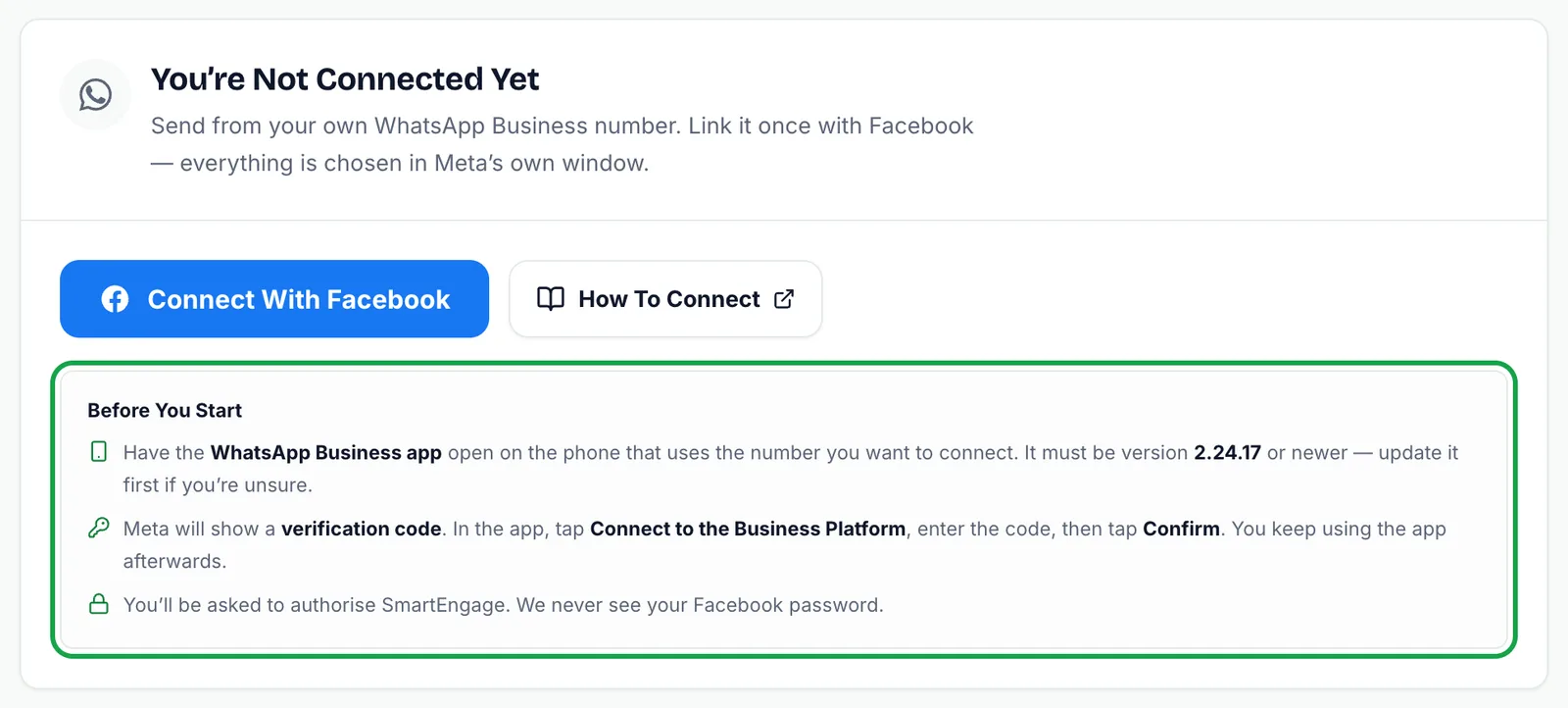
- The phone, in your hand. Meta sends a code to the WhatsApp Business app, or shows a QR code for the phone to scan.
- The WhatsApp Business app at version 2.24.17 or newer. An older version cannot complete the link, so update it from your app store before you start.
- The number on the WhatsApp Business app, not the ordinary WhatsApp app. A number on the consumer app has to be moved to the WhatsApp Business app first.
During the link you confirm on your phone, either by scanning the QR code or by tapping Connect to the Business Platform, entering the code Meta shows, and tapping Confirm. Your business profile, contacts and the last six months of chat history are shared, and you keep full use of the app afterwards.
If You Are Connecting a Brand-New Number
A new number is verified by a six-digit code sent by SMS or a phone call, and becomes a WhatsApp Business account used from SmartEngage rather than from the app. You need:
- A number that can receive an SMS or a call, with the phone or SIM physically with you, not in another room or with a colleague.
- A number that is not signed in to WhatsApp or WhatsApp Business anywhere. If it is, Meta will refuse it.
- Your business details: name, email, category, country and time zone. A website is optional.
The business name you enter is the one WhatsApp shows above the chat, so use the name customers know you by rather than your registered company name.
Know Which Business Portfolio Is Yours
This is the detail that causes the most trouble later. The business portfolio you choose in Meta's window is the one that pays for sending.
If your business already has a portfolio, pick it rather than creating a second one. A card added to the wrong portfolio does not pay for your number, and messages keep failing even though everything looks connected. If several people in your company manage Facebook assets, confirm which portfolio owns the number before you start.
A Quick Pre-Flight Checklist
Tick these off, then open the Connect page:
- I am signed in to SmartEngage.
- I know which Facebook login manages my business.
- I know which business portfolio owns, or will own, the number.
- I have chosen: keep the WhatsApp Business app, or connect a brand-new number.
- Keeping the app: the phone is with me and the app is version 2.24.17 or newer.
- New number: the phone or SIM is with me and the number is not on WhatsApp anywhere.
- I have five minutes and will not close Meta's window until it says it is finished.
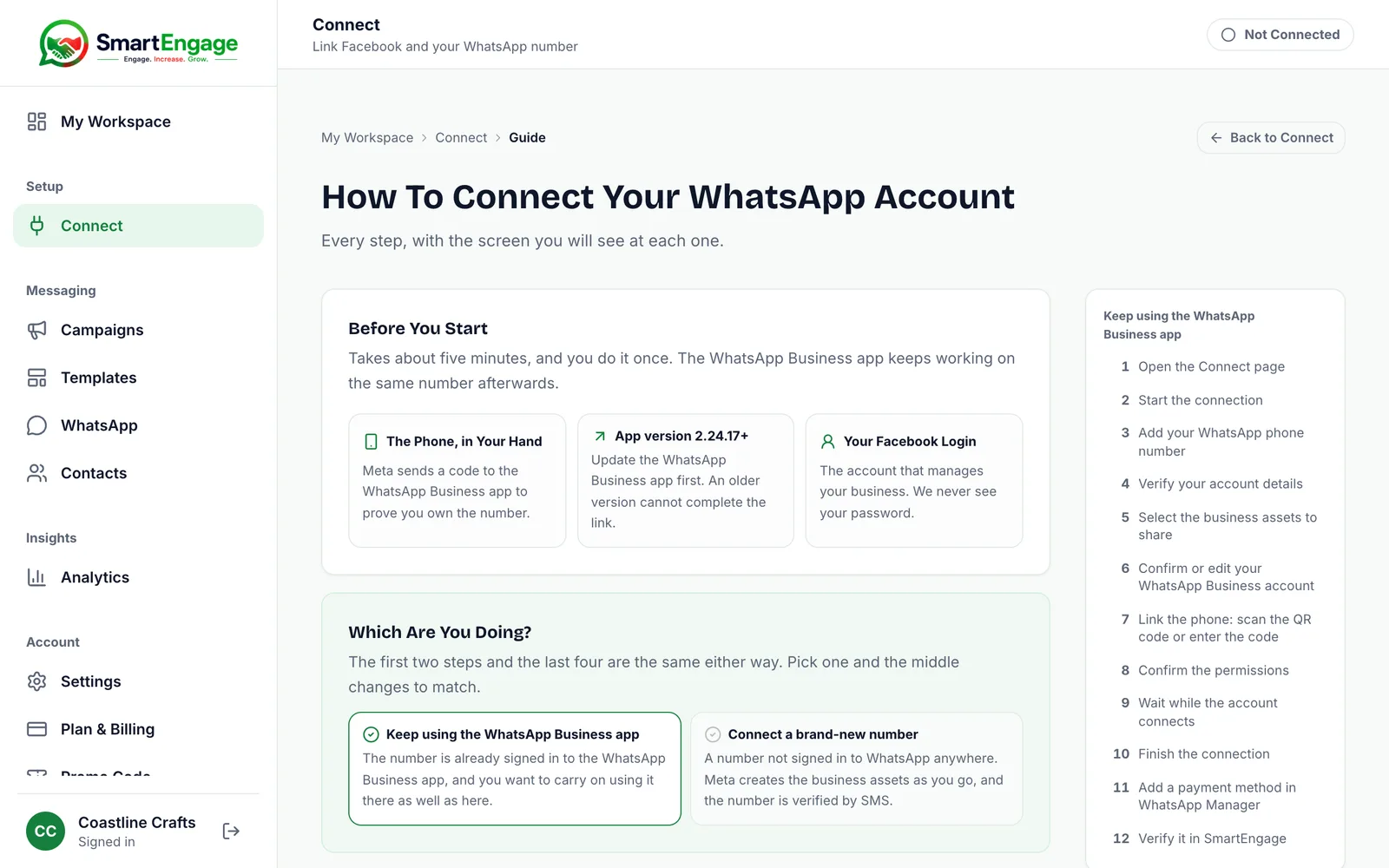
On the Connect page, the How To Connect button opens the full illustrated walkthrough in a new tab, so you can follow it without leaving the connection in progress.
What to Read Next
Not sure which way to connect? Read Coexistence or API-Only: Choosing How to Connect Your Number.
Ready? Follow How to Connect WhatsApp to SmartEngagestep by step.
If a connection has already failed, see Troubleshooting WhatsApp Connection Problems.
Tagged
Getting StartedSetupWhatsApp MarketingReady to send safely?
Start free — no new number, no setup fee, no card required.
Keep Reading
 Troubleshooting6 min read
Fixing Contact Import Problems
Symptom-by-symptom fixes for SmartEngage contact imports: files that will not upload, wrong column mapping, rejected numbers, duplicates and imports that stop.
Read guide Account & WhatsApp Setup5 min read
How to Add a Payment Method for WhatsApp
Connected but nothing sends? Meta bills WhatsApp messages itself, and needs a payment method on the right business portfolio. Here is how to add one and confirm it in SmartEngage.
Read guide Contacts6 min read
How to Add and Edit a Contact
Add a single WhatsApp contact by hand in SmartEngage, choose their book and consent, then edit a saved contact's name, email, book or consent.
Read guide