
How to Refresh or Disconnect Your WhatsApp Connection
Once your WhatsApp number is connected, the Connect page gives you two maintenance controls: Refresh from Meta, which pulls your latest details from Meta, and Disconnect, which stops SmartEngage sending for you. This guide explains what each one changes, what it leaves alone, and how to connect again afterwards.
SmartEngage
Connecting WhatsApp is something you do once. Keeping the connection accurate, and ending it cleanly when you need to, are the jobs that come after. Both happen in the same place, and both are easy to misunderstand: a refresh does less than some people expect, and a disconnect does less than others fear.
Here is exactly what each control does.
Where to Find These Controls
Choose Connect from the sidebar. When your number is connected, the page shows a green panel headed You're Connected, with your provider, business name, phone number, setup type, quality rating and messaging limit, followed by your Phone Number ID, WABA ID and App ID.
Along the bottom of that panel are the two controls this guide covers: Refresh from Meta on the left and Disconnect on the right. You can also reach this page from Settings, where the WhatsApp connection section has a Manage Connection button.

What Refresh From Meta Does
Refresh from Meta asks Meta for the current state of your WhatsApp Business Account and updates what SmartEngage holds. It re-reads:
- Your phone number details, including the display number and verified business name
- Your number's quality rating
- Your number's messaging limit, which caps how many different people it can message in 24 hours
- The speed at which Meta lets your number send, which SmartEngage uses to pace campaigns
- Whether Meta reports anything blocking your account from sending, such as a missing payment method
When it finishes you will see the notice Details refreshed from Meta. Nothing is sent, nothing is deleted, and your templates, contacts and campaigns are untouched.
When to Refresh
SmartEngage reads these details when you connect, but Meta can change them at any time and does not push every change to SmartEngage. Refresh when:
- You have just added a payment method in WhatsApp Manager and want the Add a payment method in Meta warning to clear
- You expect Meta to have raised your messaging limit and want campaigns to use the new figure
- You are about to send a large campaign and want the latest quality rating in front of you
- You have changed your number's details in WhatsApp Manager and want SmartEngage to show them
A refresh also checks that SmartEngage's access still works. If Meta no longer accepts it, for example because access was removed in your Meta business settings, the page changes to You're Not Connected Yet and you will need to connect again.
Refresh does not re-run the connection itself, and it does not change which number or account is linked.
If the Page Says Almost There
Sometimes Meta links your WhatsApp Business Account before it has finished confirming your number. The Connect page then shows Almost There, with a Check Again button and a Start over link.
Check Again runs the same refresh and usually completes the connection within moments. Start over disconnects the half-finished link so you can run Embedded Signup from the beginning. Try Check Again first.
How to Disconnect
Disconnecting takes two clicks, deliberately:
- Press Disconnect at the bottom of the You're Connected panel.
- SmartEngage asks Disconnect this account? Choose Yes, Disconnect to go ahead, or Keep Connected to back out.
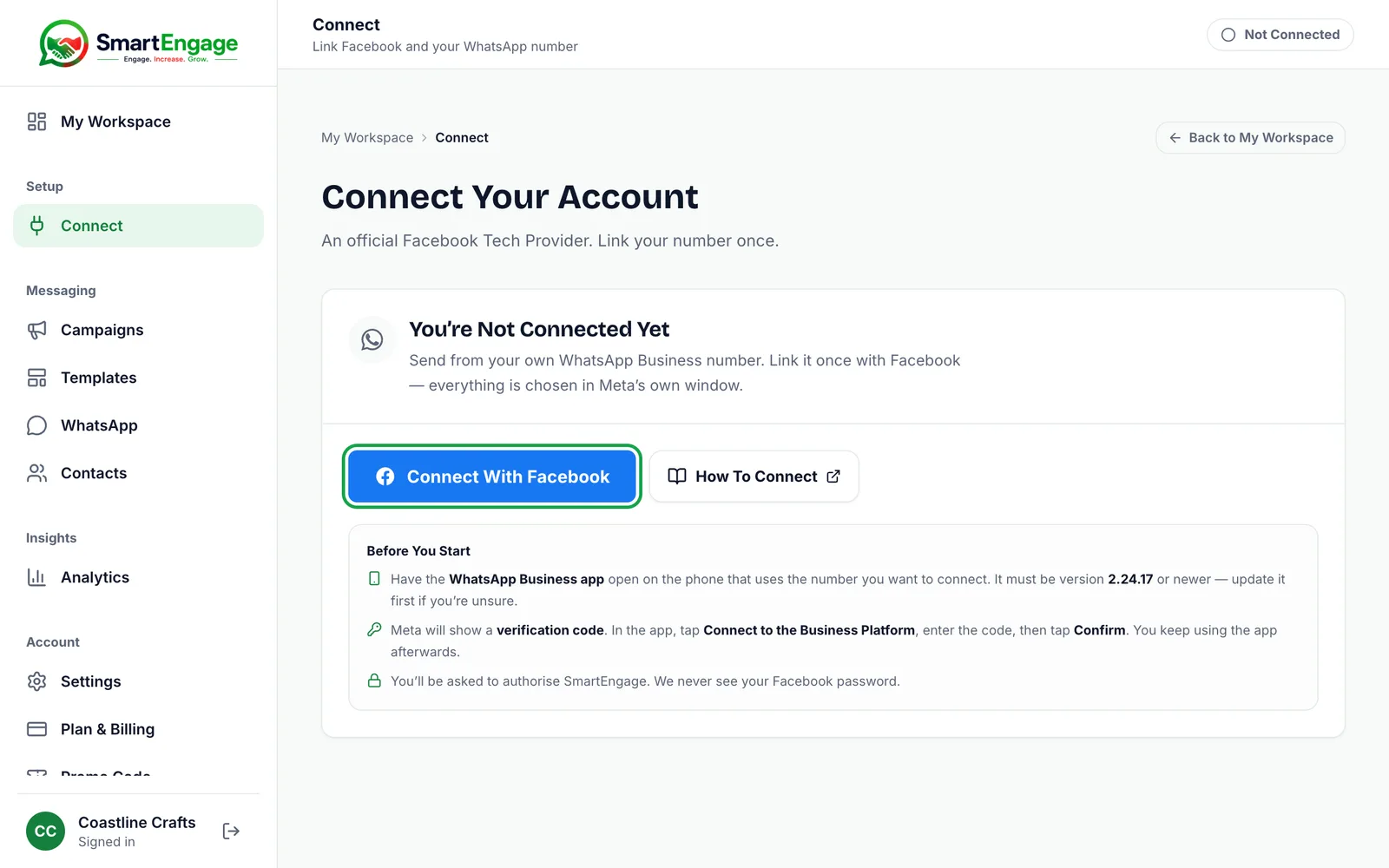
The page then returns to its not-connected state, with the Connect With Facebook button.
What Disconnecting Removes and What It Keeps
Disconnecting stops SmartEngage sending on your behalf. The stored access SmartEngage used to act for your WhatsApp Business Account is cleared, so no campaign or inbox reply can be sent until you connect again.
It does not delete anything at Meta. Your WhatsApp Business Account, your phone number and your templates at Meta all stay exactly as they are.
It also does not withdraw the permission you granted to SmartEngage in Meta's own settings. That is deliberate, so reconnecting later does not mean starting from scratch at Meta. If you want to remove SmartEngage's access at Meta as well, do it from your Meta business settings.
Inside SmartEngage, the record of your WhatsApp Business Account is kept, along with its templates and linked number. Your contacts, campaigns and reports are not affected.
Your WhatsApp Business Account Stays Reserved for You
When you disconnect, SmartEngage keeps your WhatsApp Business Account reserved for your SmartEngage account. Another SmartEngage account cannot connect it and take over your templates, sending history and quality rating.
The same rule works the other way. Once your account has connected a WhatsApp Business Account, that is the one it can connect again. If you try a different one, Embedded Signup finishes but SmartEngage refuses the link with a message such as: You can only connect your previously connected WhatsApp Business Account, followed by its WABA ID. Use that ID to pick the right account in Meta's window.
How to Connect Again
Reconnecting means running Meta's Embedded Signup again. On the Connect page press Connect With Facebook, choose the same business portfolio and WhatsApp Business Account, and confirm the permissions. SmartEngage then restores the connection, re-reads your details from Meta and starts receiving your customers' replies and delivery updates again.
For each screen of Meta's window, follow How to Connect WhatsApp to SmartEngage.
Reconnecting does not start a second free trial. The trial begins the first time you connect and is not repeated.
Related Guides
To read every detail on the Connect page, see How to Check Your Connection and Sending Number.
If connecting again does not go smoothly, read Troubleshooting WhatsApp Connection Problems.
For what the quality rating and messaging limit mean, see Understanding Quality Rating and Messaging Limits.
Tagged
Getting StartedProductSetupReady to send safely?
Start free — no new number, no setup fee, no card required.
Keep Reading
 Account & WhatsApp Setup5 min read
Before You Connect WhatsApp: What You Need
Most failed WhatsApp connections fail for a reason that could have been fixed beforehand. Here is what to have in hand before you click Connect With Facebook.
Read guide Troubleshooting6 min read
Fixing Contact Import Problems
Symptom-by-symptom fixes for SmartEngage contact imports: files that will not upload, wrong column mapping, rejected numbers, duplicates and imports that stop.
Read guide Account & WhatsApp Setup5 min read
How to Add a Payment Method for WhatsApp
Connected but nothing sends? Meta bills WhatsApp messages itself, and needs a payment method on the right business portfolio. Here is how to add one and confirm it in SmartEngage.
Read guide