
How to Create Your SmartEngage Account
Creating a SmartEngage account takes one short form and one code sent to your WhatsApp number. There is no password to invent and no card to enter. This guide goes through every field, explains the checks that run in the background, and shows what to expect on the other side, so your account is set up correctly the first time.
SmartEngage
Your SmartEngage account is the home for everything else: your WhatsApp connection, your contact books, your templates and your campaigns. Getting it right at the start saves you from having to correct details later.
The whole sign-up happens on one page, in two parts. First you enter your details. Then you prove the WhatsApp number is yours by typing in a code, and that code is also how you sign in from then on.
New to SmartEngage? For the big picture first, read What SmartEngage Is and How It Works.
What to Have Ready
Before you open the form, make sure you have:
- The WhatsApp number you want to sign in with, on a phone you have with you, because the verification code is sent to it
- An email address for the account
- Your business name as your customers know it
- Your website address, if you have one. It is optional.
The number you sign in with does not have to be the number you later send campaigns from. That one is chosen separately, when you connect WhatsApp through Meta.
Step 1: Open the Sign-Up Page
Go to the sign-up page. The form is headed "Create Your Account". If you tried to sign in first with a number that has no account, SmartEngage offers a "Create an Account" button that brings the number across, so you do not type it twice.
Step 2: Fill In Your Details
The form asks for the following. Every field is required unless it says otherwise.
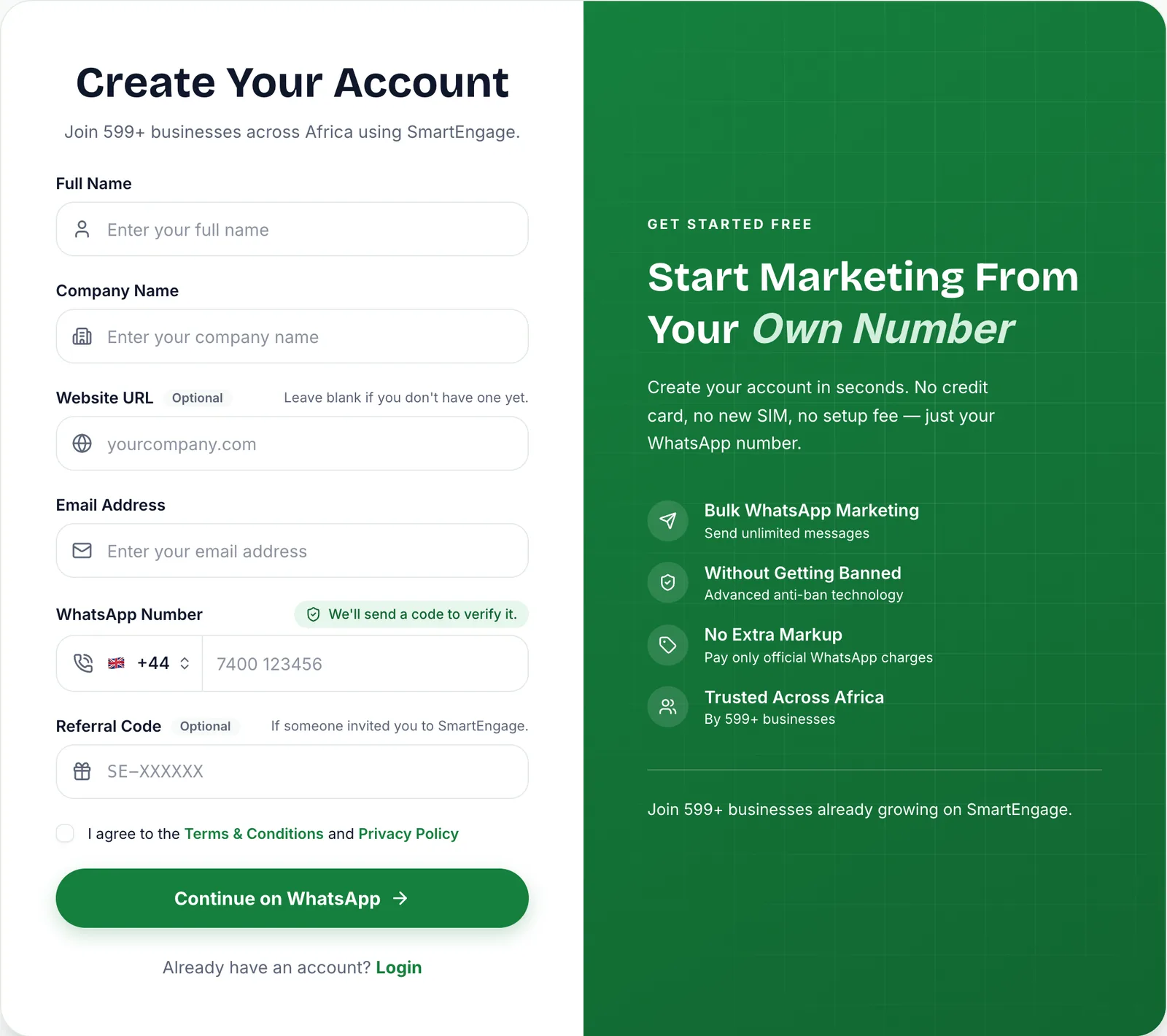
- Full Name: your own name. It is capitalised for you as you type.
- Company Name: the business the account belongs to.
- Website URL: optional. Leave it blank if you do not have a site yet. A bare address such as yourcompany.com is fine; there is no need to type the "https" part.
- Email Address: a working address, in the form name@company.com.
- WhatsApp Number: choose your country from the list, then type the number without the country code, digits only.
- Referral Code: optional. Enter it if someone invited you. It looks like SE-XXXXXX.
The country is usually detected for you, but you can change it. Check it before you continue, because a number with the wrong country code will not receive the code.
If you arrived through an invitation link, you will not see an empty Referral Code field. Instead the form shows "Invited by" with the name of the person who invited you, and the code is applied to your account automatically. If you type a code by hand, SmartEngage checks it when you move to the next field and shows who it belongs to.
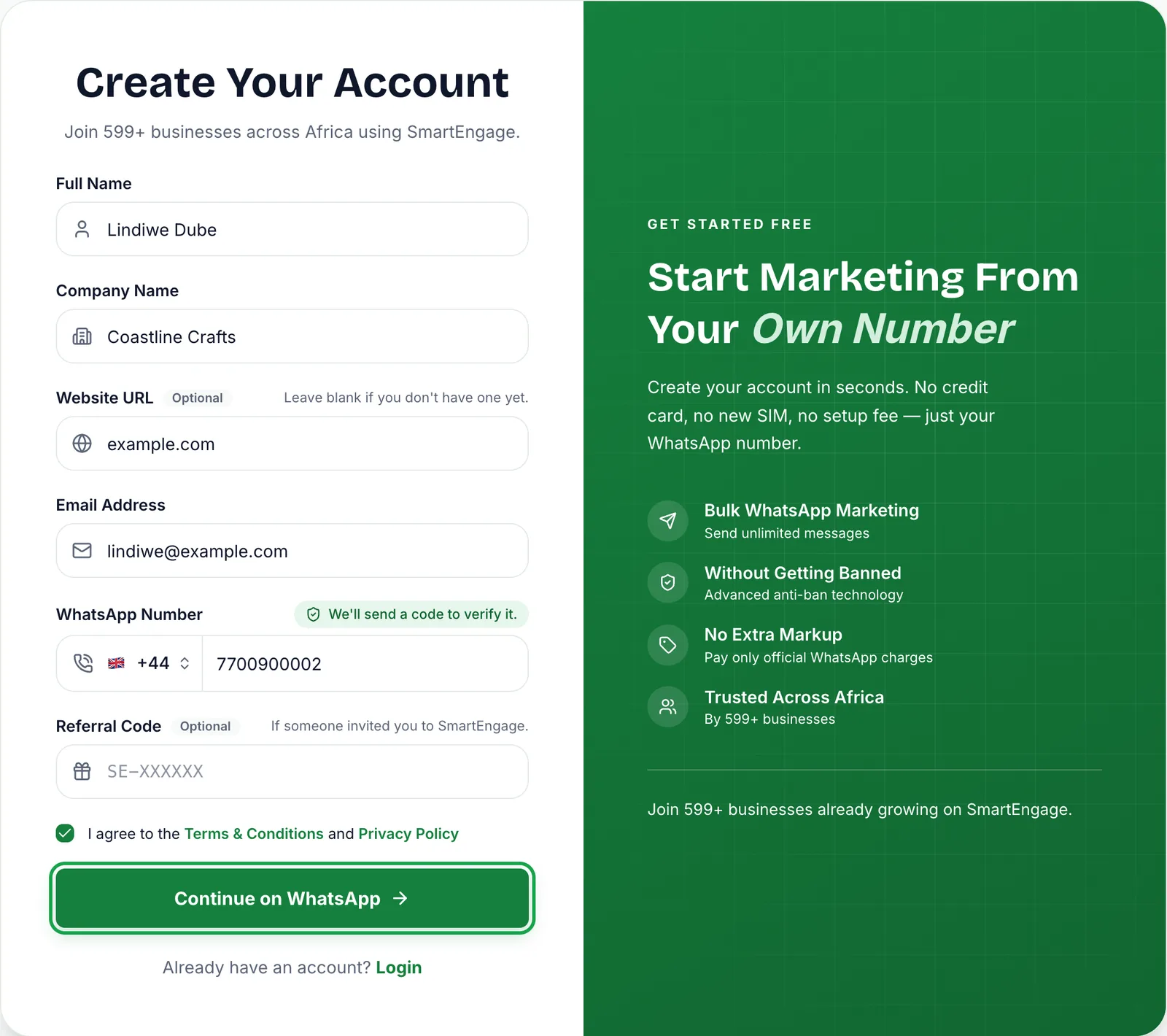
Finally, tick the box to agree to the Terms & Conditions and Privacy Policy. Both open in a new tab if you want to read them first.
Step 3: The Security Check
When you choose "Continue on WhatsApp", SmartEngage runs a quick check in the background to confirm a real person is filling in the form. Most people never notice it.
If the check cannot complete, you will see: "We could not confirm you are human just now. Refresh the page and try again — if it keeps happening, turn off any content blocker for this site." Browser extensions that block scripts are the usual cause.
Step 4: Verify Your WhatsApp Number
Your account is created as soon as the form is accepted, and a six-digit code is sent to your WhatsApp number. The screen changes to "Verify Your WhatsApp" and shows the number the code went to.
- Type the six digits, or paste them. Verification starts on its own once the last digit is in, and "Verify & Continue" is there if you prefer to press it.
- The code is valid for five minutes.
- No code yet? "Resend Code" appears after a 45-second countdown. A number can request up to five codes an hour.
- Spotted a typo in the number? Choose "Use a Different Number" to go back and correct it.
If the code is wrong or has expired, you will see "That code is not correct or has expired. Check it and try again." Request a fresh code rather than retyping an old one.
What Happens Next
Once the code is accepted you are signed in and taken to your dashboard. Your business details from the form are already filled in, so you do not need to enter them again in Settings.
A few things are in place from the first minute:
- A contact book called "My Contacts" is created for you, so imported and hand-added contacts always have somewhere to go.
- Your dashboard shows a two-step checklist: "Connect with Facebook", then "Add Your WhatsApp Number".
- Your free trial has not started yet. It begins when you connect your WhatsApp number, so none of it is spent waiting for Meta.
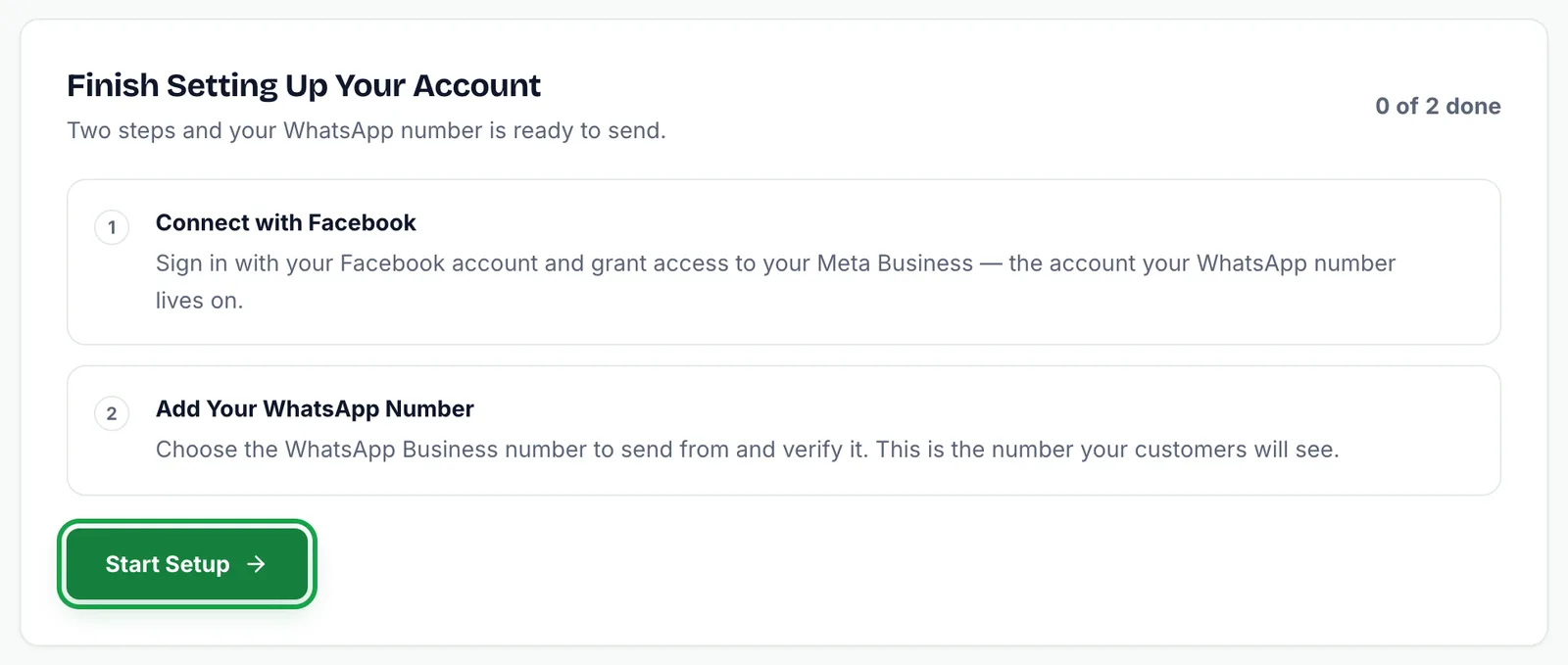
Your next job is to connect the WhatsApp Business number you want to send campaigns from. That happens on the Connect page, through Meta's own signup window.
Messages You Might See
Most sign-ups go straight through. If something stops yours, it will usually be one of these:
- "An account already uses this WhatsApp number. Try signing in instead." The number already has an account. Sign in with it instead of signing up again.
- "An account already uses this email. Try signing in instead." The email is registered to an existing account.
- "That referral code is not recognised." Check the code with the person who gave it to you, or clear the field to continue without it.
- "Too many attempts. Wait a few minutes before trying again." Each number can request up to five codes an hour to protect your account. Wait, then try again.
- "We could not reach the server. Check your connection and try again." Your connection dropped. Nothing is lost; try again when you are back online.
If you closed the page before entering your code, your account still exists. Go to the sign-in page, enter the same WhatsApp number, and verify with the code you receive there.
Next Steps
Learn how passwordless sign-in works in How to Sign In With Your WhatsApp Number.
Then get ready for the most important step with Before You Connect WhatsApp: What You Need.
Ready now? Create your SmartEngage account.
Tagged
Getting StartedProductSetupReady to send safely?
Start free — no new number, no setup fee, no card required.
Keep Reading
 Account & WhatsApp Setup5 min read
Before You Connect WhatsApp: What You Need
Most failed WhatsApp connections fail for a reason that could have been fixed beforehand. Here is what to have in hand before you click Connect With Facebook.
Read guide Troubleshooting6 min read
Fixing Contact Import Problems
Symptom-by-symptom fixes for SmartEngage contact imports: files that will not upload, wrong column mapping, rejected numbers, duplicates and imports that stop.
Read guide Account & WhatsApp Setup5 min read
How to Add a Payment Method for WhatsApp
Connected but nothing sends? Meta bills WhatsApp messages itself, and needs a payment method on the right business portfolio. Here is how to add one and confirm it in SmartEngage.
Read guide