
How to Sign In With Your WhatsApp Number
SmartEngage does not ask you to create or remember a password. You sign in with your WhatsApp number and a six-digit code that is sent to it. This guide explains why it works that way, walks through each screen, and covers the limits that keep your account safe, so you know exactly what to do when a code does not behave as expected.
SmartEngage
If you have signed up for SmartEngage, you already know the routine: you proved your number with a code when you created the account. Signing in afterwards works the same way.
Below you will find the reasoning behind passwordless sign-in, a step-by-step walkthrough, the rules around codes, and the messages you might see along the way.
Why There Is No Password
Passwords get reused, written down, guessed and leaked. A password that does not exist cannot be stolen from another website's breach, and there is nothing to reset when you forget it.
Instead, your WhatsApp number is your identity. Each time you sign in, SmartEngage sends a fresh one-time code to that number. Only someone holding your phone can read it, which makes the phone itself the proof that you are you.
Codes are stored in a scrambled form and expire quickly, and a code that has been used cannot be used again.
Step 1: Enter Your WhatsApp Number
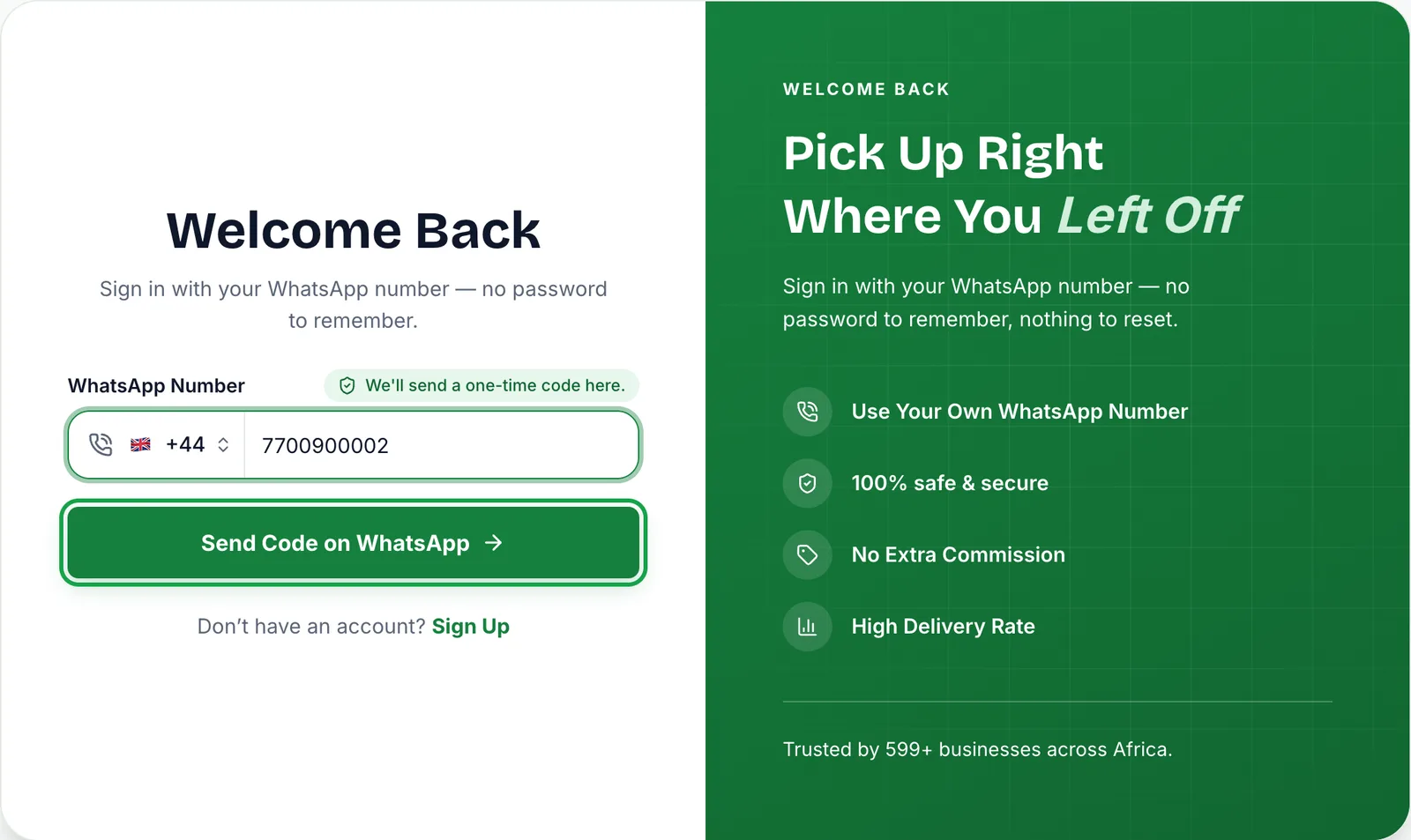
Open the sign-in page. It is headed "Welcome Back", with the line "Sign in with your WhatsApp number — no password to remember."
- Check the country in the WhatsApp Number field. It is usually detected for you, but you can change it.
- Type your number without the country code, digits only.
- Choose "Send Code on WhatsApp".
Use the same number you signed up with. A different number, even one belonging to your business, will not find your account.
As on the sign-up form, a quick check runs in the background to confirm a real person is asking for the code. If it cannot complete, refresh the page, and turn off any content blocker for the site if the message keeps coming back.
Step 2: Enter the Code
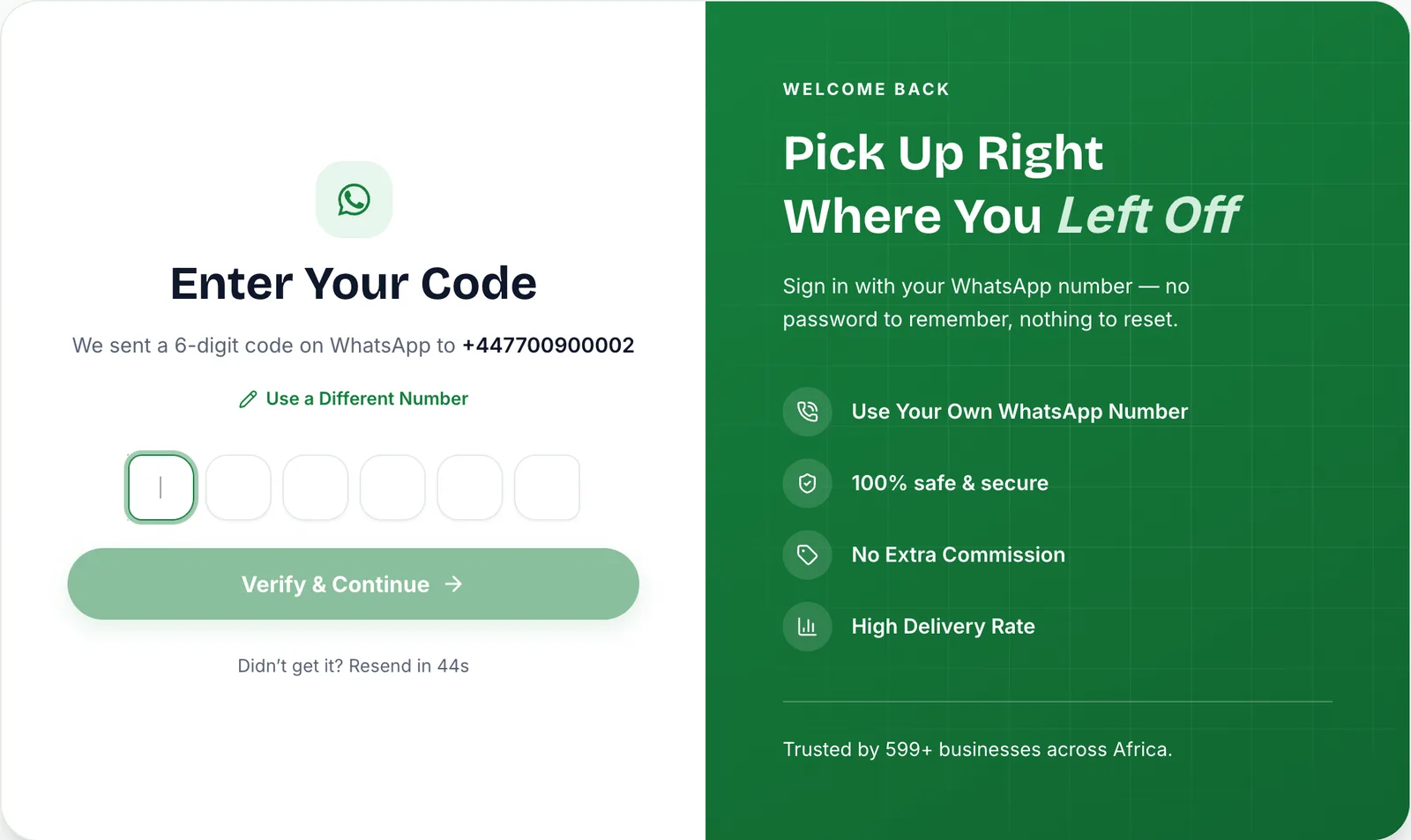
The screen changes to "Enter Your Code" and shows the number the code was sent to. Open WhatsApp on your phone, find the message with your code, and type the six digits into the boxes.
- You can paste the code instead of typing it. Every box fills at once.
- Verification starts on its own when the last digit goes in. "Verify & Continue" is there too, for example if you corrected a digit.
- If you typed the wrong number, choose "Use a Different Number" to go back.
Step 3: You Are Signed In
Once the code is accepted, you are taken to your dashboard, or back to the page you were trying to open before you were asked to sign in.
You stay signed in on that browser, so you will not need a code every time you open SmartEngage. You will need one when you sign in on a new device or browser, or after signing out.
How Long a Code Lasts and How Many You Can Request
A few limits protect your account from anyone trying to guess their way in:
- Each code is valid for five minutes from the moment it is issued.
- Only your latest code counts. Requesting a new one replaces the old one.
- After five wrong guesses, the code stops working and you need a new one.
- "Resend Code" appears 45 seconds after the last code was sent.
- A number can request up to five codes an hour. Beyond that, requests are refused until the hour has passed.
Delivery time depends on WhatsApp and on your phone's connection, so give the message a moment before asking for another. Requesting several codes in quick succession uses up your allowance and does not make any of them arrive faster.
Sign-In and Devices
In SmartEngage, a device means one active sign-in, such as your laptop or a colleague's browser. It is not a WhatsApp number.
Your plan includes a set number of devices. If your account is already at that number when someone signs in on a new browser, SmartEngage makes room by ending the oldest sign-in rather than refusing the new one. Nobody is locked out by a session they cannot see, but it does mean two people sharing a one-device plan will take turns.
Messages You Might See
- "You Need an Account First": there is no account for that number. Check the country and digits, or choose "Create an Account", which carries the number over to the sign-up form.
- "That code is not correct or has expired. Check it and try again.": the code was mistyped, has passed its five minutes, was replaced by a newer one, or has had five wrong guesses. Use the most recent code, or request a fresh one.
- "Too many attempts. Wait a few minutes before trying again.": too many codes have been requested for this number. Wait before asking for another.
- "We could not send the code just now. Please try again.": the code could not be sent at that moment. Try again shortly.
- "We could not reach the server. Check your connection and try again.": your device lost its connection to SmartEngage.
- "Your Account Is Deactivated": the account has been switched off, so signing in is not possible. Use "Contact Support" in the same window to ask for access to be restored.
No account yet? Follow How to Create Your SmartEngage Account.
Keep Your Number Secure
Because your WhatsApp number is your sign-in, protecting it protects your SmartEngage account. Keep a screen lock on your phone, never share a code with anyone, including someone claiming to be from SmartEngage, and if you change numbers, contact us before you lose access to the old one.
Related Guides
Codes not arriving, or stuck on a limit? See Sign-In Problems: Codes, Limits and Errors.
To see and manage the browsers signed in to your account, read How to Manage Devices and Sessions.
Need a hand? Contact our team.
Tagged
Getting StartedProductSetupReady to send safely?
Start free — no new number, no setup fee, no card required.
Keep Reading
 Account & WhatsApp Setup5 min read
Before You Connect WhatsApp: What You Need
Most failed WhatsApp connections fail for a reason that could have been fixed beforehand. Here is what to have in hand before you click Connect With Facebook.
Read guide Troubleshooting6 min read
Fixing Contact Import Problems
Symptom-by-symptom fixes for SmartEngage contact imports: files that will not upload, wrong column mapping, rejected numbers, duplicates and imports that stop.
Read guide Account & WhatsApp Setup5 min read
How to Add a Payment Method for WhatsApp
Connected but nothing sends? Meta bills WhatsApp messages itself, and needs a payment method on the right business portfolio. Here is how to add one and confirm it in SmartEngage.
Read guide