
What SmartEngage Is and How It Works
SmartEngage lets a business send WhatsApp marketing campaigns from its own number, through the official WhatsApp Cloud API, and handle the replies in one shared inbox. This guide explains what that means in practice, who it is built for, and the path from sign-up to your first campaign, so you know what to expect before you start.
SmartEngage
Most businesses already know their customers are on WhatsApp. The hard part is reaching hundreds or thousands of them at once without a second SIM, a tool that breaks WhatsApp's rules, or a spreadsheet of numbers typed in one by one.
SmartEngage is built to solve that problem the proper way. Below you will find what the platform does, how each part fits together, and what Meta, WhatsApp's parent company, expects from you along the way.
What Is SmartEngage?
SmartEngage is a bulk WhatsApp marketing platform. You connect your WhatsApp Business number, bring in your contacts, write messages that Meta approves, and send them as campaigns to the people who want to hear from you. When customers reply, their messages arrive in an inbox your team can answer from.
SmartEngage is an Official Facebook Tech Provider. That means your number is connected through Meta's own onboarding flow and your messages go out on the WhatsApp Cloud API, the channel Meta supports for businesses. You are not relying on an unofficial sender that breaks WhatsApp's rules. The official API, together with sending only to people who opted in, is what protects your number.
In one sentence: SmartEngage is the software, your number stays your number, and Meta's rules keep the channel healthy.
Who SmartEngage Is For
SmartEngage suits any business that talks to customers on WhatsApp and wants to do it at scale, including:
- Retailers and online stores announcing new stock, offers and order updates
- Restaurants and cafés sharing menus, specials and bookings
- Service businesses sending appointment reminders and follow-ups
- Wholesalers and distributors keeping trade buyers informed
- Schools, clinics and membership organisations sending notices
- Agencies running WhatsApp campaigns on behalf of clients
You do not need to be technical. If you can manage a Facebook business page and a contact list, you can run SmartEngage.
How SmartEngage Works: The Journey at a Glance
Every account follows the same path. Each step is covered in more detail below.
- Create your account with your business details.
- Sign in with a one-time code. There is no password to remember.
- Connect your WhatsApp number through Meta's Embedded Signup.
- Add a payment method in Meta's WhatsApp Manager for Meta's own message charges.
- Import your contacts from a file or a connected app.
- Create a message template and submit it to Meta for approval.
- Build a campaign, choose who receives it, and send it now or schedule it.
- Read your results and reply to customers in the inbox.
Step 1: Create Your Account and Sign In
Signing up asks for your full name, your business name, your email address and your WhatsApp number, plus your website if you have one. Your business name and number are how the account is identified, so enter them exactly as your customers know them.
SmartEngage does not use passwords. When you sign in, you enter your WhatsApp number and receive a one-time code. Each code expires after five minutes, and a number can request up to five codes an hour to protect your account. Without a password, there is nothing to leak and nothing to reset.
Step by step: How to Create Your SmartEngage Account.
Step 2: Connect Your WhatsApp Number
This is the most important step. On the Connect page you launch Meta's Embedded Signup, a window run by Meta rather than by SmartEngage. In it you choose or create your Meta Business portfolio and WhatsApp Business Account, pick the phone number to use, and grant SmartEngage permission to send on your behalf.
Before you begin, have these ready:
- A Facebook account that can manage your business
- A Meta Business portfolio, or be prepared to create one during signup
- A phone number that can receive a verification code
- If you want to keep using the WhatsApp Business app on the same number, an up-to-date version of the app on your phone
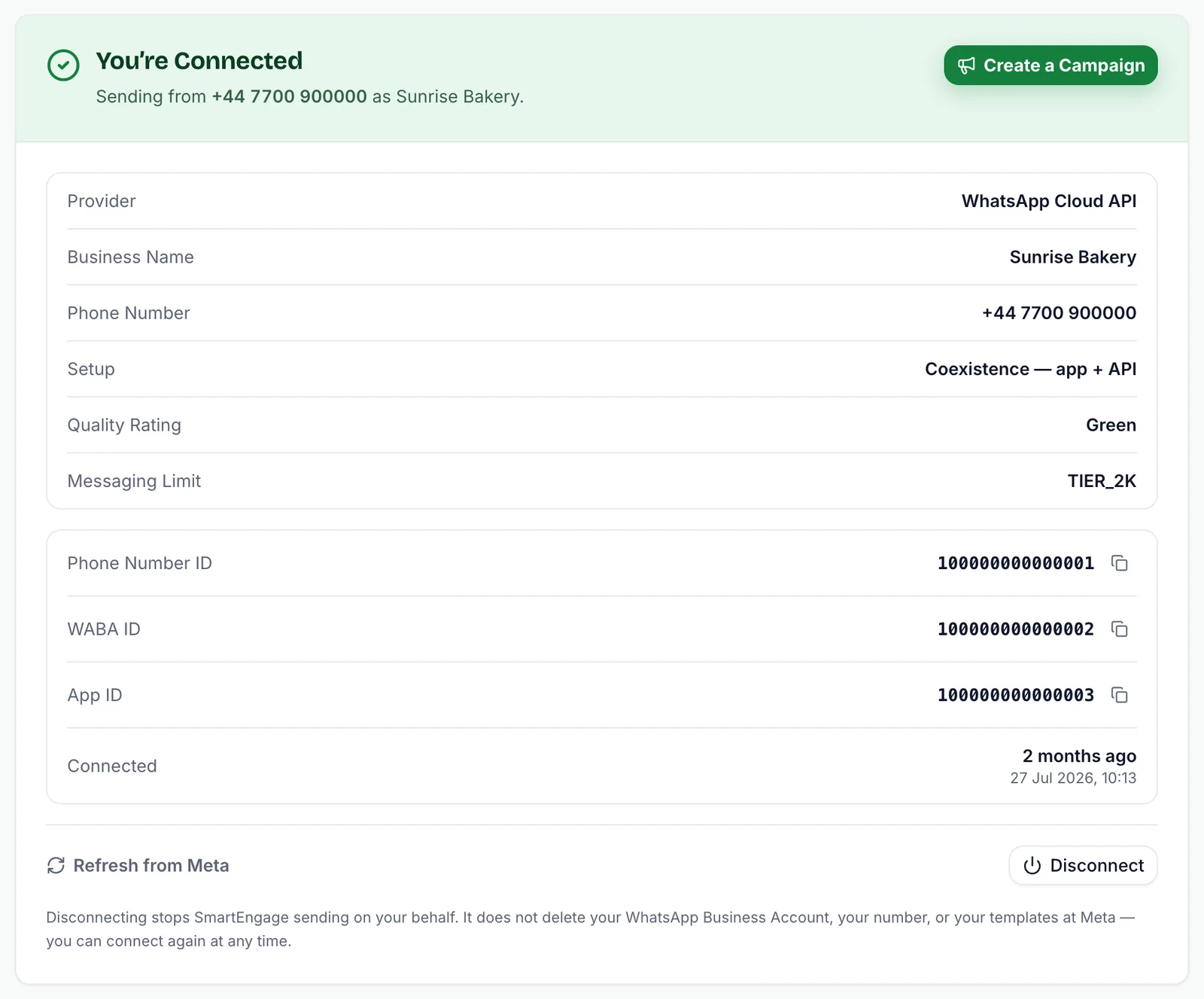
You can usually keep your existing number. With coexistence, the WhatsApp Business app keeps working on your phone while SmartEngage sends campaigns through the API. Alternatively, you can move the number to the API only. The choice is made during Embedded Signup, so decide before you begin.
Once connected, the Connect page shows your business name, your sending number, Meta's quality rating for the number, and your current messaging limit. Connecting your number is also what starts your free trial.
When you are ready, follow How to Connect WhatsApp to SmartEngage.
Step 3: Add a Payment Method at Meta
This step catches out more new users than any other. Meta charges for WhatsApp business messages itself, separately from your SmartEngage plan. Until a payment method is added to the right business portfolio in WhatsApp Manager, a connected number may still be unable to send.
SmartEngage warns you on the Connect page when a payment method is missing. We add no markup: you pay Meta's official rates directly to Meta, and you pay SmartEngage only for the software.
Step 4: Bring In Your Contacts
Contacts live in contact books, which are named lists such as "Wholesale Buyers" or "Newsletter Subscribers". A contact holds a phone number and, optionally, a name, email, company, job title, address, notes and tags.
There are several ways to add contacts:
- Add a single contact by hand
- Upload a CSV, Excel (.xlsx) or vCard (.vcf) file, then map its columns
- Connect Google Contacts and import directly
- Import customers from a Shopify or WooCommerce store
- HubSpot and Mailchimp connections are coming soon. Until then, export a CSV from either and upload that
Every import ends with a summary. Duplicate numbers are detected, invalid numbers are skipped rather than stored, and contacts who have opted out stay opted out. Only message people who have agreed to hear from you. A permission-based list is what keeps your number's quality rating healthy.
Step 5: Create a Message Template
WhatsApp does not let a business start a conversation with a free-form message. The first message must use a template: a pre-written message that Meta reviews and approves before you can send it.
In SmartEngage you write the template yourself. You can add a header (text or media), a body with variables such as the customer's name, a footer, and buttons. Then you choose its category: marketing or utility. Authentication templates are created in WhatsApp Manager instead. Templates you already created in Meta's WhatsApp Manager can be synced in, so you never have to write them twice.
If Meta rejects a template, SmartEngage shows the reason Meta gave, so you can fix the wording and submit it again.
Step 6: Build and Send a Campaign
A campaign pairs an approved template with an audience. You name the campaign, pick the template, fill in any variables, and choose who receives it: a whole contact book or a list of contacts you select. SmartEngage shows how many people the campaign will reach before you send it.
Then you decide when it goes out:
- Send now, and it starts immediately
- Schedule it for a specific date and time
- Pause a sending campaign, and resume it later
- Cancel a campaign you no longer want to finish
How fast a campaign sends depends on your number's messaging limit, which Meta sets and raises over time as your number builds a good track record. SmartEngage works within that limit rather than pushing past it.
Step 7: Read Your Results
Each campaign has a report showing how many messages were sent, delivered, read, failed or skipped, and the status of every individual recipient. When some messages fail, the report groups the failures by reason, and you can retry only the failed messages without sending again to everyone who already received it.
The Analytics page gives you a view across all of your campaigns, so you can see how your WhatsApp marketing is performing over time and not just one send at a time.
Step 8: Reply to Customers in the Inbox
A campaign is the start of a conversation. When a customer replies, their message lands in the SmartEngage inbox, where your team can read the thread and answer, including with images, documents and other media.
WhatsApp gives you 24 hours from the customer's last message to reply freely. After that window closes, you need an approved template to message them again, and SmartEngage tells you when that is the case.
Colleagues signed in to the same account see the same inbox. A conversation can be assigned to the person answering it, and you can filter conversations by unread, assigned, starred or archived, so nothing slips through the cracks.
For a full tour, read How the SmartEngage Inbox Works.
Plans, the Free Trial and Devices
SmartEngage starts with a free trial, which begins when you connect your WhatsApp number. After the trial, you choose a monthly or yearly plan. Meta's message charges are always separate and are paid directly to Meta.
One term is worth clarifying: in SmartEngage, a device is one active sign-in, such as your laptop or a colleague's browser. It is not an extra WhatsApp number. Your plan includes a set number of devices, and you can add more if your team needs them.
Current prices and trial limits are on our pricing page.
What SmartEngage Will Not Do
Being clear about limits saves you surprises later:
- It will not send outside WhatsApp's rules. Templates, opt-in and the 24-hour window apply to everyone on the official API.
- It will not message people who have opted out.
- It cannot get a template approved that breaks Meta's policies.
- It does not replace Meta's billing. Message charges are paid to Meta, not to SmartEngage.
These rules are what protect your number. A tool that ignores them is the fastest route to a ban.
Get Started
Setting up usually takes an afternoon: create your account, connect your number, add a payment method at Meta, import a contact book and submit your first template. Once Meta approves the template, you can send your first campaign the same day.
Before you write your first template, read WhatsApp Message Templates Explained: Categories, Approval and Cost.
Ready to try it? Start your free trial.
Ready to send safely?
Start free — no new number, no setup fee, no card required.
Keep Reading
 Account & WhatsApp Setup5 min read
Coexistence or API-Only: Choosing How to Connect Your Number
There are two ways to connect a WhatsApp number to SmartEngage. One keeps the WhatsApp Business app working; the other ends the number's life in the app for good. Here is how to choose.
Read article Contacts6 min read
Duplicates, Invalid Numbers and Opt-outs Explained
Why some rows in a SmartEngage import are skipped or refused, how duplicates are detected, what makes a number invalid, and what opting out actually does.
Read article Contacts6 min read
How Contacts and Contact Books Work in SmartEngage
What a contact holds, what a contact book is, and how the people you keep in SmartEngage become the audience for a WhatsApp campaign.
Read article