
How to Share Your WhatsApp QR Code
A QR code is one of the easiest ways to turn someone in your shop, at your stall or reading your flyer into a WhatsApp conversation. SmartEngage includes a QR code generator for exactly that. This guide shows where to find it, how to make a code, what happens when someone scans it, and where to put it.
SmartEngage
Most people will not type a phone number into WhatsApp just to ask a question. They will point their camera at a code. A WhatsApp QR code removes every step between noticing your business and messaging it.
The generator is easy to miss because it sits in the Account section of the sidebar, under WhatsApp QR. It takes about a minute to use.
What the QR Code Does
The code holds a WhatsApp chat link for your number. When someone scans it with their phone camera, WhatsApp opens a chat with your business. If you added a prefilled message, it is already typed in the message box, so all they have to do is press send.
Nothing is sent automatically. The customer chooses to send the message, which makes a QR code a friendly, low-pressure way to start a conversation.
Step 1: Open the WhatsApp QR Page
In the sidebar, under Account, click WhatsApp QR. The page is headed WhatsApp QR Code. On the left are the settings for your code, and on the right is a preview. Until you enter a number, the preview says Enter your number to generate the code.
Step 2: Enter Your WhatsApp Business Number
In the WhatsApp Business number field, choose your country code and type the number. SmartEngage suggests a country code based on where you are, and you can change it.
Use the number you connected to SmartEngage. That way, the conversations the code starts arrive in your SmartEngage inbox, where your team can answer them. The generator does not fill the number in for you, so check it carefully.
Step 3: Add a Prefilled Message (Optional)
The Prefilled message box is optional, but it is worth using. Whatever you type here is waiting in the chat box when the customer opens WhatsApp.
A good prefilled message tells you where the customer came from and what they want. For example:
- Hi, I saw your poster and would like today's specials.
- Hello, I'm interested in booking an appointment.
- Hi, I'd like to hear about new stock. (Code on packaging)
The message can be up to 300 characters, and a counter shows how many you have used. Keep it short: every character goes into the code, and a shorter message makes a simpler code that is easier for a phone camera to read from a distance.
Step 4: Check the Code
As soon as the number is valid, the QR code appears in the preview and the Chat link is shown underneath the message box, with a Copy button.
Before you print anything, press Test. It opens the chat link in a new tab so you can confirm it goes to the right number with the right message. Scanning the preview with your own phone is a good second check.
Step 5: Download or Share It
Under the preview are two download buttons:
- Download PNG saves a high-resolution image, ideal for social media posts, documents and most printing.
- SVG saves a vector file that stays sharp at any size, which suits a printer or designer producing large signs or packaging.
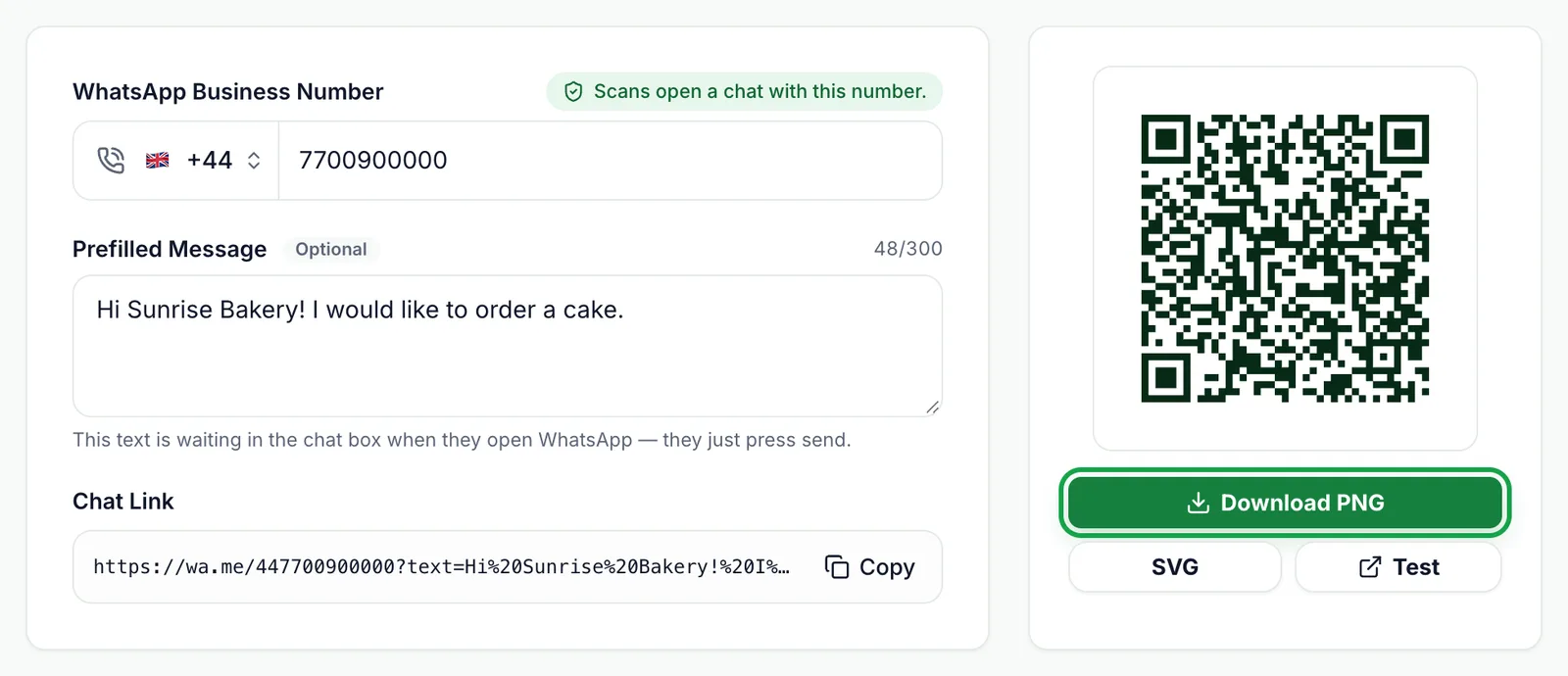
To share online, press Copy next to the Chat link and paste it anywhere a link works: your website, email signature, social media profile or an online ad. The link does the same job as the code, just without the camera.
The code is created entirely in your browser. Your number is not sent to any outside QR service.
What Happens When Someone Scans It
When the customer sends the message, it arrives on your WhatsApp number like any other. If that number is connected to SmartEngage, the conversation appears on the WhatsApp page straight away.
- Their message opens the 24-hour reply window, so your team can answer in your own words.
- If the number is new to you and your plan has room, SmartEngage adds it to your default contact book, using the name on the customer's WhatsApp profile.
- Unless the customer edits it, their first message is your prefilled text, which tells you which code they scanned.
To make the most of that first reply, read The 24-Hour Reply Window Explained.
A customer messaging you is not the same as agreeing to marketing. Answer their question, and if you want to add them to future campaigns, ask whether they would like to receive offers from you.
Where to Use Your QR Code
Anywhere customers see your brand in person is a good spot:
- Flyers, posters and shop windows
- Receipts, invoices and delivery notes
- Product packaging and labels
- Table tents and menus in restaurants and cafés
- Business cards and stands at events
- Social media posts and stories
If you use codes in several places, give each one a different prefilled message. You will then know which poster, product or event each new conversation came from.
Printing Tips
- Print the code large enough to scan easily. A code on a poster across a room needs to be much bigger than one on a receipt.
- Leave the white border around the code. Scanners rely on it.
- Keep a dark code on a light background, as it is generated.
- Add a short line next to it, such as Scan to chat with us on WhatsApp, so people know what it does.
Next Steps
Once the messages start arriving, read How the SmartEngage Inbox Works.
For more ways to build a list of willing customers, see Growing a WhatsApp List People Want to Be On.
Tagged
ConversationsGrowthOpt-InReady to send safely?
Start free — no new number, no setup fee, no card required.
Keep Reading
 Account & WhatsApp Setup5 min read
Before You Connect WhatsApp: What You Need
Most failed WhatsApp connections fail for a reason that could have been fixed beforehand. Here is what to have in hand before you click Connect With Facebook.
Read guide Troubleshooting6 min read
Fixing Contact Import Problems
Symptom-by-symptom fixes for SmartEngage contact imports: files that will not upload, wrong column mapping, rejected numbers, duplicates and imports that stop.
Read guide Account & WhatsApp Setup5 min read
How to Add a Payment Method for WhatsApp
Connected but nothing sends? Meta bills WhatsApp messages itself, and needs a payment method on the right business portfolio. Here is how to add one and confirm it in SmartEngage.
Read guide