
The 24-Hour Reply Window Explained
WhatsApp has one rule that surprises almost every new business user: you can reply to a customer in your own words for 24 hours after their last message, and not after that. This guide explains what the window is, why it exists, how SmartEngage shows it in the inbox, and what to do when it has closed.
SmartEngage
Picture it. A customer asks about a product on Monday morning. Your team is busy, and someone gets round to answering on Tuesday afternoon. They type a helpful reply, press Send, and nothing goes. That is the 24-hour reply window at work.
It is not a SmartEngage limit. It is a rule Meta applies to every business on the WhatsApp Cloud API, and understanding it saves a lot of confusion.
What the 24-Hour Reply Window Is
Every time a customer sends a message to your WhatsApp Business number, a 24-hour window opens. Inside that window you can reply however you like: plain text, a photo, a document, a quoted reply. Meta calls this the customer service window.
The clock starts from the customer's most recent message, not from the first one. Each new message from them restarts the 24 hours. Your own messages do not restart it, and neither does a campaign you send.
When 24 hours pass without a new message from the customer, the window closes. From then on, WhatsApp only accepts an approved message template from your business until the customer writes again.
Why WhatsApp Has This Rule
WhatsApp is a personal messaging app first. People put up with messages from businesses because they asked for them, or because they are in the middle of a conversation. Meta's rule protects that.
- Inside the window, the customer has just spoken to you, so a free-form answer is expected and welcome.
- Outside it, the business is starting the conversation. Meta wants that first message to be a template it has reviewed, so customers are not flooded with unreviewed promotions.
- Templates carry a category, such as marketing or utility, which is how Meta applies its own rules and charges to business-initiated messages.
Every provider on the official API works under the same rule. A tool that claims to get round it is not using the official channel, and that puts your number at risk.
For how templates are categorised and approved, read How WhatsApp Message Templates Work.
How SmartEngage Shows the Window
SmartEngage checks the window before it sends anything, so you find out before you type a long reply, not after Meta refuses it. You will see it in three places on the WhatsApp page:
- The customer details panel shows a badge that reads Open for a free reply while the window is open, or Reply window closed once it has passed.
- While the window is open, the normal message box is at the bottom of the thread, with the options to attach a file and quote a message.
- Once it has closed, the message box is replaced by a notice that says when the window closed and that WhatsApp now allows only an approved template, together with a Send a Template button.
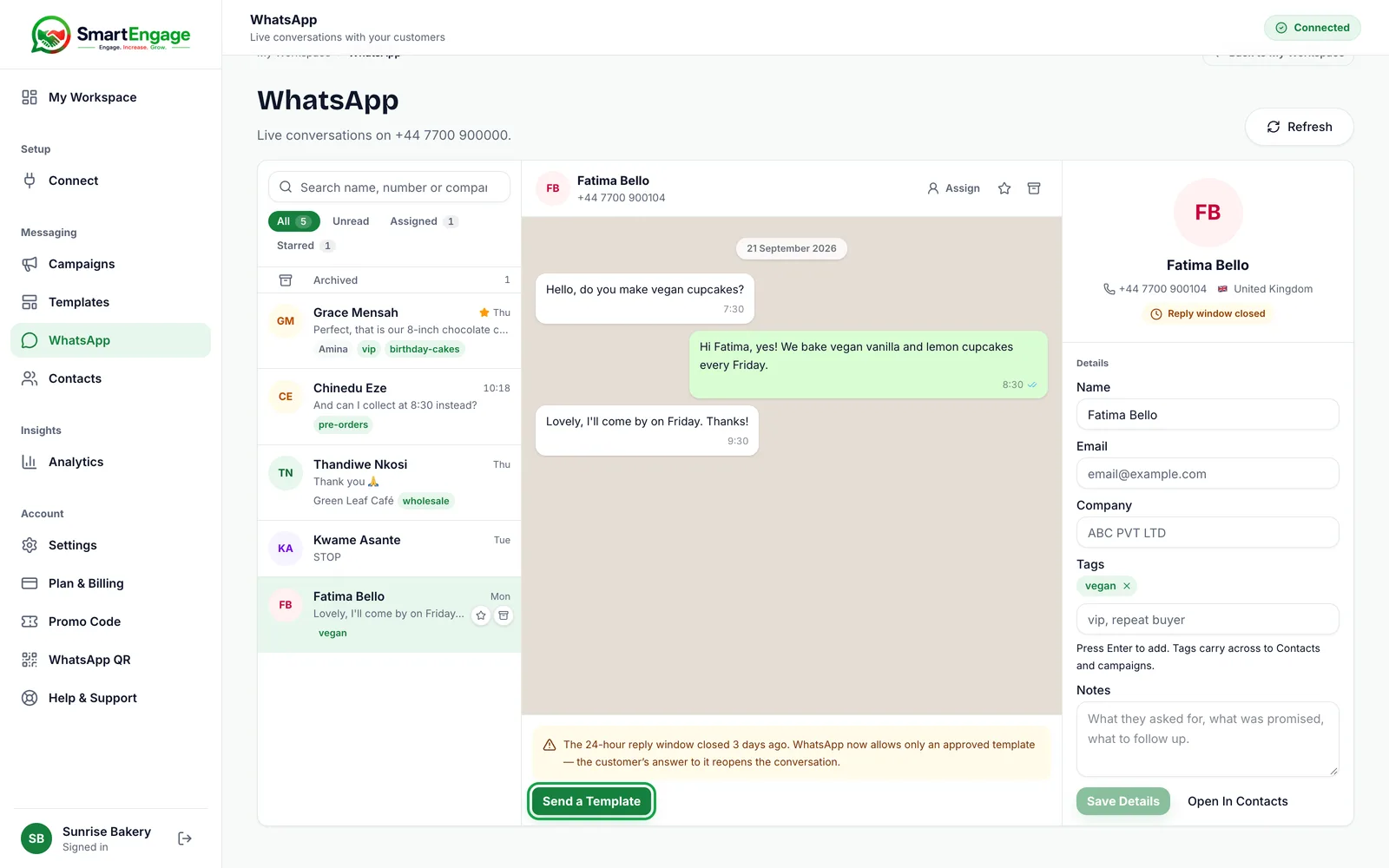
If a free-form message is attempted after the window has closed, for example from a screen left open, SmartEngage refuses it rather than passing it to Meta to fail. The message reads "The 24-hour reply window has closed. Use Send a Template in this conversation to reopen it."
How to Reopen a Conversation With a Template
When the window has closed, the way back is an approved template. You can send one without leaving the conversation.
- Open the conversation on the WhatsApp page.
- Press Send a Template under the notice at the bottom of the thread.
- Pick one of your approved templates from the list. Each one shows its name, language and a preview of its wording.
- Fill in any values the template needs. SmartEngage pre-fills them with the example values the template was approved with, so check they suit this customer.
- Press Send Template.
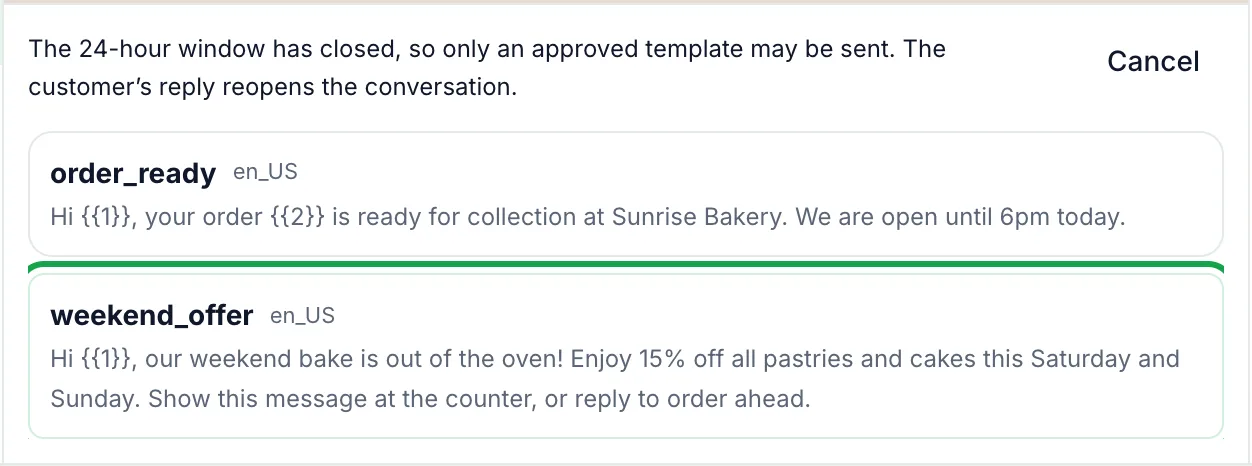
The template appears in the thread showing the words the customer actually received. When the customer replies, a fresh 24-hour window opens and the normal message box comes back.
If you have no approved templates, SmartEngage says so and offers a Create a Template button. Meta has to approve a new template before it can be sent, so it is worth having at least one general follow-up template ready before you need it.
Inside the Window, Just Reply
While the window is open, the inbox gives you the normal message box and no template option. The Send a Template button only appears once the window has closed, because until then a reply in your own words is all you need. Campaigns are different: every campaign message is an approved template, so a campaign reaches each contact whether or not they have a window open.
What Does Not Open the Window
A few situations catch people out:
- Sending a campaign does not open a window. Only a message from the customer does.
- A customer reading your message does not open it. They have to send something back.
- Replying yourself does not extend it. If the customer went quiet 23 hours ago, you have about an hour left however many messages you send.
A customer tapping a quick-reply button on one of your templates does count as a message from them, so it opens a new window.
Practical Tips for Working With the Window
- Check the inbox at least once a day. Most closed windows are simply replies that waited too long.
- Use the Unread tab to see who is waiting on you first.
- When a conversation will need a follow-up later, such as a delivery date or a quote, say so and ask the customer to reply when they are ready. Their reply reopens the window.
- Keep one or two approved follow-up templates for picking conversations back up, so you are never stuck waiting for approval.
- Respect opt-outs. When a customer replies STOP, SmartEngage marks them as opted out and campaigns skip them until they reply START. Do not use a one-to-one template to chase someone who has asked you to stop.
For more on how opt-outs work, read Duplicates, Invalid Numbers and Opt-outs Explained.
Related Guides
The reply window is one of a handful of WhatsApp rules that shape how the inbox works.
For a tour of the whole screen, read How the SmartEngage Inbox Works.
To get a follow-up template ready, see How to Create a Message Template.
Ready to send safely?
Start free — no new number, no setup fee, no card required.
Keep Reading
 Account & WhatsApp Setup5 min read
Coexistence or API-Only: Choosing How to Connect Your Number
There are two ways to connect a WhatsApp number to SmartEngage. One keeps the WhatsApp Business app working; the other ends the number's life in the app for good. Here is how to choose.
Read article Contacts6 min read
Duplicates, Invalid Numbers and Opt-outs Explained
Why some rows in a SmartEngage import are skipped or refused, how duplicates are detected, what makes a number invalid, and what opting out actually does.
Read article Contacts6 min read
How Contacts and Contact Books Work in SmartEngage
What a contact holds, what a contact book is, and how the people you keep in SmartEngage become the audience for a WhatsApp campaign.
Read article