
How the SmartEngage Inbox Works
Every campaign you send can start a conversation, and every conversation lands in one place: the WhatsApp page in SmartEngage. This guide explains where those conversations come from, how the screen is laid out, and how to reply, so you can answer customers from the same account you market from.
SmartEngage
Sending a campaign is only half of WhatsApp marketing. The other half is what happens when a customer writes back with a question, an order or a simple thank you. If those replies are scattered across a phone in someone's pocket, they get missed.
SmartEngage keeps them together. The inbox lives on the WhatsApp page, under Messaging in the sidebar, and shows live conversations on the number you connected.
Before You Start: Connect Your Number
Conversations arrive on your own WhatsApp Business number, so the inbox only works once that number is connected. Until then, the WhatsApp page shows a Connect Your Number First message with a button that takes you to the Connect page.
If you have not connected yet, follow How to Connect WhatsApp to SmartEngagefirst.
Where Conversations Come From
A conversation appears the moment a customer sends a message to your connected number. That can happen in several ways:
- A customer replies to one of your campaigns
- A customer taps a button on a template you sent
- Someone scans your WhatsApp QR code or opens your chat link
- A customer who already has your number simply writes to you
To start conversations from posters, packaging or your shop counter, see How to Share Your WhatsApp QR Code.
Each conversation is tied to a phone number. If that number is already one of your contacts, the thread shows the contact's name. If it is not, SmartEngage uses the name the customer set on their own WhatsApp profile and, as long as your plan has room for another contact, adds the number to your default contact book so you can include them in future campaigns.
For how the default contact book fits in, read How Contacts and Contact Books Work in SmartEngage.
How the Screen Is Laid Out
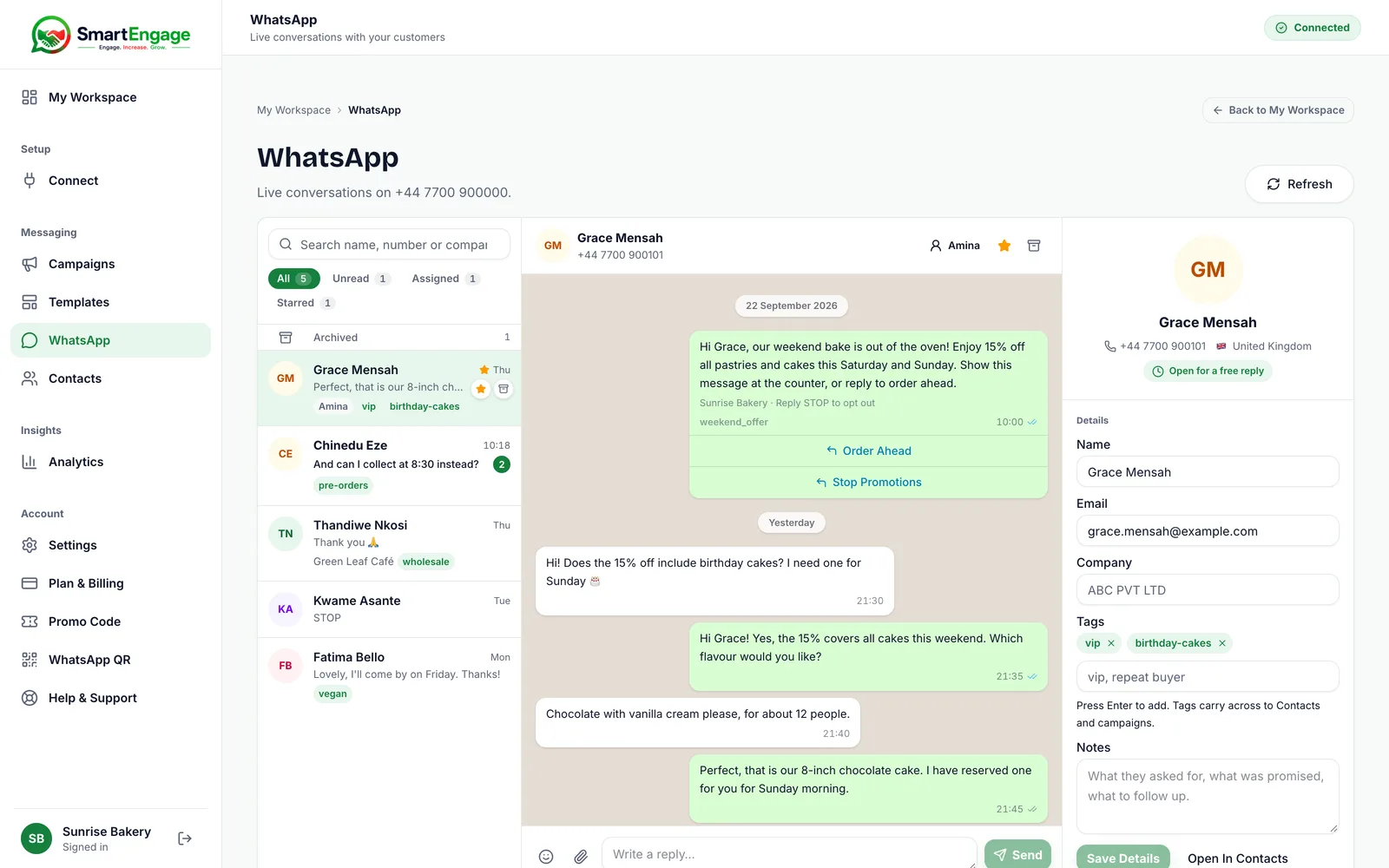
On a desktop the WhatsApp page is split into columns. On a phone you see one column at a time, and a back arrow takes you from a thread to the list.
- The conversation list on the left, newest activity first, with a search box and filter tabs
- The open thread in the middle, with the message box at the bottom
- Customer details on the right on a wide screen, or behind the Customer details button in the thread header on a smaller one
Until you choose a conversation, the middle column says Pick a Conversation. New messages appear as they are sent, with no need to reload the page. If you ever want to force a fresh copy of the list, use the Refresh button at the top of the page.
Finding a Conversation
The search box above the list matches a customer's name, phone number, email address or company. The tabs underneath narrow the list to All, Unread, Assigned or Starred, and each tab shows a count. Conversations you have archived sit behind a separate Archived row at the top of the list.
A conversation reaches the Assigned tab when someone presses Assign in its thread header and chooses an owner from the people in your workspace, including yourself. Choosing Unassigned takes it off the tab again.
Assigning, starring, archiving and the unread view are covered in How to Organise Conversations with Your Team.
Reading a Thread
Click a conversation to open it. Messages are shown oldest to newest, grouped under a day label, and the thread scrolls to the latest message. Opening a thread also clears its unread count and tells WhatsApp the message has been read.
Customers send more than text, and the thread shows it. Photos, videos, voice messages, documents, stickers, shared locations and contact cards all appear in the thread. If a customer sends something WhatsApp cannot pass on to businesses, such as some newer app features, it is shown as an unsupported message rather than silently dropped.
Your own messages show a small status mark: sending, sent, delivered or read. A message that failed is marked as failed, with the reason underneath, so you know it did not arrive.
Replying to a Customer
When the conversation is open for a reply, the message box sits at the bottom of the thread. Type your reply and press Send. WhatsApp allows up to 4,096 characters in a single text message, and SmartEngage shows a counter as you get close.
You can also:
- Quote a specific message by choosing Reply on it, so the customer sees exactly what you are answering
- React to a message with an emoji, or insert emoji into your reply
- Attach a photo, video or document up to 5 MB, with an optional caption
The 5 MB limit is SmartEngage's own, not WhatsApp's. For a larger file, send it from the WhatsApp Business app on your phone instead.
When the Reply Window Has Closed
WhatsApp only lets a business reply in its own words for 24 hours after the customer's last message. Once that window closes, the message box is replaced by a notice saying when the window closed and that only an approved template can be sent, with a Send a Template button underneath.
If a reply is sent just after the window has closed, for example from a screen left open, SmartEngage refuses it with the message "The 24-hour reply window has closed. Use Send a Template in this conversation to reopen it." Nothing is passed to WhatsApp.
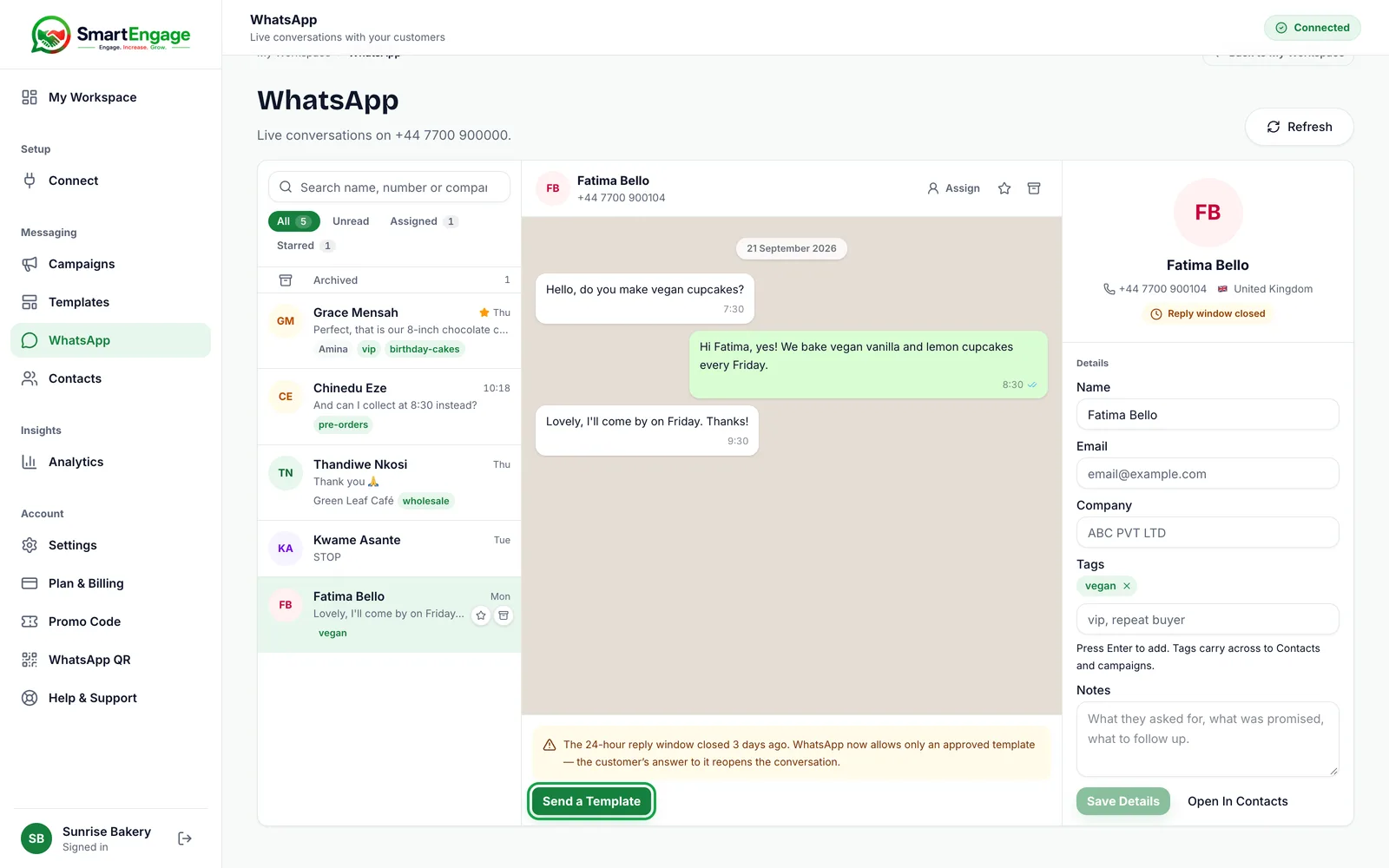
Press Send a Template, choose one of your approved templates, fill in any values it needs, and press Send Template. When the customer answers, the window opens again and the normal message box comes back.
The rule is explained in full in The 24-Hour Reply Window Explained.
The Customer Details Panel
The panel beside the thread shows who you are talking to: their number and country, and whether the conversation is open for a free reply or the reply window has closed. It has three parts:
- Details, where you can record a name, email, company, tags and notes, then press Save Details. If the number is not a contact yet, saving creates one, and everything you enter is kept on that contact record.
- Campaign History, listing the campaigns this number has received and what happened to each message
- Activity, with counts of messages received and sent, when the customer first and last wrote, and whether they have opted out of marketing
You can also add a photo for the customer. WhatsApp does not share customers' profile pictures with businesses, so any photo here is one your team adds.
Opt-Outs Are Handled for You
If a customer replies with STOP or UNSUBSCRIBE, SmartEngage marks their contact as opted out and sends a short confirmation, so they know the request was heard. Campaigns then skip that number. If they later reply START or SUBSCRIBE, they are subscribed again and told so.
Keywords are matched as the whole message, not as part of a sentence, so a customer who writes "please don't stop the offers" is not unsubscribed by mistake.
Keep Going
The inbox is where campaigns turn into sales, so it is worth checking every day. A fast, helpful reply also keeps customers engaged, which helps your number's quality rating.
For ideas on what to say when customers write back, read Turning WhatsApp Replies Into Sales.
Ready to send safely?
Start free — no new number, no setup fee, no card required.
Keep Reading
 Account & WhatsApp Setup5 min read
Coexistence or API-Only: Choosing How to Connect Your Number
There are two ways to connect a WhatsApp number to SmartEngage. One keeps the WhatsApp Business app working; the other ends the number's life in the app for good. Here is how to choose.
Read article Contacts6 min read
Duplicates, Invalid Numbers and Opt-outs Explained
Why some rows in a SmartEngage import are skipped or refused, how duplicates are detected, what makes a number invalid, and what opting out actually does.
Read article Contacts6 min read
How Contacts and Contact Books Work in SmartEngage
What a contact holds, what a contact book is, and how the people you keep in SmartEngage become the audience for a WhatsApp campaign.
Read article