
How to Use a Promo Code or Referral Code
SmartEngage codes work in two directions. You can use someone else's code to get a discount, either when you sign up or when you pay. And every account has its own code on the Promo Code page that you can share with other businesses. This guide covers both.
SmartEngage
Codes in SmartEngage go by two names depending on where you meet them. On the sign-up form the field is called Referral Code, because it usually comes from someone who invited you. At checkout and in the app it is called a promo code. They are the same kind of code, and the rules below apply to both.
Using a Code When You Sign Up
If another business invited you to SmartEngage, they may have given you their code or a link.
- With a link: open it and the sign-up form fills the code in for you. Once the code is checked, the form shows Invited by and the name of the person who invited you.
- With a code: type it into the Referral Code field on the sign-up form. The field is optional and sits below your WhatsApp number. When you move to the next field, SmartEngage checks the code and shows who invited you if it is valid.
If the code carries a discount, it is saved to your account and applied when you pay for a plan. You do not need to remember it or type it again at checkout; the payment summary shows the discount and notes that it comes from your sign-up.
If a code is not recognised, has expired, has been switched off or is reserved for existing accounts, the form tells you so. You can remove it and sign up without one.
For the rest of the sign-up form, follow How to Create Your SmartEngage Account.
Applying a Promo Code at Checkout
You can also enter a code when you pay. The code box is always there on the Plan & Billing page, whether you are buying a plan, renewing, upgrading to yearly or adding devices.
- Open Plan & Billing and set up your payment under Choose Your Plan.
- Type the code into the Enter code box under Have a promo code?
- Press Apply, or press Enter.
- Check the total. A line underneath says what the code takes off, for example a percentage, and how much you save.
- Press the pay button to continue to Razorpay as normal.
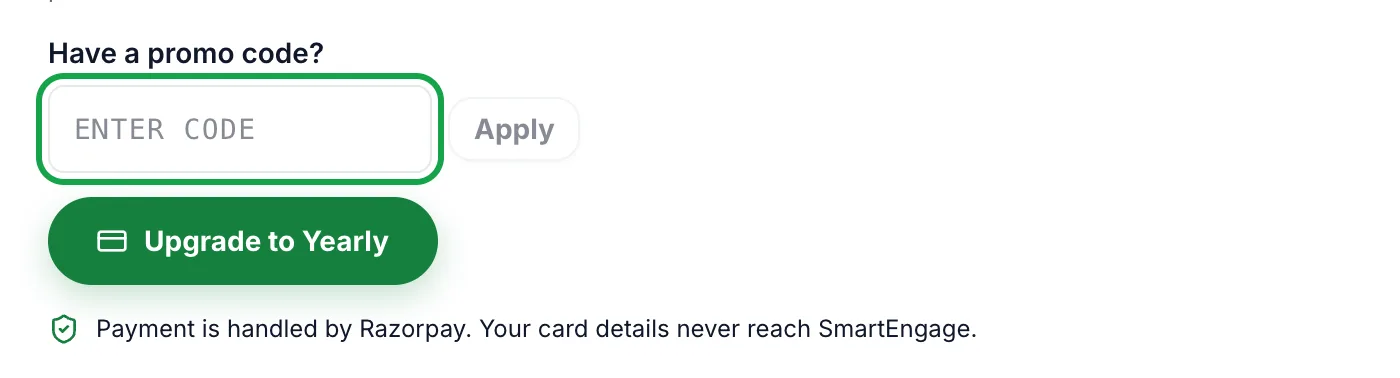
To take a code off, press Remove next to it.
Why a Code Might Not Apply
If a code cannot be used, SmartEngage tells you the reason instead of quietly ignoring it. The most common ones are:
- The code is not recognised. Check the spelling; letters are converted to capitals for you.
- The code is no longer active, or its time limit has passed.
- It is your own code. You cannot use your own code on your account.
- The code does not carry a discount.
- The code was issued for specific accounts and is not available on yours.
- The code sets a fixed plan price, which cannot apply to devices added to a plan that is already running.
One Discount at a Time
Discounts do not stack. If your account has a discount from sign-up and you also enter a code at checkout, SmartEngage applies whichever gives you the lower price. Entering a weaker code never makes your price go up.
On an upgrade from monthly to yearly, the discount is worked out on the yearly price first, and then the credit for your unused monthly days is taken off.
Finding Your Own Code
Every account has its own code. To find yours, open Promo Code from the Account section of the sidebar. The page shows:
- Signed up with your code: how many accounts have been created using it
- What it gives: the discount someone receives by signing up with your code, or a note that no discount is set on it
- Your code, with a Change button
- Share it, with your personal sign-up link and a Copy link button
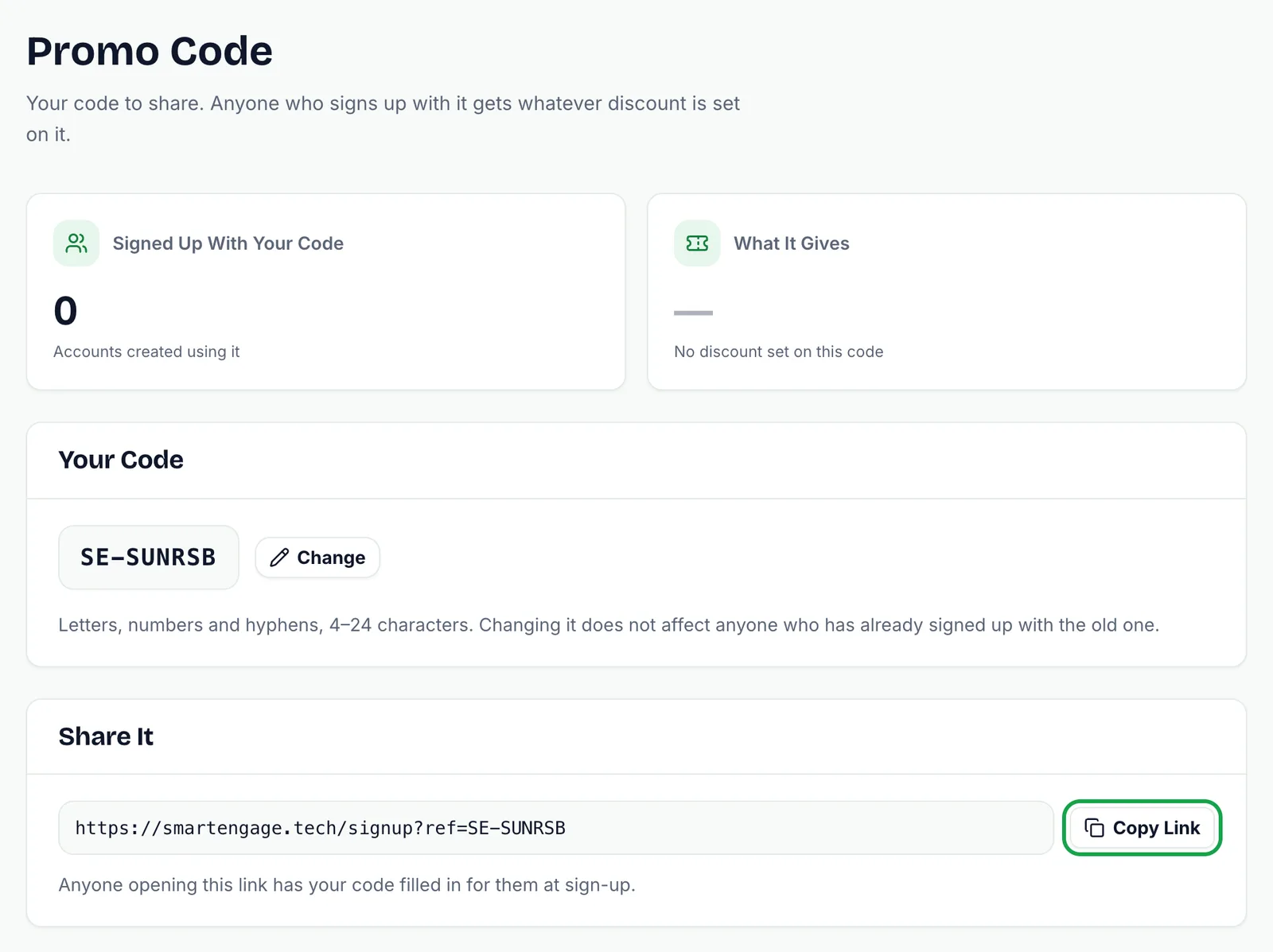
The discount attached to your code is set by SmartEngage, not by you. If it has an end date, the page tells you when the code stops working. If it has already stopped, or has been switched off, the page says so at the top, so you know to stop handing it out.
Changing and Sharing Your Code
Your code is created for you, but you can change it to something easier to remember, such as your business name. Press Change, type the new code and press Save. Codes can use letters, numbers and hyphens and must be 4 to 24 characters long. If someone else already has that code, you will be asked to choose another.
Changing your code does not affect anyone who has already signed up with the old one. They keep the discount they were given.
The easiest way to share is the link under Share it. Press Copy link and send it by WhatsApp, email or anywhere else. Anyone who opens the link has your code filled in for them when they sign up.
Tips for Sharing Your Code
- Share the link rather than the bare code. It saves the other person typing and removes the chance of a typo.
- Check What it gives before you promise anyone a discount, so what you tell them matches what they will see.
- If your code has an end date, remove it from anything you have posted once it stops working.
- Choose a code that is easy to read aloud, such as your business name, if you mention it in person or on the phone.
Related Guides
Ready to pay with your code? Follow How to Buy, Upgrade or Extend Your Plan.
Sharing your link with another business? They can start a free trialin a few minutes.
Tagged
BillingGrowthPricingReady to send safely?
Start free — no new number, no setup fee, no card required.
Keep Reading
 Account & WhatsApp Setup5 min read
Before You Connect WhatsApp: What You Need
Most failed WhatsApp connections fail for a reason that could have been fixed beforehand. Here is what to have in hand before you click Connect With Facebook.
Read guide Troubleshooting6 min read
Fixing Contact Import Problems
Symptom-by-symptom fixes for SmartEngage contact imports: files that will not upload, wrong column mapping, rejected numbers, duplicates and imports that stop.
Read guide Account & WhatsApp Setup5 min read
How to Add a Payment Method for WhatsApp
Connected but nothing sends? Meta bills WhatsApp messages itself, and needs a payment method on the right business portfolio. Here is how to add one and confirm it in SmartEngage.
Read guide