
Coexistence or API-Only: Choosing How to Connect Your Number
When you connect WhatsApp to SmartEngage, you are really making one decision that matters more than all the others: whether the number keeps working in the WhatsApp Business app on your phone, or moves to the WhatsApp Cloud API only. This guide explains both options in plain terms, what each one gives and takes away, and how to avoid choosing the wrong one by accident.
SmartEngage
The two options are called coexistence and API-only. In SmartEngage's connection guide they appear as "Keep using the WhatsApp Business app" and "Connect a brand-new number".
Both send your campaigns through the same official API, with the same templates, inbox and reports in SmartEngage. The difference is what happens to the number outside SmartEngage, and one of them cannot be undone.
The Short Answer
- Your customers already message you on the WhatsApp Business app and you want to keep chatting from your phone: choose coexistence.
- You have a number that is not on WhatsApp at all and you want it dedicated to SmartEngage: choose API-only.
- Your number is on WhatsApp and you are not sure: choose coexistence. It is the option that keeps your choices open.
What Coexistence Means
Coexistence is for a number that is already signed in to the WhatsApp Business app, where you want to carry on using it there as well as in SmartEngage.
The app keeps working on the same phone afterwards, with your chats, contacts and history intact. SmartEngage sends your campaigns through the API, and you can still reply to customers from the app.
To prove you own the number, Meta talks to the app on your phone. In the WhatsApp Business app you tap Connect to the Business Platform, then either scan a QR code or enter a code Meta shows you. For that to work:
- The phone has to be with you while you connect.
- The WhatsApp Business app must be version 2.24.17 or newer. An older version cannot complete the link.
- The number must be on the WhatsApp Business app. A number on the ordinary WhatsApp app has to be moved to the Business app first.
What you share: linking this way shares your business profile, contacts and the last six months of chat history with the connection. You keep full access to the app afterwards.
What API-Only Means
API-only, which SmartEngage's guide calls connecting a brand-new number, is for a number that is not signed in to WhatsApp or WhatsApp Business anywhere. Meta creates the business portfolio and WhatsApp Business account as you go, and verifies the number with a six-digit code sent by SMS or a phone call.
Afterwards the number becomes a WhatsApp Business account that is used from SmartEngage, not from an app on a phone. You send and reply from SmartEngage.
The important part: a number connected this way can never be used in the WhatsApp Business app again. That is the cost of this route, and it is permanent.
Because the number must not be on WhatsApp anywhere, Meta refuses one that is still signed in. That refusal is a safeguard, not an error to work around.
Side by Side
- Starting point: coexistence uses a number already in the WhatsApp Business app; API-only uses a number not on WhatsApp anywhere.
- Proof of ownership: coexistence uses a QR code or code inside the app; API-only uses a code by SMS or call.
- App version: coexistence needs 2.24.17 or newer; API-only does not use the app.
- After connecting: coexistence keeps the app working alongside SmartEngage; API-only is used from SmartEngage only.
- Chat history: coexistence shares the last six months with the connection; API-only starts fresh.
- Going back: coexistence leaves the app in place; an API-only number cannot return to the app.
Meta's message charges apply either way, paid directly to Meta. SmartEngage adds no markup on either route.
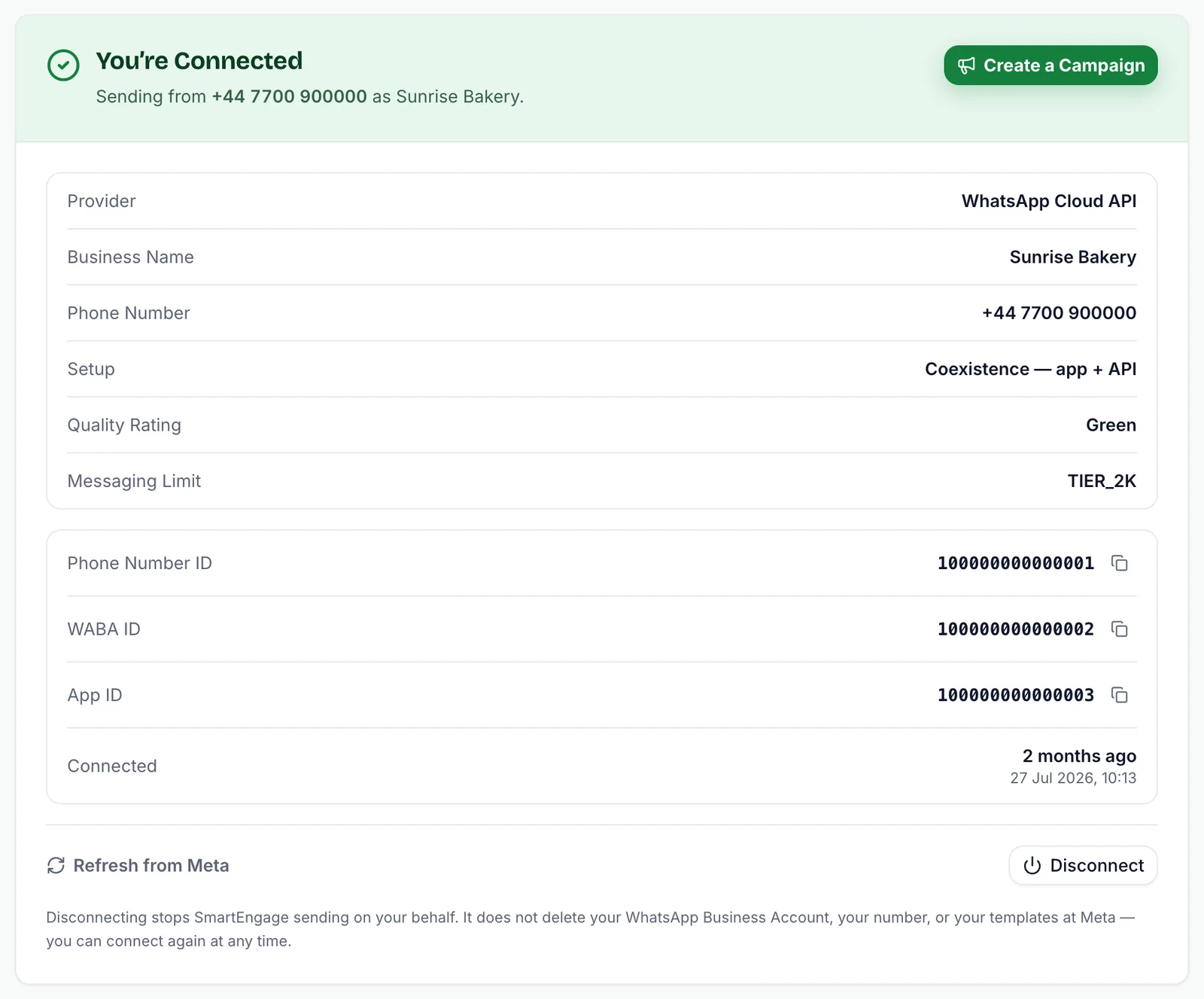
Once you are connected, the Setup line on SmartEngage's Connect page shows which route your number took: Coexistence — app + API, or API only.
The Mistake to Avoid
The choice is not made by a switch in SmartEngage. It is made inside Meta's window, on the screen where you pick the phone number.
That screen opens with the Phone number list set to Enter a new phone number, and the country box on a default. Both are defaults, not suggestions. If you want to keep the app, open the list and pick your existing number. Leaving it on Enter a new phone number starts the other flow.
If you realise you have picked the wrong number on the next screen, choose Back and change it rather than carrying on. Closing Meta's window before the end also cancels the connection without saving anything, which is a safe way out if you are unsure.
Which Should You Choose?
Choose coexistence if:
- Customers already know and message this number.
- Staff reply from the WhatsApp Business app on a phone, and you want that to continue.
- You want your existing chats and contacts to stay where they are.
Choose API-only if:
- You have a spare number, or are getting one, just for campaigns and customer messaging.
- Your team will work from SmartEngage's inbox rather than from a phone.
- You are comfortable that the number will never go back into the WhatsApp Business app.
Can You Change Your Mind Later?
Disconnecting stops SmartEngage sending on your behalf. It does not delete your WhatsApp Business Account, your number or your templates at Meta, and you can connect again at any time by running Meta's signup again.
What disconnecting cannot do is reverse an API-only connection. Once a number has been connected as a new number, it stays out of the WhatsApp Business app. That is why this is the one decision worth making slowly.
For what disconnecting keeps and removes, read How to Refresh or Disconnect Your WhatsApp Connection.
Next Steps
Get everything ready first with Before You Connect WhatsApp: What You Need.
Then follow How to Connect WhatsApp to SmartEngagestep by step.
Ready to send safely?
Start free — no new number, no setup fee, no card required.
Keep Reading
 Contacts6 min read
Duplicates, Invalid Numbers and Opt-outs Explained
Why some rows in a SmartEngage import are skipped or refused, how duplicates are detected, what makes a number invalid, and what opting out actually does.
Read article Contacts6 min read
How Contacts and Contact Books Work in SmartEngage
What a contact holds, what a contact book is, and how the people you keep in SmartEngage become the audience for a WhatsApp campaign.
Read article Billing & Plans5 min read
How Plans, Devices and Billing Work
What the free trial and paid plans include, what a device really is in SmartEngage, and why Meta's WhatsApp message charges are billed separately from your plan.
Read article