
How Contacts and Contact Books Work in SmartEngage
Before you import a list or send a campaign, it helps to know how SmartEngage organises the people you message. This guide explains what a contact is, what a contact book is, how the two views on the Contacts page differ from your books, and how a campaign picks its audience from them.
SmartEngage
Every WhatsApp campaign is only as good as the list behind it. SmartEngage keeps that list simple: each person is one contact, identified by their WhatsApp number, and contacts are grouped into contact books so you can send to the right group at the right time.
Everything described here lives on the Contacts page in your SmartEngage dashboard. You can build your contact books before your WhatsApp number is connected, so the wait for Meta is never wasted time.
New to SmartEngage? For the bigger picture, read What SmartEngage Is and How It Works.
What a Contact Is
A contact is one person you can message on WhatsApp. The only thing a contact must have is a WhatsApp number, stored in full international format with its country code, for example +254712345678. That number is how SmartEngage recognises the person, so the same number can only appear once in your account.
Alongside the number, a contact can hold:
- A name and an email address
- A company, job title, address, website and notes, when they arrive from an import that carries them
- Tags, when the source file or app provides them
- Its opt-in status: opted in or opted out
- The contact book it is filed in, if any
On the Contacts page, the table shows each contact's name and email, the number, a Consent column reading "Opted In" or "Opted Out", and, when you are looking at every contact at once, the book it belongs to.
Opted In and Opted Out
Consent is part of every contact, not an afterthought. A contact who is opted in may be messaged. A contact who is opted out is kept in your account, but every campaign skips them, and they are counted separately when you build a campaign so you can see how many people will actually be reached.
You set a contact's status when you add them by hand, using the Messaging Consent option, or through an opt-in column in the file you import. You can change it later with the Edit button on the contact's row. When a file has no opt-in column, its contacts are imported as opted in, so only upload lists of people who have agreed to hear from you.
Customers can also change it themselves. A contact who replies STOP or UNSUBSCRIBE to your WhatsApp number is opted out automatically, and a later reply of START opts them back in.
For how consent, duplicates and invalid numbers are handled on import, read Duplicates, Invalid Numbers and Opt-outs Explained.
What a Contact Book Is
A contact book is a named list, such as "Nairobi customers" or "Newsletter subscribers". Each book has a name of up to 80 characters and an optional description, and no two books in your account can share a name.
A contact sits in one book at a time. That keeps the model easy to reason about: moving a contact to another book takes it out of the first one, and a book's count is always the number of people filed in it.
Every account starts with a book called My Contacts, marked as your default. When you add or import contacts without choosing a book, this is where they go. In the book pickers, the default book is shown with "(default)" after its name.
All Contacts and Not in a Book
The left-hand side of the Contacts page lists your books under "Your Books", with the number of contacts in each. Above them is "All Contacts", which is not a book at all but a view of every contact in your account, whichever book they are in. It is always there and cannot be renamed or deleted.
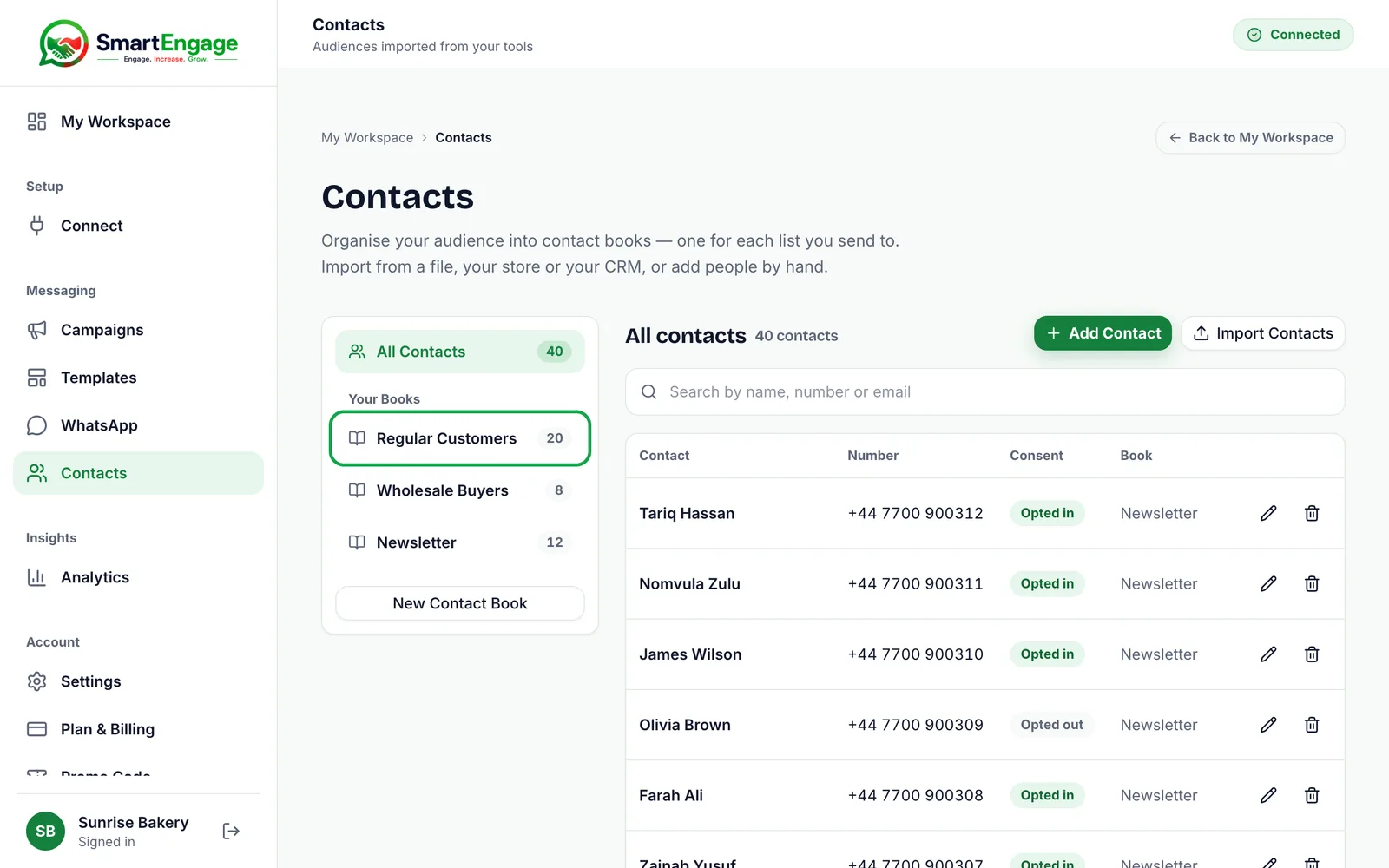
You may also see "Not in a Book". This view appears only when some contacts are not filed in any book, which usually happens after a book is deleted. Deleting a book never deletes the people in it: they stay in your account and move to Not in a Book until you file them somewhere else, for example by editing a contact and choosing its Contact Book.
You can search any of these views by name, number or email. Contacts are shown 50 to a page.
How Contacts Get Into SmartEngage
There are two ways to add people, both from buttons at the top of the Contacts page:
- Add Contact opens a short form for one person: their WhatsApp number, an optional name and email, the book to file them in and their messaging consent. The same form, opened with the Edit button on a contact's row, changes those details later. Only the number cannot be changed.
- Import Contacts opens the import panel, where you choose a book and then a source: a CSV file, an Excel workbook or a vCard file, or a connected account: Google Contacts, Shopify or WooCommerce. HubSpot and Mailchimp are listed as Coming soon, and a CSV export from either works today.
To add or edit one person, follow How to Add and Edit a Contact.
Imports always show you a preview before anything is written. It tells you how many contacts are new, how many you already hold, and which rows cannot be imported and why.
How a Campaign Chooses Its Audience
When you build a campaign, the audience step offers three kinds of choice:
- All Contacts: everyone in your account who has not opted out
- One of your contact books
- Specific Contacts: people you name one by one, which is useful for a test send or a small group
The audience step shows how many people are in the audience and how many of them have opted out. Opted-out contacts are never messaged, whichever option you choose.
Because a campaign can target a single book, it pays to organise books around the messages you plan to send. A book per city, per product line or per customer type makes each campaign a one-click choice.
A Few Things Worth Knowing
- A number can exist only once in your account. Adding or importing it again is reported as a duplicate rather than creating a second copy.
- Numbers without a country code need one. The import asks which country such numbers are from, and the add form has a country picker.
- Removing a contact cannot be undone.
- If your plan period has ended, the account becomes read-only: your contacts are kept, but you cannot add new ones until you choose a plan.
Next Steps
With the model clear, the next job is to set up books that match the way you send, then fill them.
Start with How to Create and Manage Contact Books.
Most lists arrive as a spreadsheet, so next see How to Import Contacts from a CSV File.
When your list is ready, read How to Create a WhatsApp Campaign.
Ready to send safely?
Start free — no new number, no setup fee, no card required.
Keep Reading
 Account & WhatsApp Setup5 min read
Coexistence or API-Only: Choosing How to Connect Your Number
There are two ways to connect a WhatsApp number to SmartEngage. One keeps the WhatsApp Business app working; the other ends the number's life in the app for good. Here is how to choose.
Read article Contacts6 min read
Duplicates, Invalid Numbers and Opt-outs Explained
Why some rows in a SmartEngage import are skipped or refused, how duplicates are detected, what makes a number invalid, and what opting out actually does.
Read article Billing & Plans5 min read
How Plans, Devices and Billing Work
What the free trial and paid plans include, what a device really is in SmartEngage, and why Meta's WhatsApp message charges are billed separately from your plan.
Read article