
Duplicates, Invalid Numbers and Opt-outs Explained
Every import in SmartEngage ends with a count of contacts imported, skipped and not imported. This guide explains honestly what sits behind each number: how duplicates are detected, what counts as an invalid number, why an opt-in value can stop a row, and what an opted-out contact means for your campaigns.
SmartEngage
An import that brings in 170 contacts from a 200-row file is not a failure. It usually means SmartEngage protected you from sending to a number twice, from messaging a broken number, or from treating a person's unclear consent as a yes. Knowing the rules makes the numbers easy to read and the fixes quick.
The Four Counts in the Preview
Before anything is imported, the preview shows four tiles:
- Found: every row SmartEngage read from the file or app
- New contacts: rows that can be imported and are not already in your account
- Duplicates: rows that match a contact you already hold, or repeat a number earlier in the same file
- Cannot import: rows with a problem that stops them being imported
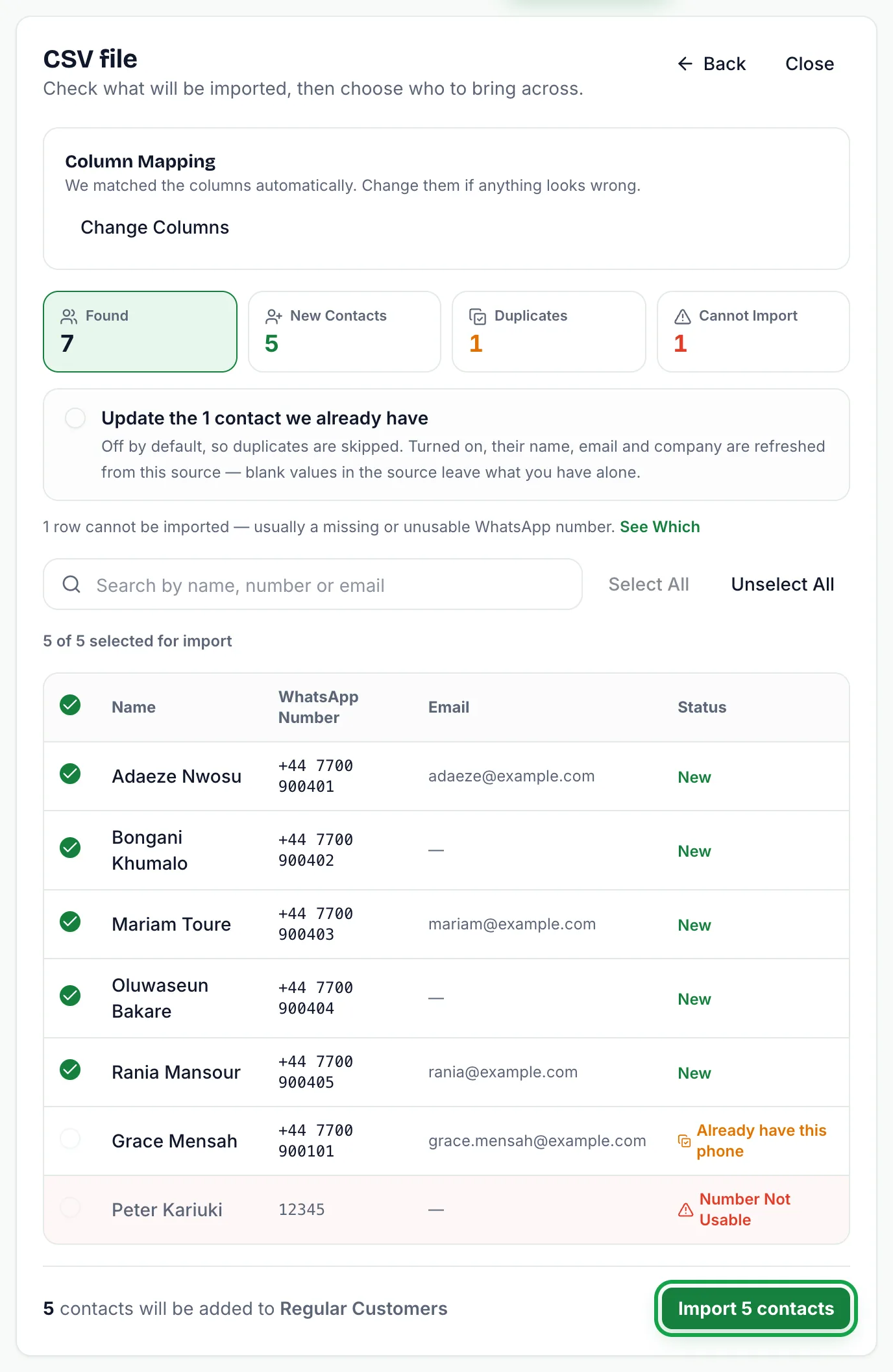
After the import, the result shows three totals: Imported, Skipped and Could not import. Skipped holds the duplicates, and Could not import holds the rows that were refused.
How Duplicates Are Detected
SmartEngage treats a row as a duplicate in two situations:
- It matches a contact already in your account by WhatsApp number or by email address. Either one is enough.
- It repeats a number that appears earlier in the same file. The first occurrence is kept and later ones are marked "Repeated in This File".
Numbers are compared after they are converted to full international format, so 0712 345 678 with Kenya selected and +254 712 345 678 are recognised as the same person. Duplicate checks cover your whole account, not just the book you are importing into.
By default, duplicates are skipped and your existing contacts are left untouched. If you tick the box in the preview to update the contacts you already have, the matching contacts are refreshed from the source instead. Only values the source actually has are written, so a blank cell never erases something you already hold, and the updated contacts are filed in the book you are importing into.
One edge case is worth knowing. A row with a new number but an email that already belongs to another contact counts as a duplicate. If you choose to update duplicates, that row cannot be matched to an existing number and is reported under Could not import.
What Counts as an Invalid Number
SmartEngage stores every number in international format: a plus sign, a country code that does not start with 0, and 8 to 15 digits in total. Before checking, it tidies what spreadsheets usually contain:
- Spaces, dashes, dots and brackets are removed.
- A leading 00 is read as +.
- A number without + or 00 gets the country you chose under "Numbers without a country code are from". A leading 0 is dropped first, and a number that already starts with that country's code simply gains the +.
A row is refused when the result still is not a valid international number. The preview labels the reason:
- No WhatsApp number: the mapped phone cell is empty
- Number not usable: too short, too long, or containing letters
- Number damaged by Excel: the cell looks like 9.19877E+11, meaning Excel threw away digits when the file was saved
SmartEngage checks the format of a number, not whether it is registered on WhatsApp. A correctly formatted number that is not on WhatsApp is still imported, and only shows up as a problem when you send to it.
A malformed email address does not stop a row. The number is what you message, so the contact is imported and the email is simply left out.
Why an Opt-in Value Can Stop a Row
If your file has an opt-in column, SmartEngage reads it strictly. Values such as yes, y, true, 1, subscribed, opt-in, consented, active or on mean opted in. Values such as no, n, false, 0, unsubscribed, opt-out, stop, declined, blocked or off mean opted out. An empty cell counts as opted in.
Anything else, such as a typo or a date that ended up in the wrong column, stops the row with the reason "Opt-in Value Not Understood". Guessing would either message someone who said no or record a refusal nobody made, so SmartEngage asks you to fix the file instead. Usually the cause is the wrong column being mapped to Opt-in, which you can change in the column mapping.
A column named "unsubscribed" is deliberately not matched automatically. Its values mean the opposite of an opt-in column, so mapping it as Opt-in would flip every answer. Convert it to an opt-in column in your file before you import.
What Opting Out Does
Every contact is either opted in or opted out, shown in the Consent column on the Contacts page. An opted-out contact:
- Stays in your account and in its book, so you keep a record of their choice
- Is skipped by every campaign, whether you send to All Contacts, a book or Specific Contacts
- Cannot be chosen by name as a campaign recipient
- Is counted separately on the campaign audience step, under Opted Out
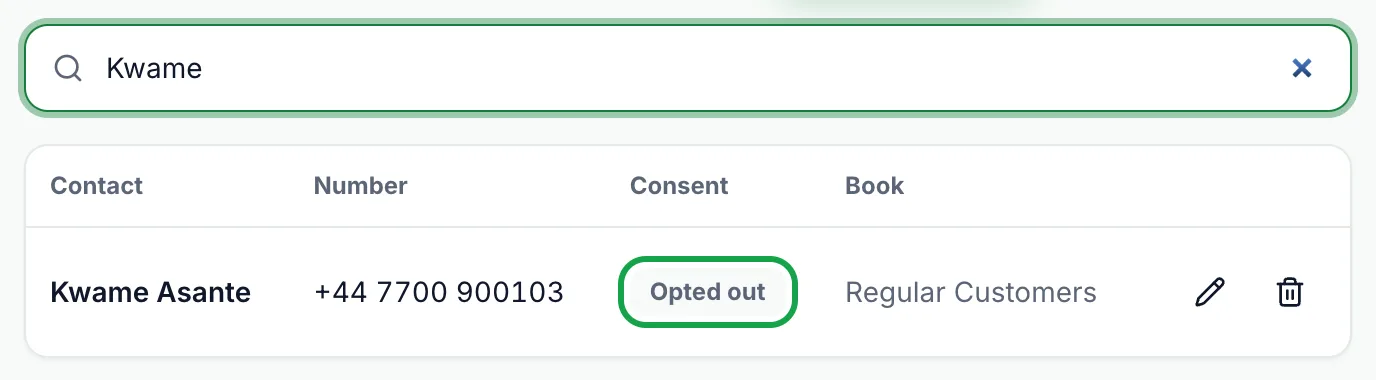
A contact is opted out in four ways: when a customer replies to you on WhatsApp with a word such as STOP or UNSUBSCRIBE, when you add or edit them with "Opted out — do not message", or when an import marks them opted out. A customer who replies STOP gets a short confirmation, and a later reply of START opts them back in.
To change one contact's status yourself, press the pencil Edit button on their row on the Contacts page, change Messaging Consent and press "Save Changes". Only opt someone back in if they have agreed to hear from you again. For many contacts at once, re-import them with the correct opt-in value and tick the option to update the contacts you already have. An import only changes consent when the source has a value for it, so importing from a source without an opt-in column never re-subscribes someone who opted out.
For the edit form step by step, see How to Add and Edit a Contact.
Respecting opt-outs is not just good manners. People who report or block your messages lower your number's quality rating with Meta, which can limit how many people you can message.
To see how blocks and reports affect your number, read Understanding Quality Rating and Messaging Limits.
Related Guides
To run an import step by step, read How to Import Contacts from a CSV File.
For symptom-by-symptom fixes, see Fixing Contact Import Problems.
For how books, consent and campaigns fit together, read How Contacts and Contact Books Work in SmartEngage.
Ready to send safely?
Start free — no new number, no setup fee, no card required.
Keep Reading
 Account & WhatsApp Setup5 min read
Coexistence or API-Only: Choosing How to Connect Your Number
There are two ways to connect a WhatsApp number to SmartEngage. One keeps the WhatsApp Business app working; the other ends the number's life in the app for good. Here is how to choose.
Read article Contacts6 min read
How Contacts and Contact Books Work in SmartEngage
What a contact holds, what a contact book is, and how the people you keep in SmartEngage become the audience for a WhatsApp campaign.
Read article Billing & Plans5 min read
How Plans, Devices and Billing Work
What the free trial and paid plans include, what a device really is in SmartEngage, and why Meta's WhatsApp message charges are billed separately from your plan.
Read article