
How to Import Contacts from Excel or a vCard File
Besides CSV, SmartEngage reads two other file types: Excel workbooks and vCard files. A workbook can hold several sheets, and a vCard file from a phone or mail client carries more detail per contact than a spreadsheet. This guide covers both, and what is different from a CSV import.
SmartEngage
Both formats use the same import panel as a CSV. You choose a book, choose the source, set the country for local numbers, upload, check the preview and import. The differences are in what happens between the upload and the preview, and that is what this guide focuses on.
If you have not imported a file before, start with How to Import Contacts from a CSV File, which explains the preview in full.
Which Files Are Accepted
- Excel workbook: .xlsx, .xls and .xlsm files
- vCard file: .vcf and .vcard files
Files up to 25 MB can be uploaded. SmartEngage checks that a file really is the format it claims to be. A workbook is recognised by its contents rather than its name, so an .xls file that is really an .xlsx still opens.
Importing an Excel Workbook
Step 1: Prepare the sheet. Put the contacts on a sheet with a header row at the top and a Phone column. Name and Email are optional, and columns such as company, job title, address, website and notes are recognised when present. Other sheets in the workbook can stay where they are.
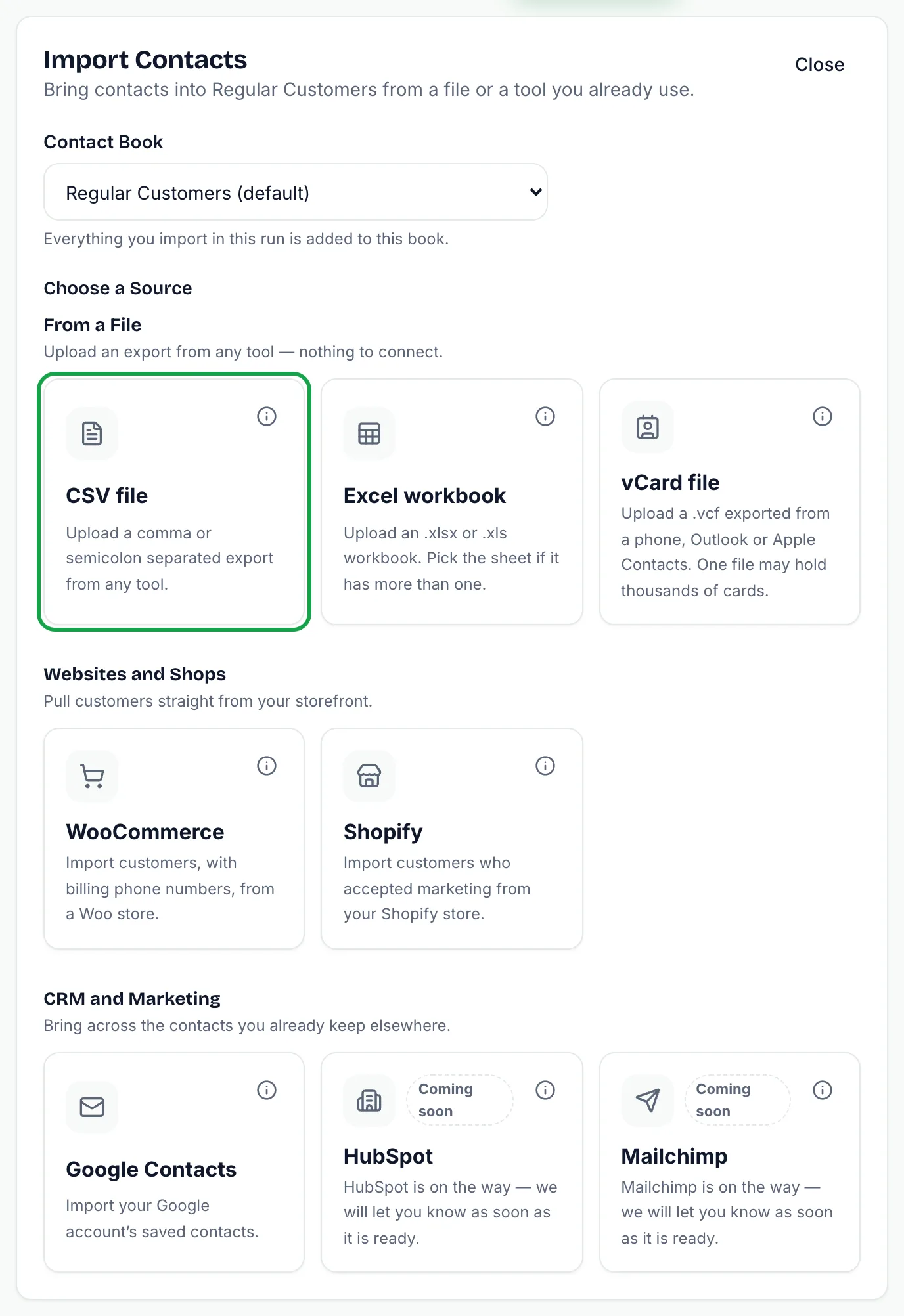
Step 2: Open the import. On the Contacts page, select "Import Contacts", choose the Contact book, then select "Excel workbook" under "Choose a Source".
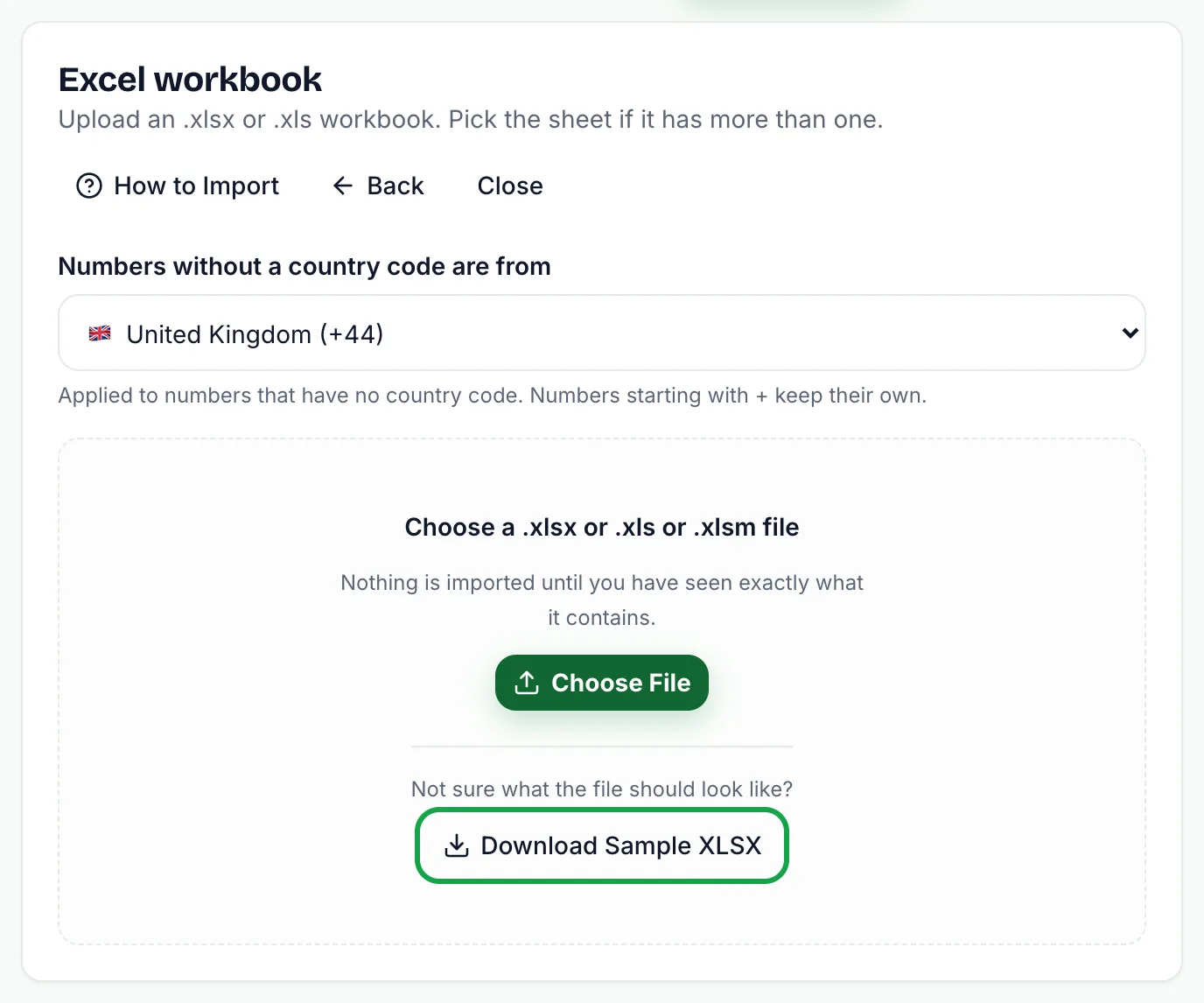
Step 3: Set the country. Check "Numbers without a country code are from". It applies to numbers that do not start with + or 00.
Step 4: Upload. Select "Choose File" and pick the workbook. If you want an example first, select "Download Sample XLSX". The sample has two sheets, so you can see how sheet selection works.
Step 5: Choose the worksheet. If the workbook has more than one sheet, a Worksheet list appears above the column mapping, showing each sheet with its row count. SmartEngage opens the first sheet that has rows in it. Pick another sheet and it is read from the file you already uploaded. Only the sheet you choose is imported.
Step 6: Check the mapping and preview, then import. This works exactly as it does for a CSV.
How Excel Mapping Differs From CSV
The column mapping step is the same, but a workbook brings a few differences worth knowing:
- Each sheet is read against its own header row, so two tabs with completely different columns both work. Switching sheets detects the mapping afresh.
- Hidden sheets are not offered, because they are not something you could have picked in Excel.
- Only cell values are read. Formulas, styles, charts and images are ignored.
- A date column comes across as a date rather than the number Excel stores underneath it.
Phone numbers deserve special care. Excel likes to treat long numbers as quantities, and a number saved as something like 9.19877E+11 has lost its last digits for good. The preview marks such rows as "Number Damaged by Excel". Format the phone column as Text in Excel, re-enter or re-export the numbers, save and upload again.
Importing a vCard File
A vCard file is what a phone, Outlook or Apple Contacts produces when you export an address book. One file can hold thousands of contacts.
Step 1: Export your address book. Look for an option such as "Export vCard", "Export contacts" or "Share contacts", and choose vCard rather than CSV, as it carries more per contact.
Step 2: Get the file onto the computer you use for SmartEngage. Emailing it to yourself is usually the quickest route off a phone.
If your phone saves contacts to a Google account, you can skip the export and follow How to Import Contacts from Google Contacts.
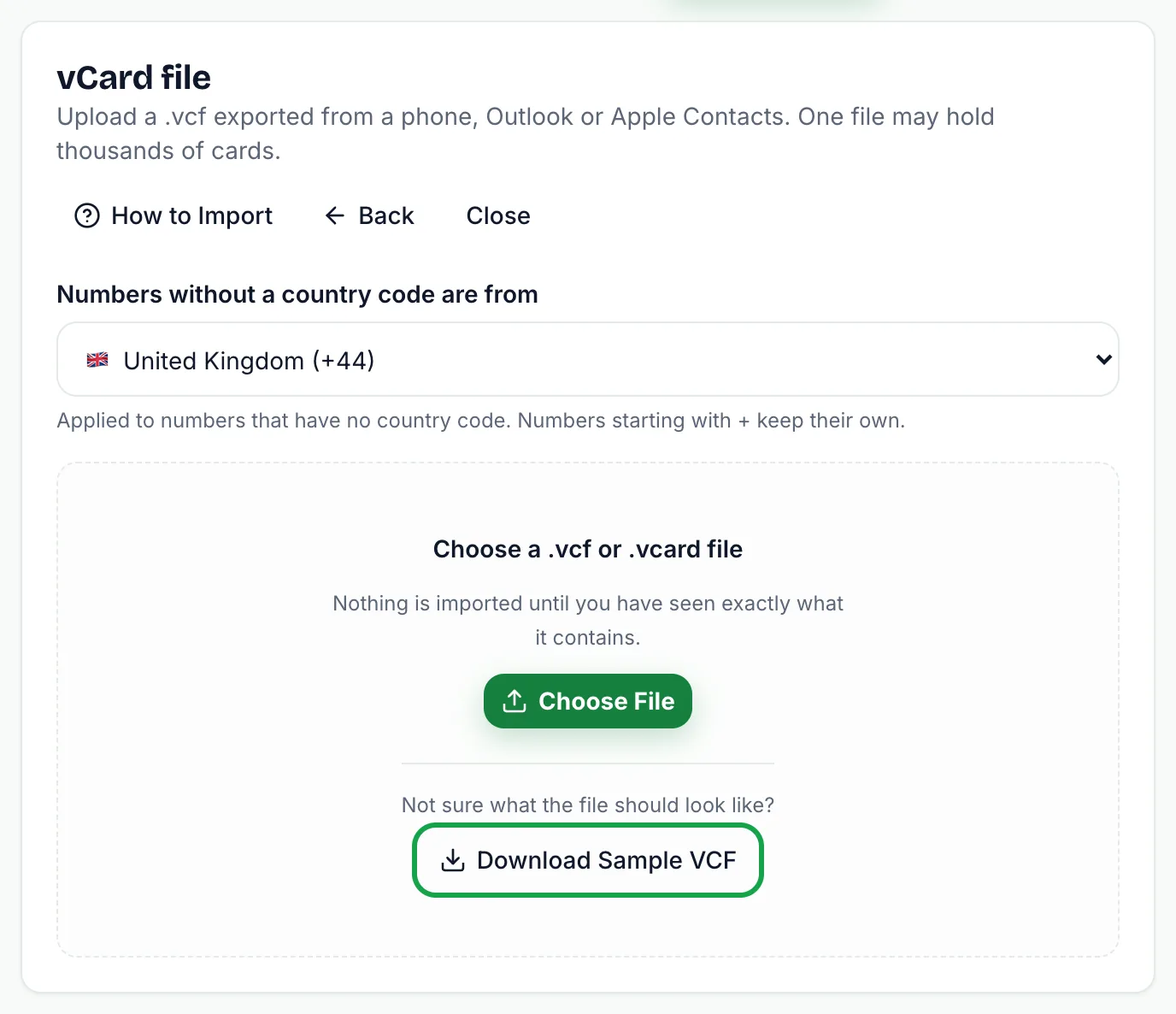
Step 3: On the Contacts page, select "Import Contacts", choose the Contact book, then select "vCard file". Set the country for numbers without a country code, select "Choose File" and upload. A "Download Sample VCF" button is there if you want to compare your export with a working example.
Step 4: Review the preview and import.
How vCard Mapping Differs From CSV
A vCard has a fixed structure, so SmartEngage already knows which part of each card is which. The mapping is filled in for you, and you normally do not need to touch it. A card can bring across:
- The name and a phone number, which every usable card needs
- Email, company, job title, address, website and notes
- Tags, taken from the card's categories
Some other behaviour is specific to vCards:
- When a card has several numbers, the mobile is chosen. A number marked as a mobile wins over a landline, and a fax number is never chosen.
- The address is joined into one line, because address books fill in the parts of an address differently.
- vCard versions 2.1, 3.0 and 4.0 are all read, including the older encodings some phones still use.
- A card with no phone number cannot be messaged, so it is shown in the preview under Cannot import.
What Stays the Same
Whichever file you use, the rules after upload are identical: numbers are converted to international format, each number can exist only once in your account, duplicates are skipped unless you choose to update them, and rows with an unusable number are reported rather than stored.
Related Guides
If rows land under Cannot import, read Fixing Contact Import Problems.
To understand each count in the preview, see Duplicates, Invalid Numbers and Opt-outs Explained.
Next, prepare the message you will send: How to Create a Message Template.
Tagged
ContactsGetting StartedReady to send safely?
Start free — no new number, no setup fee, no card required.
Keep Reading
 Account & WhatsApp Setup5 min read
Before You Connect WhatsApp: What You Need
Most failed WhatsApp connections fail for a reason that could have been fixed beforehand. Here is what to have in hand before you click Connect With Facebook.
Read guide Troubleshooting6 min read
Fixing Contact Import Problems
Symptom-by-symptom fixes for SmartEngage contact imports: files that will not upload, wrong column mapping, rejected numbers, duplicates and imports that stop.
Read guide Account & WhatsApp Setup5 min read
How to Add a Payment Method for WhatsApp
Connected but nothing sends? Meta bills WhatsApp messages itself, and needs a payment method on the right business portfolio. Here is how to add one and confirm it in SmartEngage.
Read guide