
Why Your Messages Are Not Sending
When a WhatsApp campaign will not send, or sends but fails for many people, the cause is almost always one of a small set of problems. SmartEngage records the reason each time, so you can match what you see to its cause and fix it. This guide lists each symptom, what causes it, and what to do.
SmartEngage
Problems show up in three places: the Meta Readiness Check in the campaign wizard, an error message when you create or start a campaign, and the "Why Messages Failed" section of a campaign's report. Each symptom below names where you will see it.
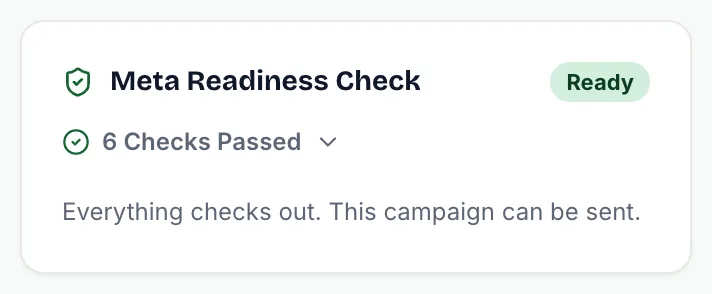
Work through them in order. The first few stop every message, so they are the ones to rule out first.
The Create Screen Says Connect Your Number First
Symptom: the Campaigns page or a new campaign shows "Connect Your Number First" instead of the wizard, or the readiness check shows "WhatsApp Number Connected" as blocking.
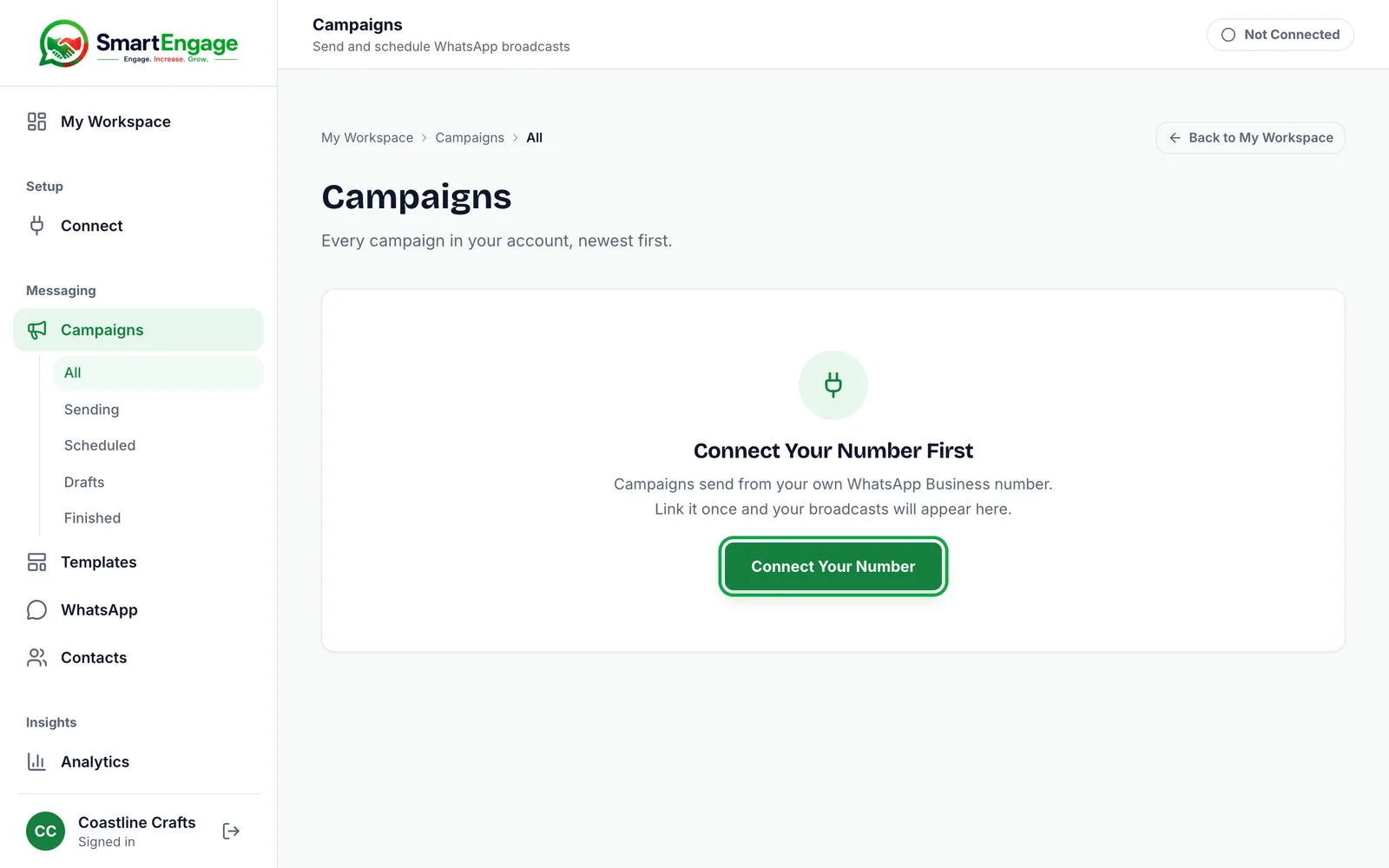
Cause: your WhatsApp number is not connected, has been disconnected, or Meta has not yet confirmed it.
Fix: open the Connect page and finish the connection. The steps are in How to Connect WhatsApp to SmartEngage.
Meta Is Blocking Sends From Your Account
Symptom: the readiness line "Meta Says This Account Can Send" is red, the Connect page asks you to add a payment method in Meta, or creating a campaign is refused with "Meta reports that your WhatsApp Business account cannot send right now. A missing payment method is the usual cause." Mid-campaign, it can appear in the report as "Billing Problem".
Cause: Meta's health check reports your business or WhatsApp Business Account as blocked. A missing payment method is the usual reason. Meta charges for messages directly, so it will not send until it can bill you.
Fix: press "Check Billing at Meta", add a payment method to the right business in Meta's billing settings, then press "Refresh from Meta" on the Connect page so SmartEngage reads the new status. Failures marked "Billing Problem" can then be sent again from the report.
Step-by-step help is in How to Add a Payment Method for WhatsApp.
Your Template Is Not Approved
Symptom: the wizard shows "No Approved Templates Yet", the template you want is missing from the list, or creating the campaign is refused because the template is pending or rejected. You may also see that the template is not on your WhatsApp account and should be synced.
Cause: only templates Meta has approved can be sent to a list. A template still in review, rejected by Meta, or created at Meta after SmartEngage last read your templates cannot be used.
Fix: wait for approval, or fix and resubmit a rejected template. If you made or approved the template in Meta's own tool, press "Refresh" in the wizard, or on the Templates page, to read your templates from Meta again.

A related failure appears mid-campaign as "Template Paused" or "Template Disabled". Meta stops a template when recipients block or report it. Switch to another template and rewrite the paused one to be more clearly wanted.
For rejections, read Why Templates Get Rejected and How to Fix Them.
Every Message Fails With the Same Template Error
Symptom: the readiness line "Template Will Be Accepted by Meta" is red, or the report shows most failures under "Wrong Number of Details", "Value Does Not Match the Template", "Content Not Allowed" or "Media Problem".
Cause: the campaign does not match what Meta approved. SmartEngage checks for the known cases before sending:
- The number of values filled in does not match the template's placeholders.
- The template has an image, video or document header, but there is no file on record for it.
- The template uses named placeholders rather than numbered ones such as {{1}}.
- The template has a button whose link changes per message.
- A value contains a line break, a tab or a long run of spaces.
Fix: refresh your templates from Meta and choose the template again. For a media header, re-upload the media on the template if refreshing does not help. Templates with named placeholders or per-message button links cannot be sent from SmartEngage yet, so use one with numbered placeholders and a fixed link. Because a campaign's values are fixed once it is created, build a new campaign with corrected values rather than retrying the old one.
The Campaign Is Stuck on Sending
Symptom: the campaign stays "Sending" for hours, the report's Remaining figure stops falling, and recipients show as "Waiting". The Audience step may have shown an amber warning that the audience was larger than your daily limit.
Cause: Meta limits how many different people your number can message in a rolling 24 hours. When that limit is used up, SmartEngage holds the rest back instead of letting Meta reject them.
Fix: wait. Held-back recipients are not failed. They go out as the 24-hour window frees up room. Meta raises the limit as your number sends consistently with a good quality rating. If the report says some attempts were deferred, that is Meta asking SmartEngage to slow down, and those are retried automatically.
Limits and tiers are explained in Understanding Quality Rating and Messaging Limits.
Contacts Are Skipped or Refused
Symptom: the Audience step shows fewer people than the book holds, or says "Nobody in this audience can be messaged", creating the campaign is refused because chosen contacts have opted out, or recipients show as "Skipped" in the report.
Cause: opted-out contacts, for example people who replied STOP, are never messaged, so they are taken out of the count and left off the recipient list. "Skipped" in a report means the campaign was cancelled before those recipients were reached.
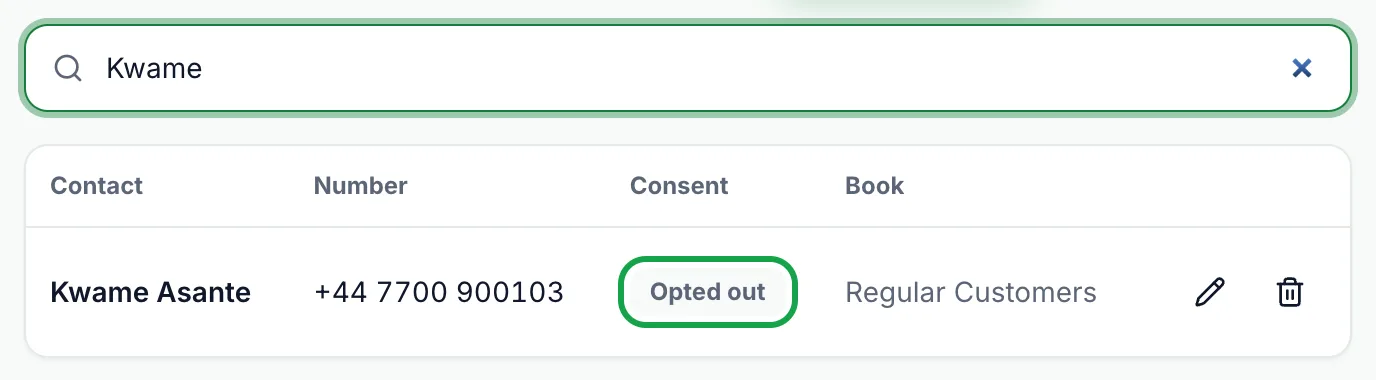
Fix: nothing to repair. Respecting opt-outs protects your number. For a hand-picked audience, reopen the Audience step and choose again. If a customer wants messages again, they can reply START.
Numbers Fail as Not on WhatsApp
Symptom: the report groups failures under "Not on WhatsApp" or "Message Undeliverable".
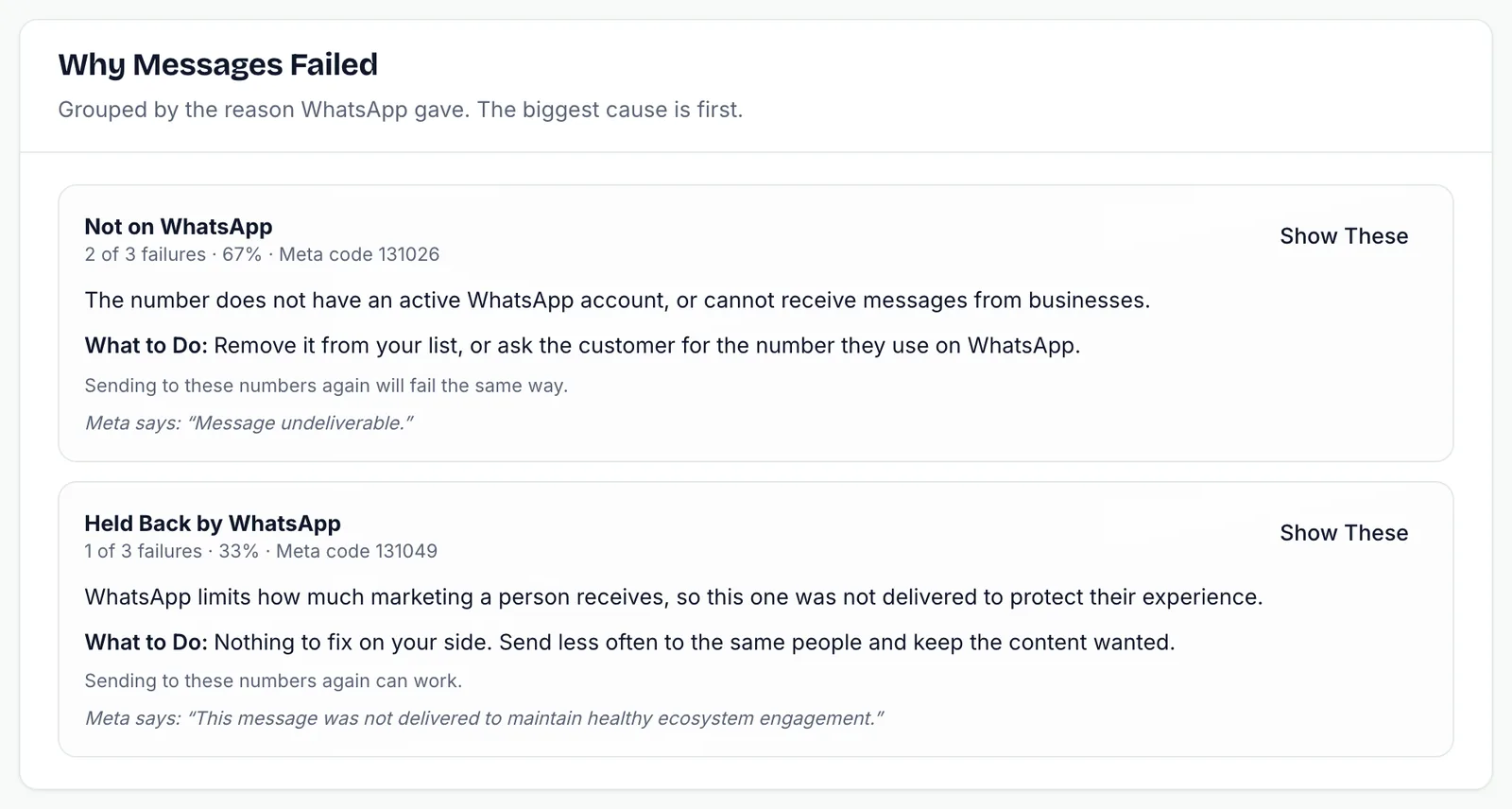
Cause: the number has no active WhatsApp account, cannot receive business messages, or is saved incorrectly.
Fix: check the number is correct and in international format, and remove numbers that are not on WhatsApp. These fail the same way every time, so do not retry them.
WhatsApp Holds Back Your Marketing
Symptom: failures under "Held Back by WhatsApp" or "Spam Rate Limit", or the readiness line "Number Quality Rating" is red and the send is blocked.
Cause: WhatsApp limits how much marketing each person receives, and restricts numbers whose quality has dropped. A red quality rating means Meta has flagged the number.
Fix: send less often to the same people and keep messages relevant and expected. After a spam rate limit, pause marketing for a day, then resume at a smaller volume. Once the rating recovers, the wizard lets you send again.
Your Plan Has Run Out
Symptom: starting is refused with a message that your plan covers a set number of campaigns or recipients, or that your plan has ended, or a scheduled campaign is marked "Failed" with "Not sent: your plan had no campaigns left when it was due. Upgrade or renew your plan, then create the campaign again."
Cause: SmartEngage plans can limit campaigns and campaign recipients per period, and sending stops when a plan ends.
Fix: choose a smaller audience, or upgrade or renew your plan. Drafts are kept and can be sent once there is room. A scheduled campaign marked "Failed" for this reason cannot be restarted, so create it again once your plan allows.
To add room, see How to Buy, Upgrade or Extend Your Plan.
Still Not Sending?
If none of these match, open the campaign's report and note the failure title and Meta code, or the exact message on the campaign card. Send those details, with the campaign name, to our team through the Contact page and we will help.
For how to recover the failed part of a campaign, read How to Retry Failed Messages.
Tagged
CampaignsDeliverabilityTroubleshootingReady to send safely?
Start free — no new number, no setup fee, no card required.
Keep Reading
 Account & WhatsApp Setup5 min read
Before You Connect WhatsApp: What You Need
Most failed WhatsApp connections fail for a reason that could have been fixed beforehand. Here is what to have in hand before you click Connect With Facebook.
Read guide Troubleshooting6 min read
Fixing Contact Import Problems
Symptom-by-symptom fixes for SmartEngage contact imports: files that will not upload, wrong column mapping, rejected numbers, duplicates and imports that stop.
Read guide Account & WhatsApp Setup5 min read
How to Add a Payment Method for WhatsApp
Connected but nothing sends? Meta bills WhatsApp messages itself, and needs a payment method on the right business portfolio. Here is how to add one and confirm it in SmartEngage.
Read guide