
How to Check Your Connection and Sending Number
Once you have connected WhatsApp, the Connect page tells you whether it actually worked and exactly how your number is set up. It is also the first place to look when something seems wrong. This guide explains each state the page can be in, every line in the connection details, and what to do when a detail is not what you expected.
SmartEngage
Meta's signup window closing is not proof on its own that your number is ready to send. The Connect page is. It shows what SmartEngage has confirmed with Meta: the business, the number, and the details Meta attaches to it.
It is worth checking straight after connecting, and again whenever a campaign behaves unexpectedly.
Where to Look
There are three places to check your connection:
- The status badge at the top of every page in SmartEngage. It reads "Connected", "Finish Setup", "Not Connected" or "Status Unavailable", and clicking it opens the Connect page.
- The Connect page itself, under Setup in the sidebar. This has the full details.
- The WhatsApp connection section in Settings, which shows the same status, number and IDs, with a Manage Connection button that takes you to the Connect page.
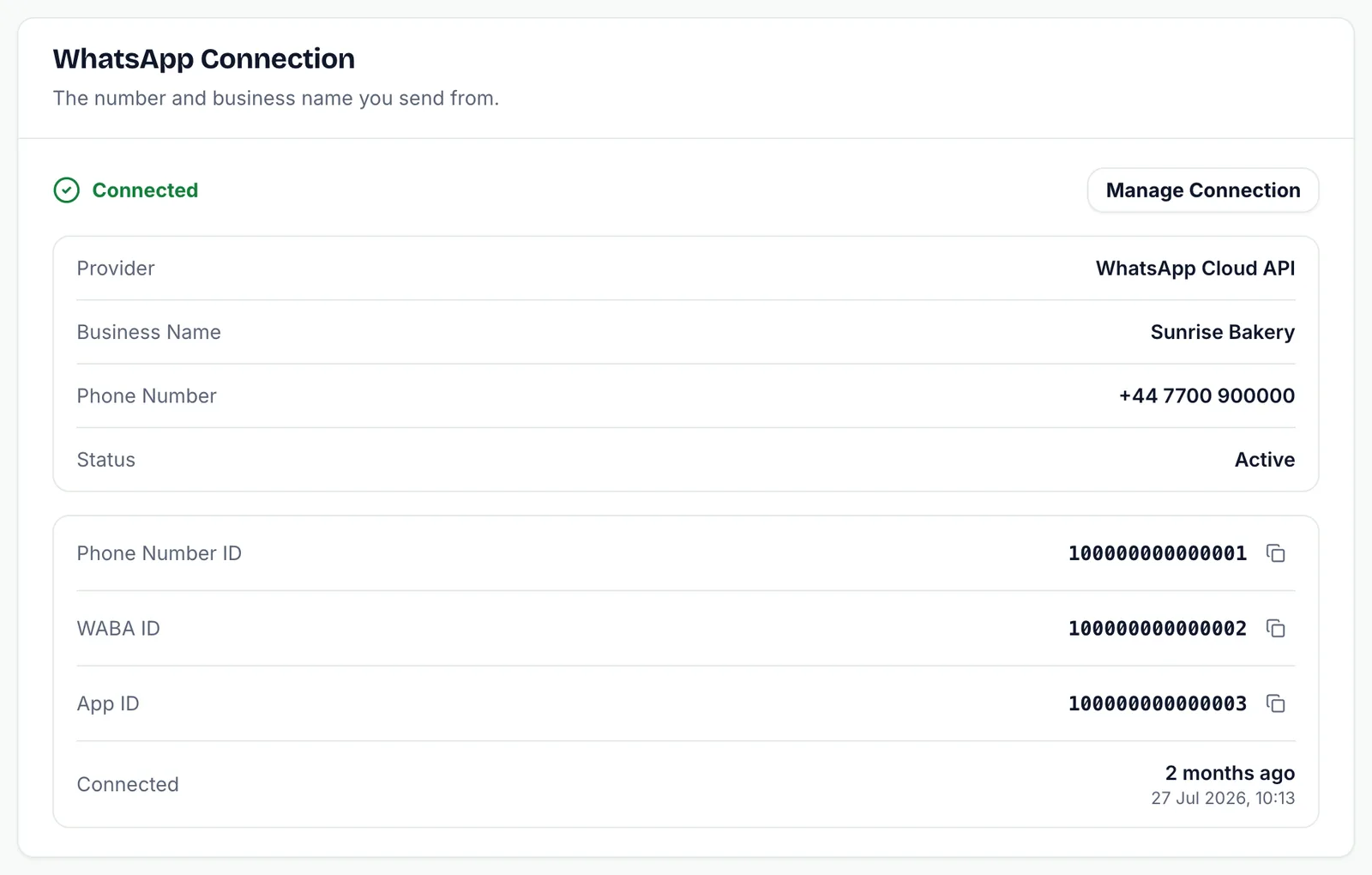
The States the Connect Page Can Show
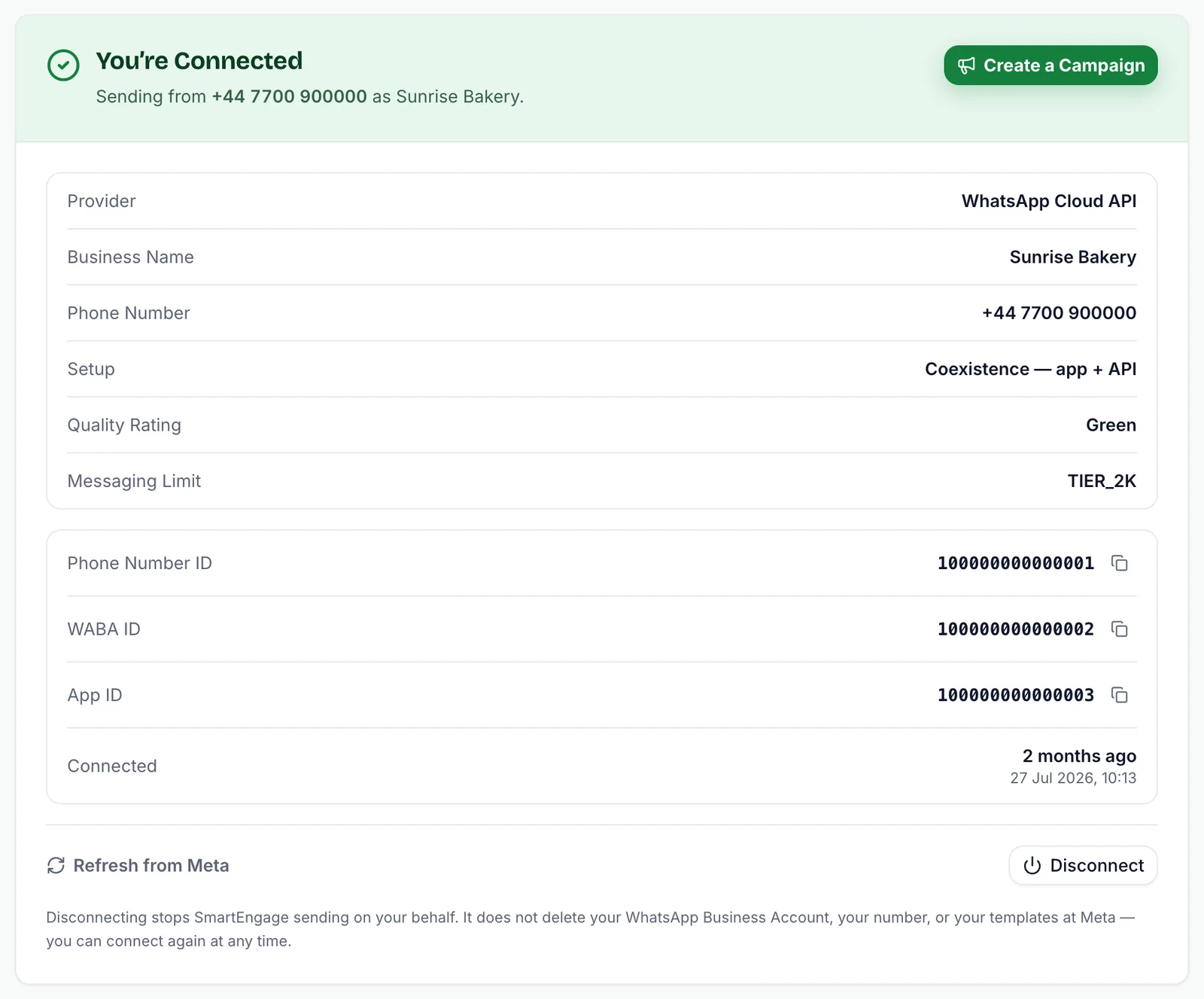
- "You’re Connected": a green panel. Your number is linked and confirmed, and SmartEngage can send from it.
- "Almost There": your WhatsApp Business Account is linked and Meta is still confirming the number. This usually takes a moment. Choose Check Again to look for an update, or Start over to clear it and connect again.
- "You’re Not Connected Yet": nothing is linked. Use Connect With Facebook to begin.
- "We Couldn’t Check Your Connection": SmartEngage could not load your connection status. This is a problem reaching SmartEngage, not a sign that WhatsApp is disconnected, and nothing has changed on Meta's side. Choose Try again.
The last one matters. If you see it, do not run the connection again. Your existing link is almost certainly still in place.
Reading the Connected Panel
At the top of the green panel, a line reads "Sending from" followed by your number and your business name. That is the number your customers will see your campaigns come from. Beside it, Create a Campaign takes you straight to your campaigns.
Below that is a box of details:
- Provider: always WhatsApp Cloud API, Meta's official channel for businesses.
- Business name: the name Meta holds for the number, which customers see.
- Phone number: your sending number, with its country code.
- Setup: how the connection was recorded, shown as "Coexistence — app + API" or "API only".
- Quality rating: Meta's current rating for the number, such as Green.
- Messaging limit: the tier Meta has set for how many people the number can message in 24 hours, shown by Meta's tier name, such as TIER_2K.
Quality rating and messaging limit only appear once Meta has reported them, so a line may be missing for a short time after you first connect.
The Meta IDs
Under the details, SmartEngage lists the identifiers Meta uses for your connection:
- Phone Number ID: Meta's ID for your sending number.
- WABA ID: the ID of your WhatsApp Business Account.
- App ID: the ID of the Meta app your connection runs through.
- Connected: when the connection was made, shown both as a relative time and as an exact date.
Each ID has a copy button. They are the first thing Meta's support asks for, and the quickest way to check that SmartEngage and your own WhatsApp Manager are talking about the same account. If you have more than one business portfolio, matching the WABA ID is how you find the right one.
Quality Rating and Messaging Limit, Briefly
These two lines are set by Meta, not by SmartEngage, and they shape how you can send.
The quality rating reflects how recipients have responded to your recent messages. The messaging limit caps how many different people your number can start conversations with in a rolling 24 hours. Meta raises it over time for numbers with a good record, and SmartEngage works within it rather than pushing past it.
For the full picture, read Understanding Quality Rating and Messaging Limits.
Keeping the Details Up to Date
Meta changes some of these details over time. Your quality rating can move, and your messaging limit can rise. To see the latest figures, choose Refresh from Meta at the bottom of the panel.
SmartEngage re-reads your number, quality rating, messaging limit and billing status from Meta, and shows "Details refreshed from Meta." when it is done.

If Something Looks Wrong
- A warning titled "Add a Payment Method in Meta" appears above the panel: Meta is reporting your account as unable to send, most often because no payment method is attached. Add one in WhatsApp Manager, then choose Refresh from Meta.
- The number or business name is not the one you meant to connect: disconnect and connect again, choosing the right number in Meta's window.
- The quality rating is low: slow down, check your audience has opted in, and review the templates you are sending.
- The page is stuck on "Almost There": choose Check Again after a few minutes. If it does not change, choose Start over and run the connection again.
To disconnect, choose Disconnect, then confirm with Yes, Disconnect, or choose Keep Connected to back out. Disconnecting stops SmartEngage sending on your behalf. It does not delete your WhatsApp Business Account, your number or your templates at Meta, and you can connect again at any time.
Related Guides
Refreshing and disconnecting in more depth: How to Refresh or Disconnect Your WhatsApp Connection.
Seeing the payment warning? Follow How to Add a Payment Method for WhatsApp.
Connection not behaving? See Troubleshooting WhatsApp Connection Problems.
Tagged
DeliverabilityGetting StartedSetupReady to send safely?
Start free — no new number, no setup fee, no card required.
Keep Reading
 Account & WhatsApp Setup5 min read
Before You Connect WhatsApp: What You Need
Most failed WhatsApp connections fail for a reason that could have been fixed beforehand. Here is what to have in hand before you click Connect With Facebook.
Read guide Troubleshooting6 min read
Fixing Contact Import Problems
Symptom-by-symptom fixes for SmartEngage contact imports: files that will not upload, wrong column mapping, rejected numbers, duplicates and imports that stop.
Read guide Account & WhatsApp Setup5 min read
How to Add a Payment Method for WhatsApp
Connected but nothing sends? Meta bills WhatsApp messages itself, and needs a payment method on the right business portfolio. Here is how to add one and confirm it in SmartEngage.
Read guide