
Understanding Quality Rating and Messaging Limits
Two figures on your Connect page decide how much you can send: your number's quality rating and its messaging limit. Both are set by Meta, not by SmartEngage, and both change over time depending on how you use the number. This guide explains what each one means, how SmartEngage works within them, and what you can do to keep them healthy.
SmartEngage
Every business number on the WhatsApp Cloud API is watched by Meta. Meta wants people to receive business messages they are glad to get, so it scores each number on how its messages are received and limits how widely a number can send until it has earned more room.
Understanding these two controls explains a lot: why a new number cannot message ten thousand people on day one, why a campaign sometimes holds recipients back, and why sending to people who never asked to hear from you costs more than a few unhappy replies.
Where You See These Figures in SmartEngage
SmartEngage reads both figures from Meta and shows them in several places:
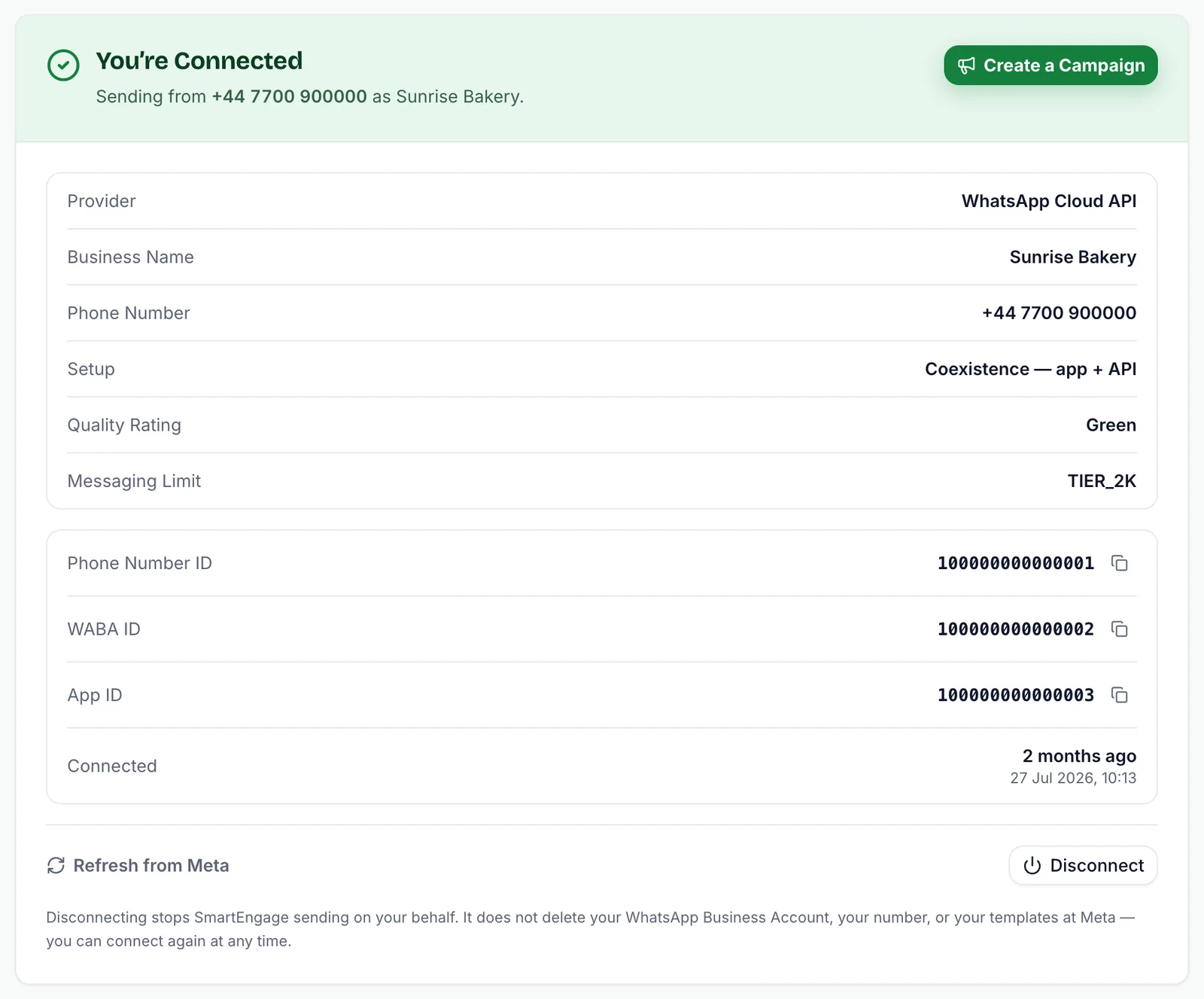
- The Connect page. The You're Connected panel lists your Quality rating, shown as Green, Yellow or Red, and your Messaging limit, shown as Meta's tier name, such as TIER_2K.
- The audience step of a new campaign. SmartEngage compares your audience with your limit and tells you, for example, that it is within your daily limit of 2,000 customers per day, or warns you when it is not.
- The schedule step. Your Number's Quality Rating appears beside the estimated time to finish.
- The pre-send checks. Number Quality Rating is one of the checks a campaign shows before you send it.
SmartEngage reads both figures when you connect and whenever you press Refresh from Meta on the Connect page, so refresh before a large send if you want the latest values.
What the Quality Rating Means
The quality rating is Meta's view of how people are responding to your messages recently. Meta bases it on signals from the people you message, such as how often they block or report your number. It has three levels:
- Green: high quality. SmartEngage shows High, good standing with Meta.
- Yellow: medium quality. SmartEngage warns that quality has dipped and suggests keeping the next send relevant and expected.
- Red: low quality. SmartEngage marks the check as a problem and warns that Meta has flagged the number and that sending more marketing now risks a block.
A brand-new number may not have a rating yet. In that case SmartEngage shows Not yet rated or Not reported yet by Meta.
What the Messaging Limit Means
The messaging limit is the number of different people your number can start conversations with in a rolling 24 hours. Meta assigns it in tiers, and SmartEngage shows the tier name Meta reports:
- TIER_250: 250 people
- TIER_2K: 2,000 people
- TIER_10K: 10,000 people
- TIER_100K: 100,000 people
- TIER_UNLIMITED: no cap
Meta now sets this limit for the whole business portfolio rather than for each number, so every number in the same portfolio shows the same tier. Numbers last read under Meta's older system may still show TIER_50 or TIER_1K until you press Refresh from Meta.
Two details matter. First, the limit counts unique people, not messages: messaging the same person twice in the window uses one place, not two. Second, the window rolls. It does not reset at midnight; each place frees up 24 hours after it was used.
Speed Is a Separate Limit
The messaging limit controls how many people you can reach. Meta also controls how fast your number can send, and that is a different ceiling. A campaign can stay well inside one and still be slowed by the other.
SmartEngage reads your number's sending speed from Meta and paces campaigns just below it. Going faster would only produce rate-limit errors from Meta, and those count against your quality rating. That is why the schedule step shows an estimated time to finish rather than promising an instant send.
How the Limit Shapes a Campaign
SmartEngage enforces your messaging limit before sending, rather than waiting for Meta to reject messages. Before each batch it checks how many unique people your number has messaged in the last 24 hours and only sends to those who fit.
If a campaign's audience is bigger than your remaining allowance, the recipients who do not fit are held back. They are not marked as failed. They stay pending, so you can resume the campaign and reach them once places free up as the 24-hour window rolls on.
You are warned before this happens. When your audience is larger than your tier, the audience step says that Meta currently allows this number a set number of customers per day, that messages past that are refused until the window rolls over, and that the campaign keeps the rest pending.
To see the audience step for yourself, read How to Choose Who Receives a Campaign.
What Moves the Limit and the Rating
Meta raises a number's messaging limit over time. As SmartEngage puts it on the audience step, sending consistently and keeping quality high is what raises the limit. A number that sends steadily to people who welcome its messages earns more room; a number whose messages are blocked and reported does not.
The quality rating moves with how people respond. The habits that protect it are the same ones that make campaigns work:
- Message only people who have agreed to hear from you
- Send content the recipient would expect from you, not a generic blast
- Keep marketing frequency reasonable, especially while quality is Yellow
- Respect opt-outs. SmartEngage never messages contacts marked as opted out.
- Let SmartEngage pace sends instead of forcing speed
If Your Rating Drops
A Yellow rating is a warning, not a penalty. Slow down, tighten your audience to your most engaged contacts, and make sure your next template is clearly useful to the people receiving it.
A Red rating needs a pause. Hold off on marketing campaigns, review who you have been messaging and why, and press Refresh from Meta over the following days to see whether the rating recovers before you send at volume again.
Related Guides
For practical sending habits, read How to Send Bulk WhatsApp Messages Without Getting Your Number Banned.
To see how held-back and failed recipients appear in a report, see How to Read Your Campaign Results.
To update these figures on demand, read How to Refresh or Disconnect Your WhatsApp Connection.
Ready to send safely?
Start free — no new number, no setup fee, no card required.
Keep Reading
 Account & WhatsApp Setup5 min read
Coexistence or API-Only: Choosing How to Connect Your Number
There are two ways to connect a WhatsApp number to SmartEngage. One keeps the WhatsApp Business app working; the other ends the number's life in the app for good. Here is how to choose.
Read article Contacts6 min read
Duplicates, Invalid Numbers and Opt-outs Explained
Why some rows in a SmartEngage import are skipped or refused, how duplicates are detected, what makes a number invalid, and what opting out actually does.
Read article Contacts6 min read
How Contacts and Contact Books Work in SmartEngage
What a contact holds, what a contact book is, and how the people you keep in SmartEngage become the audience for a WhatsApp campaign.
Read article