
How to Manage Your Business Profile
Your SmartEngage account holds two sets of business details: the account details you registered with, and the WhatsApp details Meta holds for your number. They live side by side on the Settings page but are not the same thing. This guide explains what each one is, what you can change, and which name appears on your customers' phones.
SmartEngage
A common surprise for new users is that renaming the business in SmartEngage does not change the name customers see in WhatsApp. That is because the two names come from different places: one is your SmartEngage account, the other belongs to your number and is managed by Meta.
Knowing which is which saves time and avoids confusion when a customer asks who a message is from.
Where to Find Your Business Details
Open Settings from the Account section of the sidebar, or from the account menu in the top corner. The page is split into sections:
- WhatsApp Connection: the number and business name you send from
- Business Profile: your account and workspace details
- Devices & Sessions: where your account is currently signed in
- More: links to Help & Support, our Privacy policy and the WhatsApp policy
- Close Account: the option to delete your account
This guide covers the first two sections.
The Business Profile Section
Business Profile shows the details you gave when you created your account.
- Company name, in an editable box. This is your account name inside SmartEngage.
- Contact name, the full name of the person who registered.
- Email, the account email address.
- Website, if you entered one at sign-up.
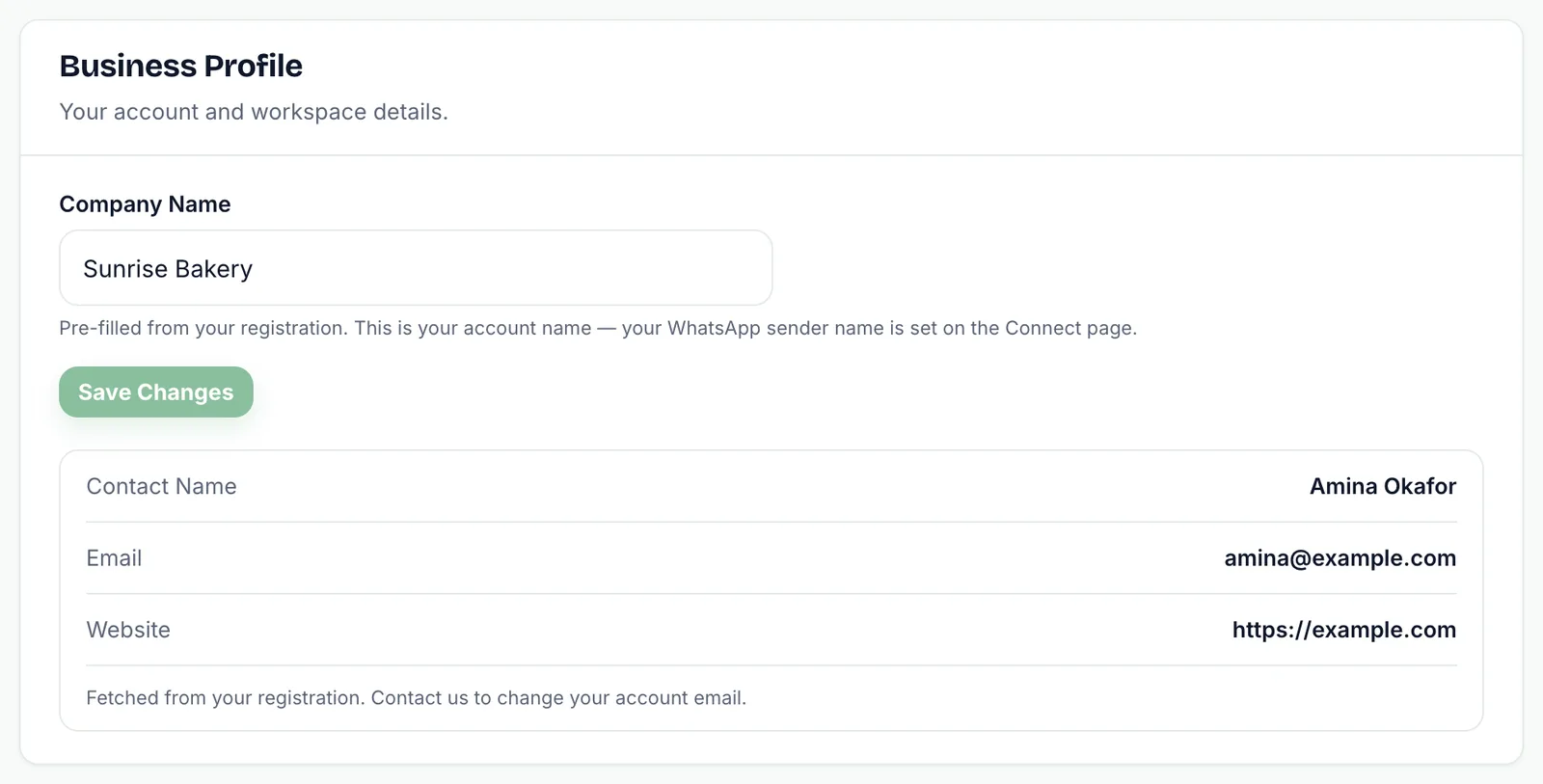
Contact name, email and website are shown for reference and cannot be edited on this screen. As the note under them says, they are fetched from your registration. To change your account email, contact us.
Changing Your Company Name
The company name is pre-filled from your registration and appears at the foot of the sidebar and in the welcome message on your dashboard.
- Click into the Company name box and type the new name. It can be up to 60 characters.
- Press Save changes. The button only becomes active once you have changed something.
- A Saved confirmation appears next to the button.
This change updates how the name is displayed in SmartEngage on the browser where you make it. The company name on your account record, which is the name printed on your invoices, stays as you registered it. If that needs to change, for example because your business has been renamed, contact us and we will update it.
The hint under the box says it plainly: this is your account name, and your WhatsApp sender name is set on the Connect page.
The WhatsApp Connection Section
The first section on the Settings page is about your number rather than your account. Once your number is connected, it shows:
- Provider: WhatsApp Cloud API
- Business name: the name Meta holds for your WhatsApp Business number
- Phone number: the number you send from
- Status: Active when everything is working
Below those are the identifiers Meta uses for your account: the Phone Number ID, the WABA ID (your WhatsApp Business Account) and the App ID. You will rarely need them, but support teams at SmartEngage or Meta may ask for them, and each has a button to copy it.
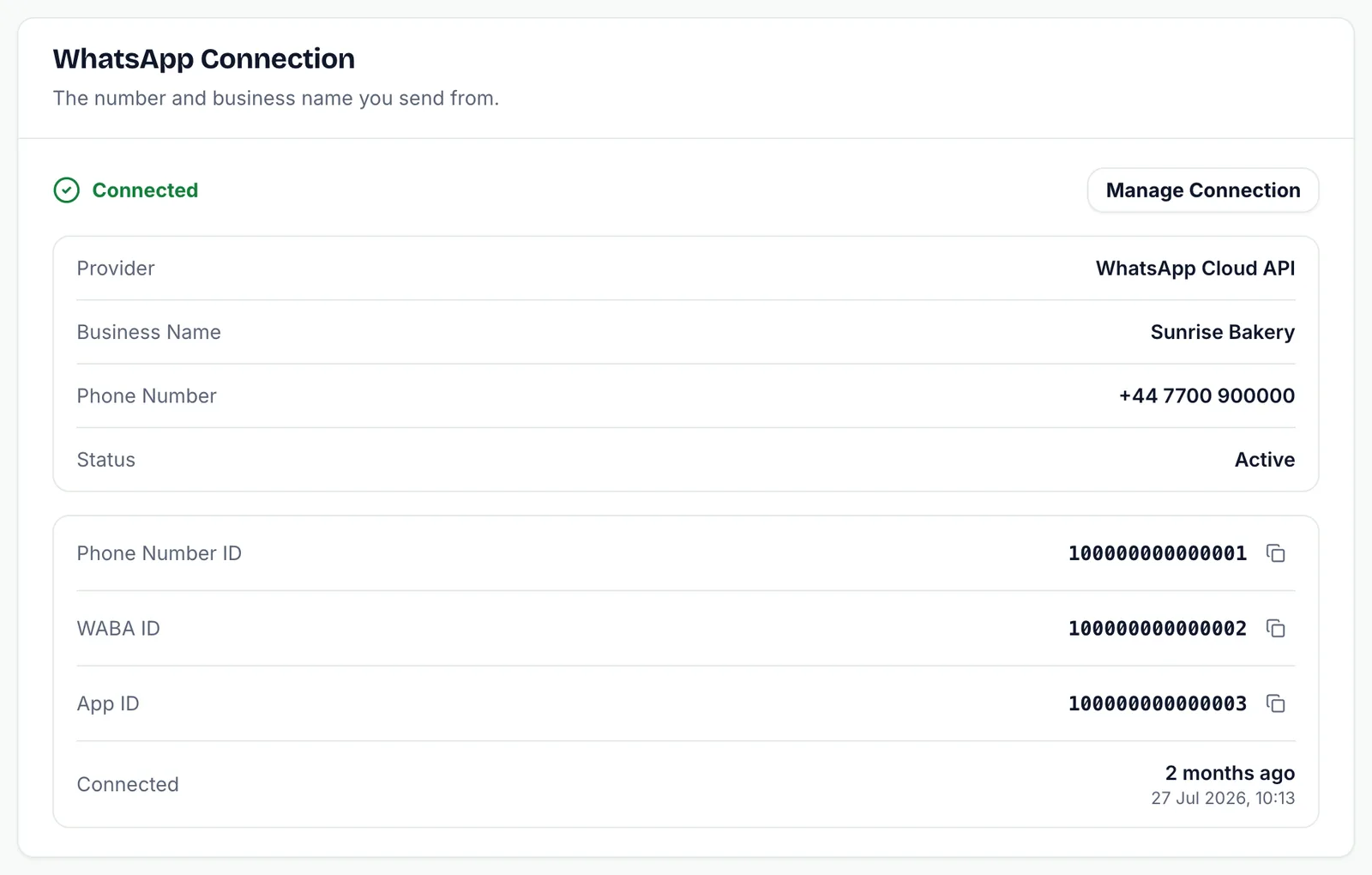
The Manage Connection button takes you to the Connect page. If your number is not connected yet, the button reads Connect Now, or Finish Setup if you started connecting but Meta has not confirmed a sending number.
Which Name Do Customers See?
Customers see the business name attached to your WhatsApp number, the one shown as Business name under WhatsApp Connection. It is set when you connect your number through Meta's Embedded Signup and is managed on Meta's side, not in SmartEngage.
SmartEngage uses the same name when it writes to customers on your behalf. For example, when a customer replies STOP, the automatic confirmation they receive names your WhatsApp business, not your SmartEngage company name.
Your SmartEngage company name, on the other hand, is internal. Customers never see it in their WhatsApp chats. That makes it safe to use whatever name helps your team, such as a branch name or, for agencies, the client's name.
Changing the Name Customers See
Because the WhatsApp business name belongs to your number, it is changed through Meta rather than in SmartEngage. Meta reviews business name changes against its own display name rules, so allow time for that review.
Once Meta has approved the new name, open the Connect page in SmartEngage and press Refresh from Meta to bring the current details for your number across.
For more on the Connect page, read How to Check Your Connection and Sending Number.
Refresh from Meta is explained step by step in How to Refresh or Disconnect Your WhatsApp Connection.
Keeping Your Details Accurate
A few habits keep your account tidy:
- Make sure the email on your account is one your team can reach. It is the address shown on your invoices.
- Use the company name customers recognise when you register, so your invoices are addressed correctly from the start.
- Check the Business name under WhatsApp Connection after connecting. If it is not what your customers know you as, correct it at Meta before you send your first campaign.
A Note on Closing Your Account
The last section of the Settings page, Close Account, is not a way to reset your profile. Pressing Delete My Account signs you out on every device and makes the account read-only straight away, and the account is deleted after 30 days. If you only want to change a name or an email, use the steps above or contact us instead.
Related Guides
The next section on the Settings page is covered in How to Manage Devices and Sessions.
Need to change your account email or company name? Reach us through the contact page.
Tagged
ProductSettingsSetupReady to send safely?
Start free — no new number, no setup fee, no card required.
Keep Reading
 Account & WhatsApp Setup5 min read
Before You Connect WhatsApp: What You Need
Most failed WhatsApp connections fail for a reason that could have been fixed beforehand. Here is what to have in hand before you click Connect With Facebook.
Read guide Troubleshooting6 min read
Fixing Contact Import Problems
Symptom-by-symptom fixes for SmartEngage contact imports: files that will not upload, wrong column mapping, rejected numbers, duplicates and imports that stop.
Read guide Account & WhatsApp Setup5 min read
How to Add a Payment Method for WhatsApp
Connected but nothing sends? Meta bills WhatsApp messages itself, and needs a payment method on the right business portfolio. Here is how to add one and confirm it in SmartEngage.
Read guide