
How to Manage Devices and Sessions
Your SmartEngage plan allows a set number of devices, and a device is simply one active sign-in. This guide shows where to see every device signed in to your account, how to sign one out, and exactly what happens when someone signs in and the account is already at its limit.
SmartEngage
Most teams do not think about devices until someone is unexpectedly signed out. Usually the reason is simple: a colleague signed in on another computer, and the account was already using every device the plan allows.
A few minutes with the Devices & Sessions section explains what is going on and puts you back in control.
What a Device Is
In SmartEngage, a device is one active sign-in: a browser on a computer, tablet or phone that is currently signed in to your account. The same person signed in on a laptop and a phone is using two devices. Two colleagues each signed in on their own computer are also using two.
A device is not a WhatsApp number. Adding devices lets more people or computers use SmartEngage at the same time; it does not let you send from more numbers.
Every plan includes one device. Paid plans can add extra device packs; the free trial cannot.
For how devices fit into your plan, read How Plans, Devices and Billing Work.
Where to See Your Devices
Open Settings from the Account section of the sidebar and scroll to Devices & Sessions. At the top is a count such as 2 of 2 active sessions, showing how many devices are signed in and how many your plan allows.
Below the count is one row for each session on your account, including sessions signed in by colleagues:
- The browser you are using now is labelled This device, with an Active now badge and a description such as Chrome on Windows.
- Every other session shows its browser and operating system, for example Safari on macOS, and when it was last active.
- A phone or tablet session has a phone icon; a computer has a monitor icon.
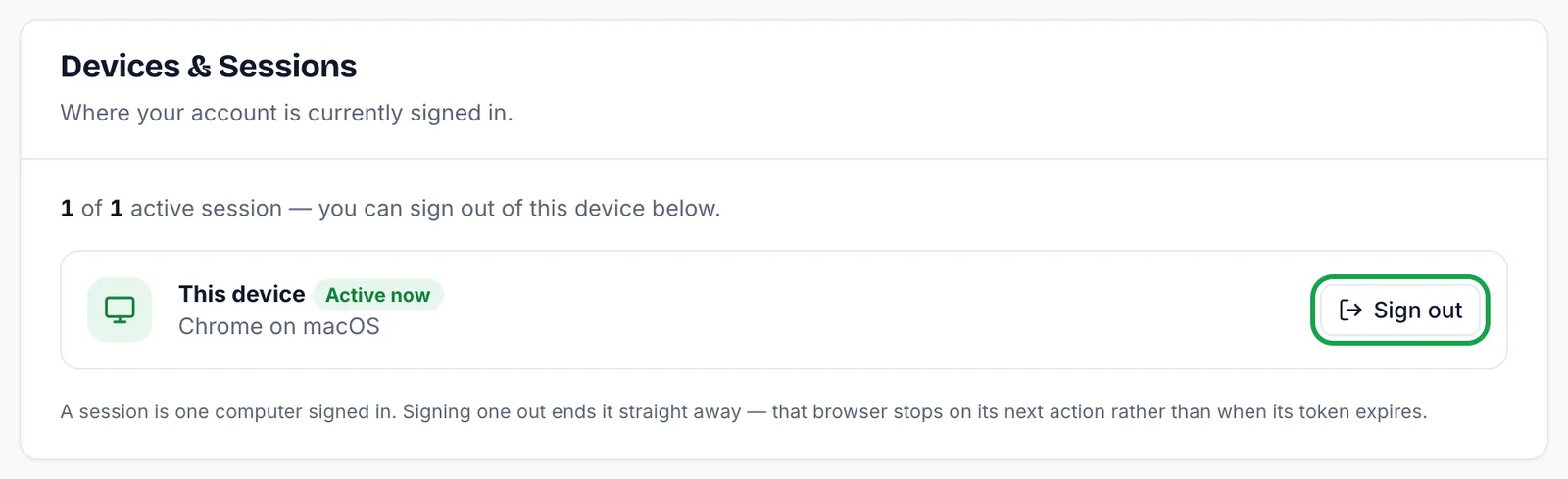
Last active is the last time that browser was in use, not when someone first signed in, so an old date usually means a computer that has been left signed in and forgotten.
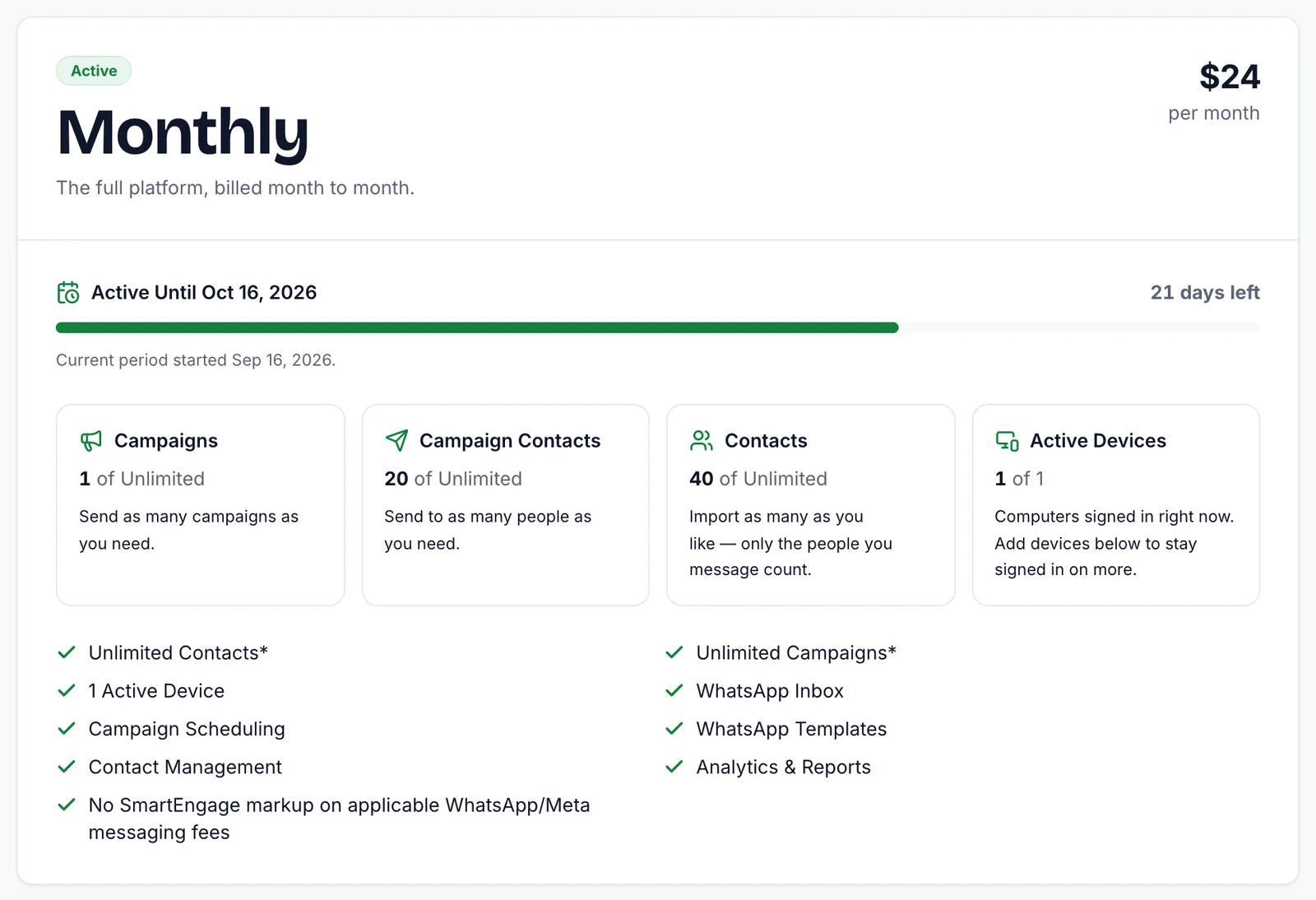
The same figure appears on the Plan & Billing page, in the Active Devices tile.
How to Sign a Device Out
Every row has a Sign out button.
- Find the session you want to end. Use the browser name and the last active date to identify it.
- Press Sign out on that row. The button shows Signing out while it works.
- The list reloads without that session.
Signing a session out ends it immediately. That browser is stopped on its next action, rather than staying usable until its sign-in would have expired. Whoever was using it will need to sign in again with a new code.
You can also sign out the device you are on. Pressing Sign out on the This device row signs this browser out and takes you out of the app.
When to Sign Devices Out
- A computer you no longer use, such as an old laptop or a shared machine
- A browser you signed in on while travelling or at a client's office
- A colleague who has left the business or no longer needs access
- A computer you are about to hand to someone else, sell or send for repair
- When a colleague is about to sign in and every device is in use, so you choose which session ends
- Any session you do not recognise. If you cannot account for one, sign it out.
Because SmartEngage sign-in uses a one-time code rather than a password, someone who has been signed out cannot get back in without receiving a new code for your account.
What Happens at the Device Limit
SmartEngage never refuses a sign-in because the account is full. Instead, when someone signs in and every device is already in use, the session that has gone unused the longest is signed out to make room.
This keeps you from being locked out by a session you cannot reach, such as a laptop left at home. The trade-off is that on a one-device plan, colleagues take turns: each new sign-in signs the other person out.
If people on your team keep being signed out in the middle of their work, that is the signal to add devices. The Need More Devices? options on the Plan & Billing page let you add a pack while your paid plan is running, and you pay only for the days left on the plan.
When Your Device Count Goes Down
Your device allowance can also shrink, for example when you renew or upgrade with fewer extra devices than you had before. SmartEngage warns you on the Plan & Billing page, before you pay, how many computers will be signed out.
When the payment completes, sessions are signed out oldest first until the account is back within its allowance. The computer you paid from always stays signed in.
Signing Out Everywhere
There is no single button to sign out every other session at once. Sign out each row in turn from Devices & Sessions instead. Delete My Account, in the Close Account section, does sign out every device, but it also makes the account read-only and deletes it after 30 days, so it is not a way to tidy up sessions.
Related Guides
To add devices to your plan, follow How to Buy, Upgrade or Extend Your Plan.
For how sign-in codes work, read How to Sign In With Your WhatsApp Number.
The other sections of the Settings page are covered in How to Manage Your Business Profile.
Tagged
BillingProductSettingsReady to send safely?
Start free — no new number, no setup fee, no card required.
Keep Reading
 Account & WhatsApp Setup5 min read
Before You Connect WhatsApp: What You Need
Most failed WhatsApp connections fail for a reason that could have been fixed beforehand. Here is what to have in hand before you click Connect With Facebook.
Read guide Troubleshooting6 min read
Fixing Contact Import Problems
Symptom-by-symptom fixes for SmartEngage contact imports: files that will not upload, wrong column mapping, rejected numbers, duplicates and imports that stop.
Read guide Account & WhatsApp Setup5 min read
How to Add a Payment Method for WhatsApp
Connected but nothing sends? Meta bills WhatsApp messages itself, and needs a payment method on the right business portfolio. Here is how to add one and confirm it in SmartEngage.
Read guide