
How to Retry Failed Messages
When part of a campaign fails, you do not have to send the whole thing again. SmartEngage can resend to only the recipients who failed, on the same campaign and in the same report, while everyone who already received the message is left alone. This guide explains how to read the failures first, which ones are worth retrying, and how to do it.
SmartEngage
A handful of failures is normal in any bulk send. Some numbers are not on WhatsApp, and some messages are held back by WhatsApp itself. A large number of failures usually has one cause that you can fix.
Retrying blindly wastes effort and can hurt your number's standing. Retrying after fixing the cause often recovers most of the missed audience.
What SmartEngage Already Retries for You
Not every problem reaches the failed column. When Meta reports a temporary problem, such as asking SmartEngage to slow down or a brief error on its side, the affected recipients are not marked as failed. They stay "Waiting" and are tried again automatically, with a longer pause before each new attempt.
The report shows how many attempts were deferred this way, with a note that those recipients are still waiting, not failed. Only if a recipient is still being refused after five rounds of automatic retries is it recorded as failed, with a reason that begins "Still rate-limited after 5 retries".
So by the time you see a failure, SmartEngage has either been told it is permanent or has already tried several times.
Step 1: Read the Failure Summary
Open the campaign's report with the "Report" button on its card. If any messages failed, a section headed "Why Messages Failed" groups them by the reason WhatsApp gave, largest group first.
For reasons SmartEngage recognises, each group explains the likely cause, gives a "What to Do" step, and ends with one of two lines:
- "Sending to these numbers again can work."
- "Sending to these numbers again will fail the same way."
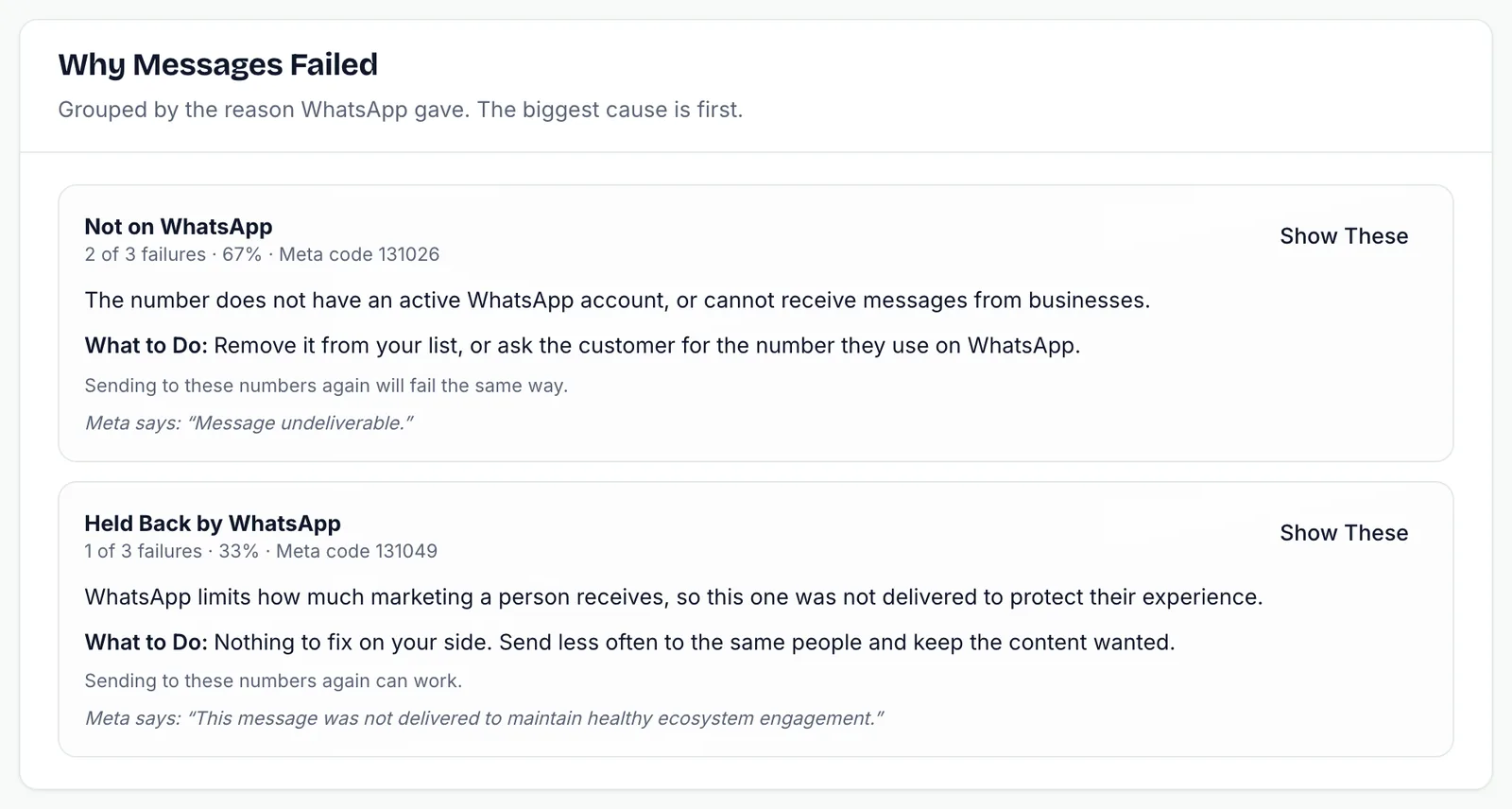
Meta's own error code and wording are shown too. Press "Show These" to list the failed recipients, each with Meta's code and explanation.
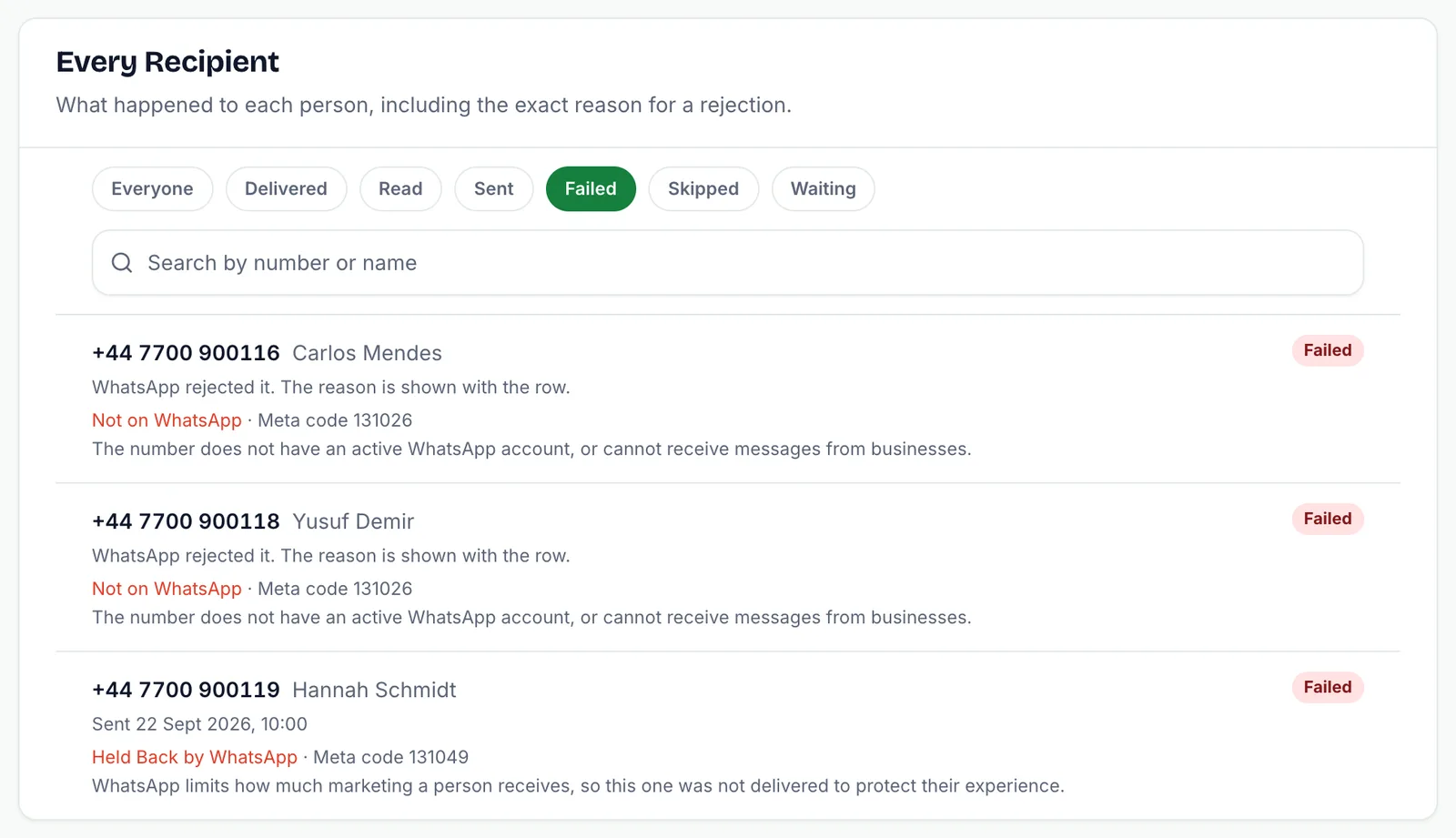
Step 2: Decide Which Failures Are Worth Retrying
These failure types can succeed on another attempt, usually once time has passed or the cause is fixed:
- Billing problem: Meta could not charge your business account. Check the payment method in Meta's billing settings first, then retry.
- Held back by WhatsApp: WhatsApp limits how much marketing one person receives. A retry later may get through, but sending less often to the same people is the real fix.
- Spam rate limit: your number was restricted for sending faster than its quality rating allows. Pause marketing for a day, then retry at a smaller volume.
- Sending too fast: Meta throttled the send. These are normally retried automatically before they ever count as failures.
For a billing problem, follow How to Add a Payment Method for WhatsApp.
These will fail the same way however many times you try:
- Not on WhatsApp, or Message undeliverable: the number has no active WhatsApp account. Correct or remove it in your contacts.
- Template paused, Template disabled or Template not found: Meta has stopped the template, or it no longer exists on your account.
- Wrong number of details, Value does not match the template, Content not allowed or Message too long: the values in the campaign do not fit the approved template.
- Media problem: WhatsApp could not fetch the header image, video or document.
- Account restricted, or Number not registered: a problem with your WhatsApp Business account or sending number that needs fixing at Meta or on the Connect page.
A retry sends the same template with the same values the campaign was created with. So if the values themselves were the problem, retrying will not help. Build a new campaign with corrected values instead.
Step 3: Press Resend
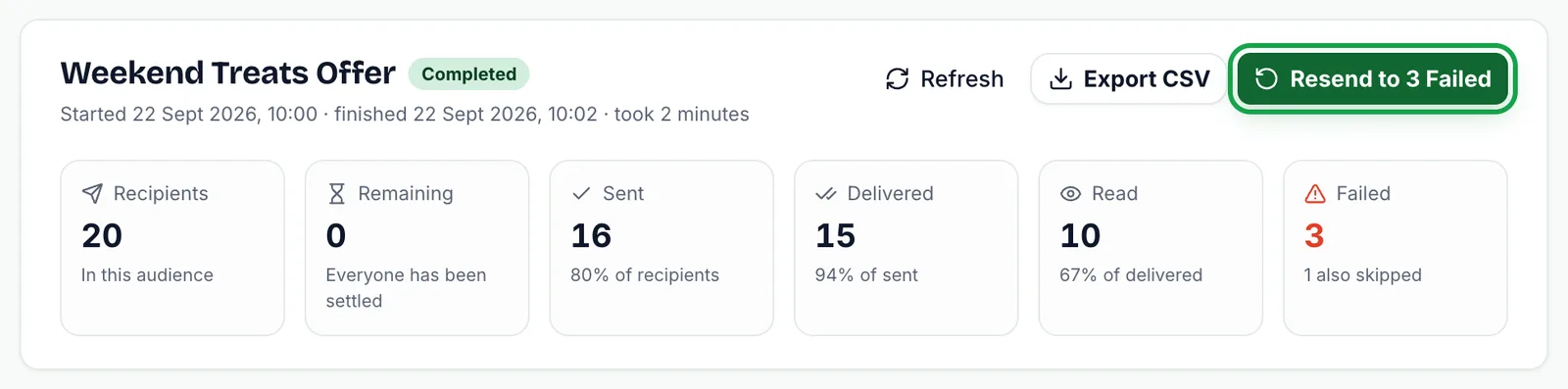
In the report header, press the button that reads "Resend to" followed by the number of failures, for example "Resend to 42 Failed". It appears only when the campaign has failures and is not currently preparing or sending.
A confirmation box asks "Send again to the failures?" It states how many recipients will be tried again on this same campaign, and that everyone WhatsApp already accepted is left alone, so nobody receives the message twice. If some of the failures are the permanent kind, the box also says how many are expected to fail again.
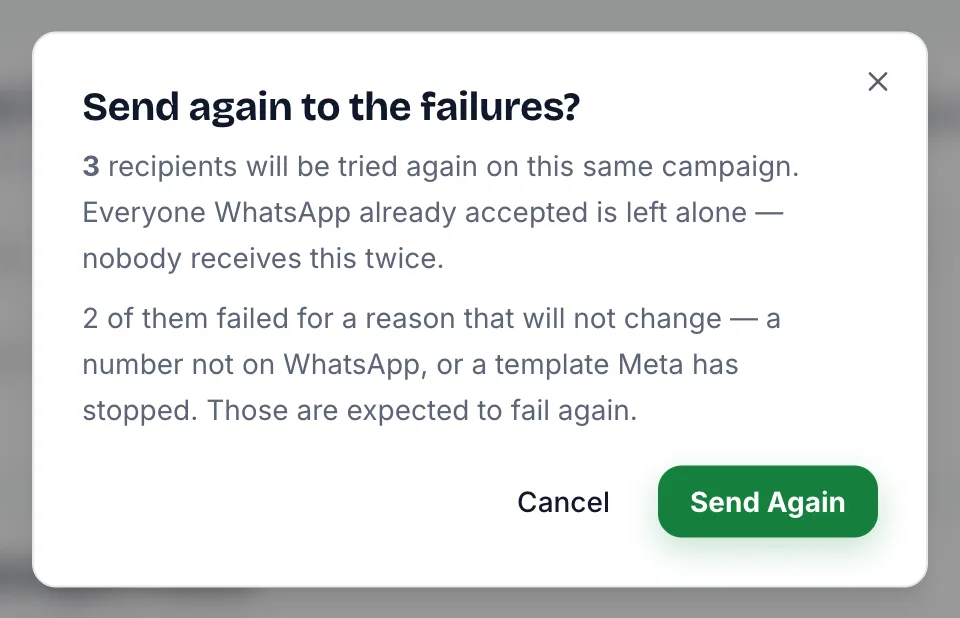
Press "Send Again" to go ahead. A note confirms how many recipients are being sent to, and the page updates as they go out.
What Happens When You Retry
- Only recipients with the status "Failed" are reset to "Waiting". Delivered, read, sent and skipped recipients are untouched.
- Their old error codes are cleared, and the failed count drops by the same number.
- The campaign returns to "Sending" and its report keeps building in the same place, so you keep one record of the whole send.
- Each recipient's attempt count is kept, so the report shows that a number has now been tried twice.
Retrying works on completed, failed and cancelled campaigns. On a paused campaign it also queues the recipients who were still waiting, so it effectively resumes the campaign as well.
When a Retry Is Refused
SmartEngage checks a few things before resending, and tells you plainly if one fails:
- The campaign is still sending. Wait for it to finish first.
- There are no failed messages to send again.
- The template is no longer approved on your account, so it cannot be sent again.
- The template no longer matches the values the campaign holds, for example because it was edited at Meta.
- Your plan period has ended. Choose a plan to send again.
A retry does not use another campaign from your plan's allowance, because the campaign was counted when it first started.
Retrying Without Harming Your Number
Rejected sends can count against your number's standing with Meta, so a retry should be a decision, not a habit:
- Fix the cause first. Retrying a billing failure before adding a payment method just fails again.
- Leave permanent failures out of future sends. Clean numbers that are not on WhatsApp from your contact books.
- Give limits time. If the failures were about sending volume, wait before retrying.
- Never work around a retry by copying the campaign to everyone again. People who already received it would get it twice.
How Meta judges your number is explained in Understanding Quality Rating and Messaging Limits.
Next Steps
If messages are failing across whole campaigns, work through Why Your Messages Are Not Sending.
For a full tour of the report screen, read How to Read Your Campaign Results.
Tagged
CampaignsDeliverabilityTroubleshootingReady to send safely?
Start free — no new number, no setup fee, no card required.
Keep Reading
 Account & WhatsApp Setup5 min read
Before You Connect WhatsApp: What You Need
Most failed WhatsApp connections fail for a reason that could have been fixed beforehand. Here is what to have in hand before you click Connect With Facebook.
Read guide Troubleshooting6 min read
Fixing Contact Import Problems
Symptom-by-symptom fixes for SmartEngage contact imports: files that will not upload, wrong column mapping, rejected numbers, duplicates and imports that stop.
Read guide Account & WhatsApp Setup5 min read
How to Add a Payment Method for WhatsApp
Connected but nothing sends? Meta bills WhatsApp messages itself, and needs a payment method on the right business portfolio. Here is how to add one and confirm it in SmartEngage.
Read guide