
How to Read Your Campaign Results
Every SmartEngage campaign has its own report, showing how many messages were sent, delivered, read, failed or skipped, why any failed, and what happened to each person. This guide walks through the report screen section by section so you know exactly what every number and status means.
SmartEngage
A campaign report answers three questions in order: how did the campaign do overall, why did any messages fail, and what happened to one particular person.
This is a practical guide to the screen itself. For advice on which rates matter and what good looks like, the companion article is linked at the end.
Step 1: Open the Report
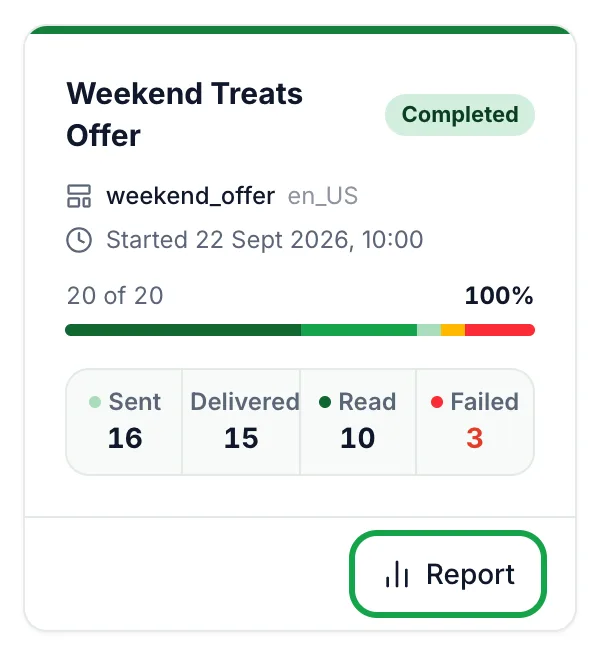
Go to Campaigns and find the campaign. Each card already shows a progress bar, a count such as "1,240 of 2,000", and four figures: Sent, Delivered, Read and Failed. For the full picture, press "Report" at the bottom of the card, or click the campaign's name.
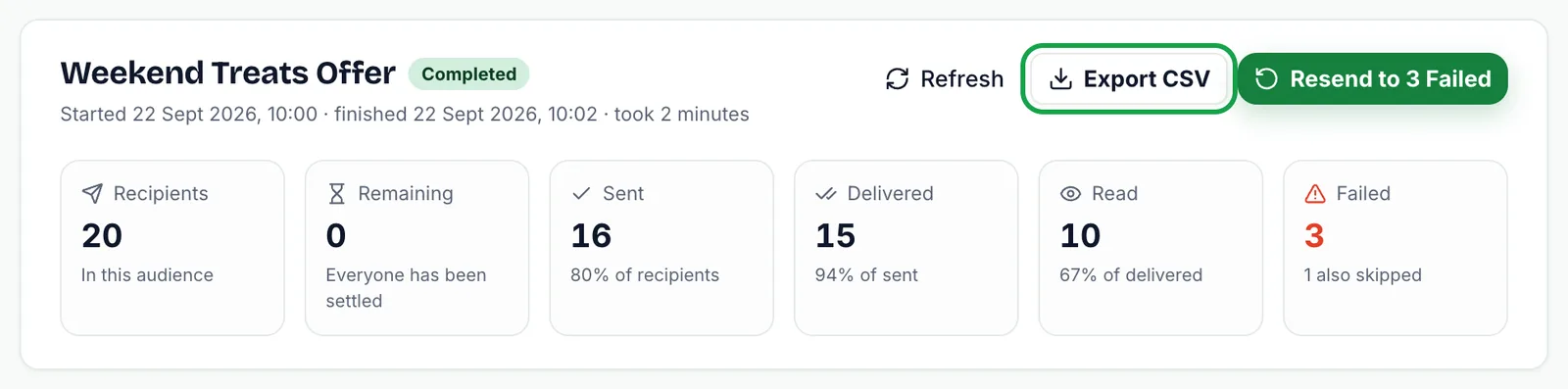
At the top of the report you see the campaign name, its status, when it started, when it finished and how long it took.
Step 2: Read the Six Headline Figures
A row of six figures sums up the campaign. Each rate is measured against the stage before it, not against the total, so a low read rate is never blamed on a delivery problem:
- Recipients: how many people were in the audience when the campaign started, after opted-out contacts were removed.
- Remaining: how many have not been settled yet. When it reaches zero, the note reads "Everyone has been settled".
- Sent: messages WhatsApp accepted, shown as a percentage of recipients.
- Delivered: messages that reached the handset, as a percentage of sent.
- Read: messages the recipient opened, as a percentage of delivered.
- Failed: messages WhatsApp rejected. If some recipients were skipped, the note under this figure says how many.
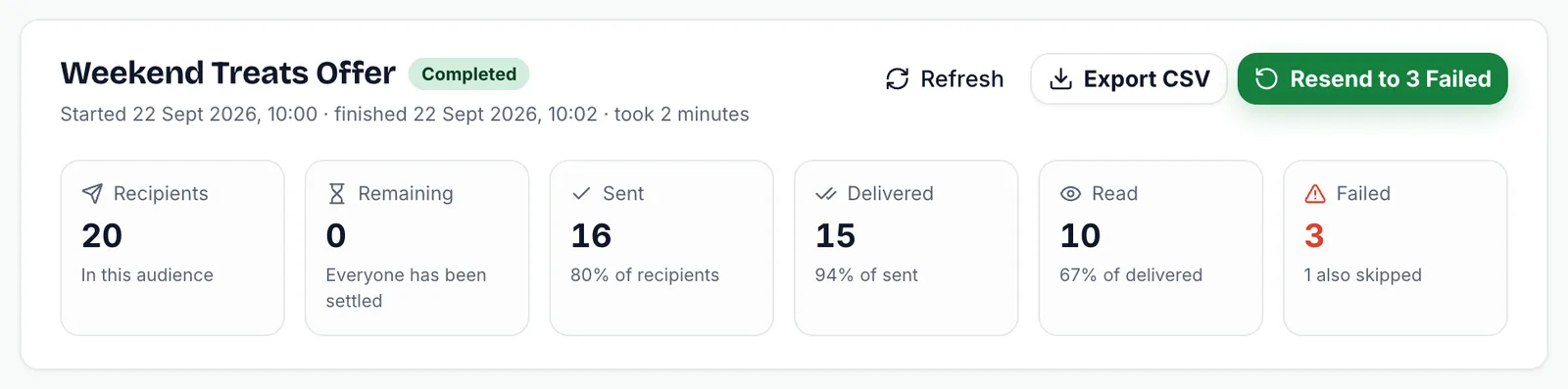
Delivered and Read arrive later than Sent. WhatsApp reports them back after the message has been handed over, so these figures keep rising for a while after a campaign finishes. Read is only counted when the recipient has read receipts switched on, so it understates how many people actually saw your message.
Step 3: Check Whether It Is Still Running
While a campaign is preparing or sending, the report refreshes itself every few seconds and the "Refresh" icon spins. Once it has finished, press "Refresh" to pull in the latest delivery and read updates.
If you see a line saying some attempts were deferred and will be retried, those recipients are still waiting, not failed. It usually means Meta asked SmartEngage to slow down, and the messages are tried again automatically.
Step 4: Read Why Messages Failed
If any messages failed, a section headed "Why Messages Failed" groups them by the reason WhatsApp gave, with the biggest cause first. Each group shows:
- A plain-English title, such as "Not on WhatsApp" or "Billing Problem".
- How many failures it accounts for, as a count and a percentage, and Meta's error code.
- For errors SmartEngage recognises, the likely cause, a "What to Do" line, and whether sending to those numbers again can work.
- Meta's original wording, so nothing is lost in translation.
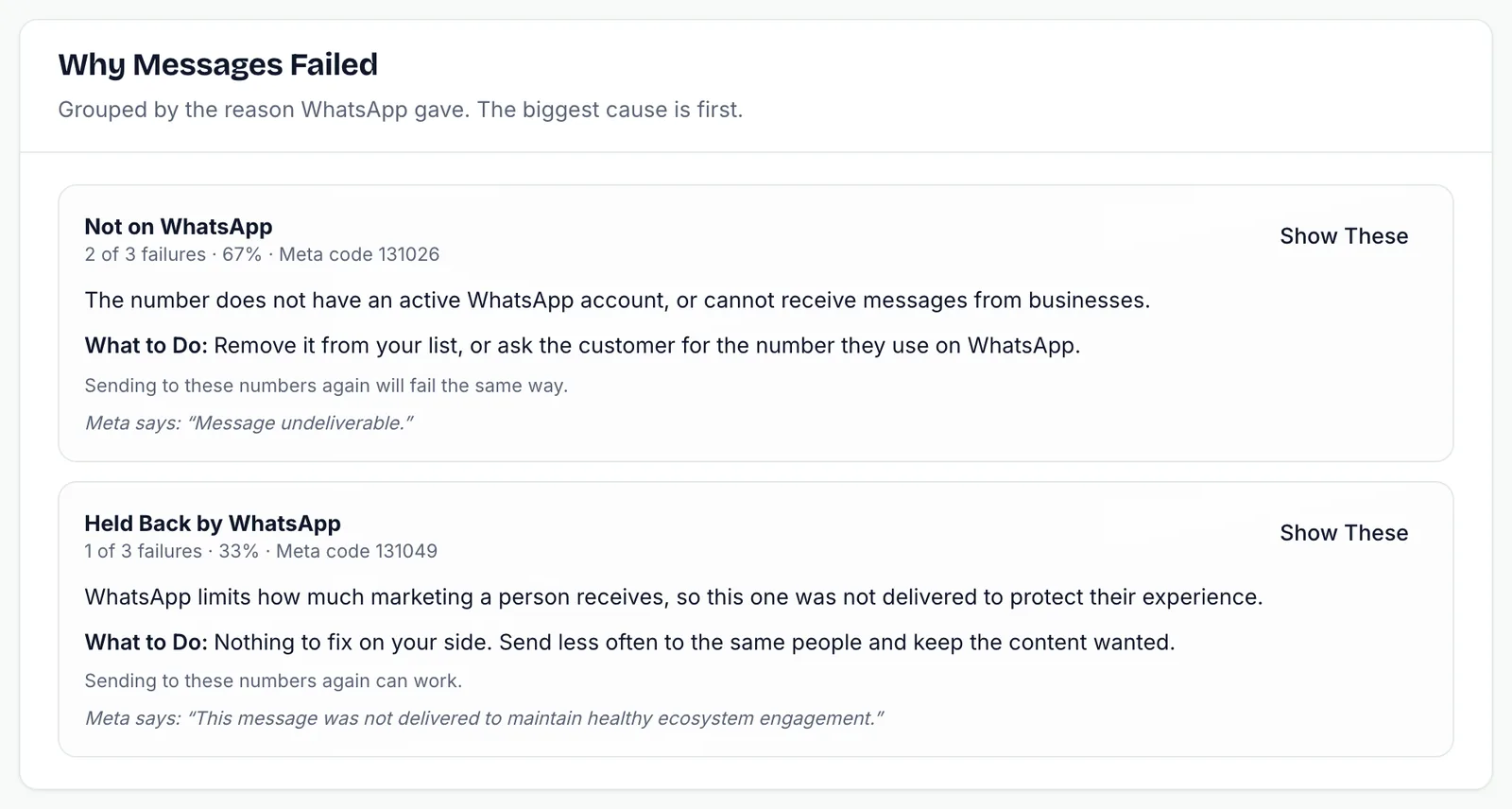
Press "Show These" on a group to jump to the recipient list filtered to failed messages. When one reason accounts for most failures, that is the one to fix before your next send.
If failures run across whole campaigns, work through Why Your Messages Are Not Sending.
Step 5: Look Up Individual Recipients
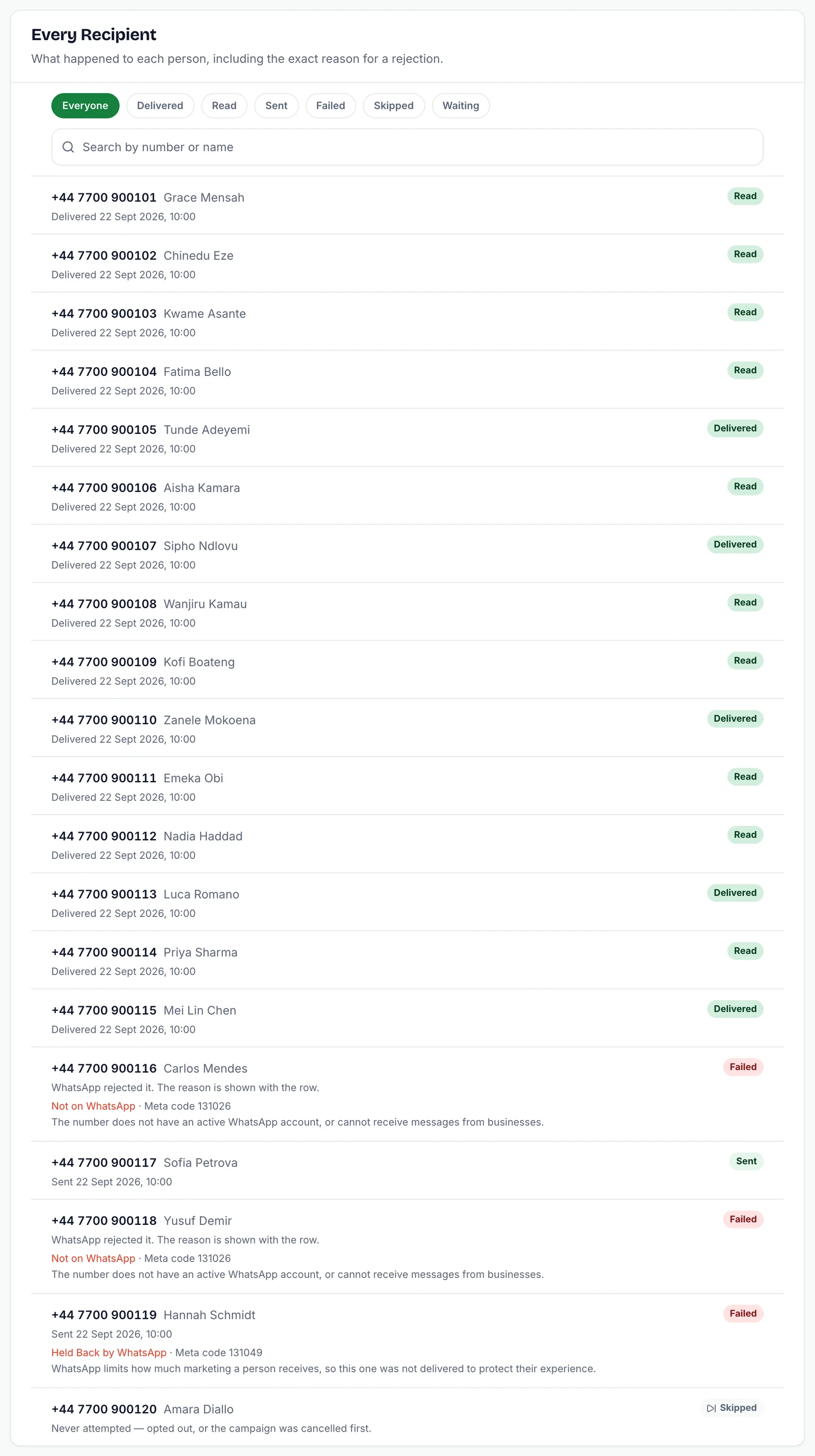
The "Every Recipient" section lists each person in the campaign, 50 to a page, with "Previous" and "Next" buttons to move between pages. Filter it with the chips at the top: Everyone, Delivered, Read, Sent, Failed, Skipped and Waiting. To find one person, use the "Search by number or name" box.
Each row shows the phone number, the contact's name, a status badge and when the message was sent or delivered. If a message needed more than one try, the row says how many attempts it took. Failed rows also show the reason and Meta's code.
What Each Recipient Status Means
Every recipient has exactly one status, and it always shows the furthest point their message reached:
- Waiting: not attempted yet, or deferred for a retry. Recipients in a paused campaign, and those held back by Meta's messaging limit, show here.
- Sent: WhatsApp accepted the message. Delivery is confirmed separately.
- Delivered: the message reached the handset.
- Read: the recipient opened it. Only counted when their read receipts are on.
- Failed: WhatsApp rejected it, and the reason is shown with the row.
- Skipped: never attempted, because the campaign was cancelled before reaching them.
Contacts who had opted out are not in the list at all. They were left out when the campaign started, so they never appear as recipients.
Because each person has one status, the filters do not overlap. The Delivered filter shows people whose message arrived but has not been read yet. Anyone who read it is under Read instead.
A message can also move from Sent to Failed. WhatsApp sometimes accepts a message and reports later that it could not be delivered. When that happens, SmartEngage moves it out of the sent count and into the failed count, so the two figures never both claim the same message.
Step 6: Export the Report
Press "Export CSV" to download the recipient list as a spreadsheet file. The export follows whatever filter and search you have applied, so you can export only the failures, for example.
Each row includes the phone number, name, status, sent time, delivered time, number of attempts, error code and reason. Exports cover up to 2,000 rows. If there are more, the file ends with a line saying where it was cut off, so you can filter and export again in smaller parts.
Acting on What You Find
Most reports lead to one of three actions:
- Clean your list. Numbers marked "Not on WhatsApp" will fail every time. Remove or correct them in your contacts.
- Fix the cause, then send again to the failures. A billing problem or a temporary limit is often worth a retry once it is resolved.
- Improve the next campaign. Low read rates are about the message and its timing, not the report.
For the retry itself, see How to Retry Failed Messages.
Keep Reading
For which rates matter and what to change when they are low, read Reading Your WhatsApp Campaign Analytics: What Actually Matters.
To see results across all your campaigns at once, read How to Use the Analytics Dashboard.
Replies to a campaign arrive in your inbox. See How the SmartEngage Inbox Works.
Tagged
AnalyticsCampaignsReportingReady to send safely?
Start free — no new number, no setup fee, no card required.
Keep Reading
 Account & WhatsApp Setup5 min read
Before You Connect WhatsApp: What You Need
Most failed WhatsApp connections fail for a reason that could have been fixed beforehand. Here is what to have in hand before you click Connect With Facebook.
Read guide Troubleshooting6 min read
Fixing Contact Import Problems
Symptom-by-symptom fixes for SmartEngage contact imports: files that will not upload, wrong column mapping, rejected numbers, duplicates and imports that stop.
Read guide Account & WhatsApp Setup5 min read
How to Add a Payment Method for WhatsApp
Connected but nothing sends? Meta bills WhatsApp messages itself, and needs a payment method on the right business portfolio. Here is how to add one and confirm it in SmartEngage.
Read guide