
Sign-In Problems: Codes, Limits and Errors
SmartEngage has no passwords. You sign in with your WhatsApp number and a six-digit code sent to it on WhatsApp. When that goes wrong, the sign-in screen tells you why in a short message. This guide goes through each one: what you see, what causes it and what to do.
SmartEngage
Passwordless sign-in removes the most common account problem of all, the forgotten password. There is nothing to reset and nothing to leak. It does mean that when you cannot sign in, the cause is almost always one of a few things: the number, the code, a limit, or the connection between your browser and SmartEngage.
Start by finding the message you are seeing in the sections below.
How Sign-In Works
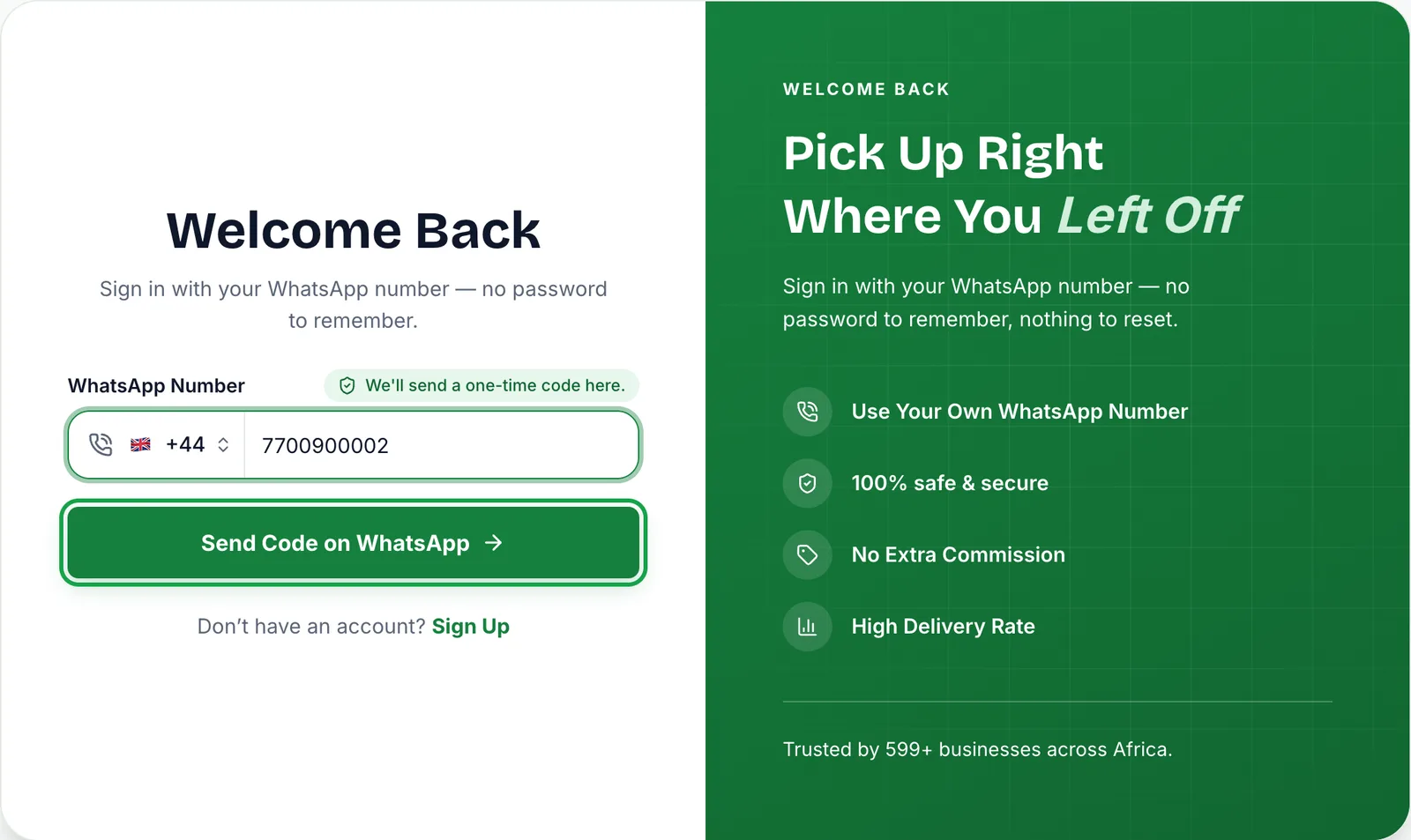
- On the sign-in page, choose your country and enter your WhatsApp number, then press Send code on WhatsApp.
- SmartEngage sends a six-digit code to that number as a WhatsApp message.
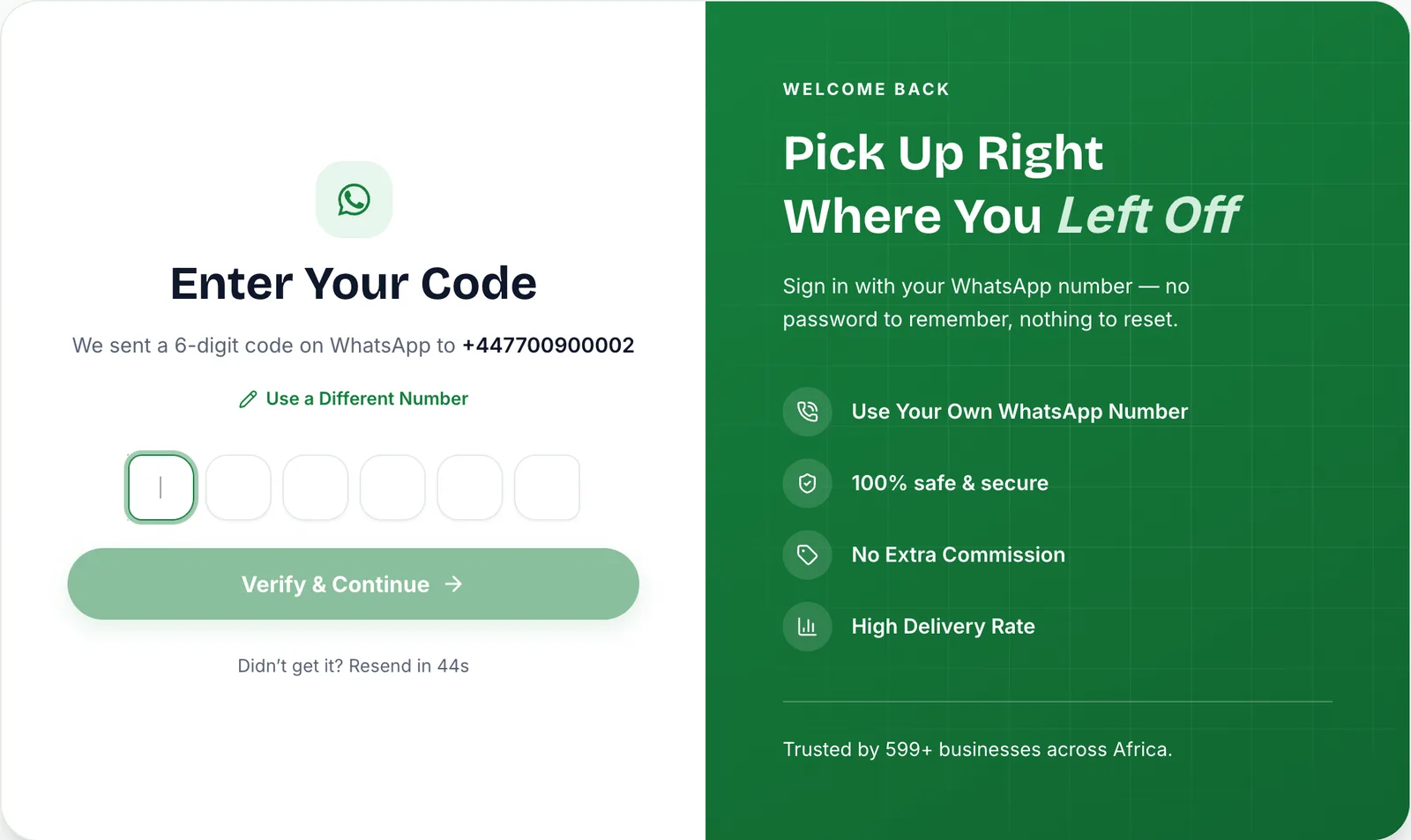
- Enter the code on the Enter your code screen. It checks automatically once all six digits are in, or you can press Verify & continue.
Each code is valid for five minutes. You can request a new one with Resend code, which appears 45 seconds after the last code was sent.
The Number Is Not Accepted
Messages: Enter your WhatsApp number, or Enter a valid number, digits only, without the country code.
Cause: the field is empty, or the number includes the country code, letters or too few or too many digits.
Fix: pick your country from the list, then type the rest of the number as digits only. Spaces and brackets are fine; a leading country code is not, because the country list already adds it.
You Need an Account First
Message: You need an account first, saying there is no account for the number you entered.
Cause: no SmartEngage account uses that exact number. Usually the country is wrong or a digit is mistyped. Sometimes the account was created with a different number.
Fix: press Use a different number and check the number carefully. If you have never signed up, press Create an account. Your number is carried over, so you do not have to type it again.
Signing up for the first time? Follow How to Create Your SmartEngage Account.
We Could Not Confirm You Are Human
Message: We could not confirm you are human just now. Refresh the page and try again.
Cause: every code request includes an automatic check that a person, not a script, is asking. Content blockers and some privacy extensions stop that check from running.
Fix: refresh the page and try again. If it keeps happening, turn off any content blocker for this site.
The Code Has Not Arrived
There is no error message here: SmartEngage moved you to the code screen, but nothing has appeared on your phone.
Things to check:
- Look in WhatsApp, not your text messages. The code is sent as a WhatsApp message.
- Make sure the phone is online. WhatsApp can only deliver the code once the phone has a connection.
- Check the number shown under We sent a 6-digit code on WhatsApp to. If it is wrong, press Use a different number.
- The number must be active on WhatsApp. A number that is not registered on WhatsApp cannot receive the code.
If it still has not arrived after the countdown, press Resend code. Only the most recent code works, so if two arrive, use the newer one.
We Could Not Send the Code Just Now
Message: We could not send the code just now. Please try again.
Cause: SmartEngage could not hand the code to WhatsApp at that moment, for example because WhatsApp's service was briefly unavailable. When that happens the code is discarded, so there is no hidden code waiting for you.
Fix: wait a moment and press Send code on WhatsApp again.
Too Many Attempts
Message on the number screen: Too many attempts. Wait a few minutes before trying again.
Cause: to protect your account, each number can request up to five codes an hour. Resends count towards that limit.
Fix: stop requesting codes and wait. The limit is counted over an hour from your first request, so if a few minutes is not enough, give it up to an hour. Requesting again while you are blocked does not help.
Message on the code screen: Too many attempts. Request a new code in a few minutes. This means too many verification attempts arrived in a short time. Wait a few minutes, then request a fresh code.
The Code Is Not Correct or Has Expired
Message: That code is not correct or has expired. Check it and try again.
SmartEngage shows the same message for several causes, deliberately, so it cannot be used to test guesses:
- A digit is mistyped
- You entered an older code after requesting a new one. Only the latest code works.
- More than five minutes have passed since the code was sent
- The code has had five wrong attempts. After the fifth, it stops working even if you then type it correctly.
Fix: if you are sure the digits are right, request a new code with Resend code and use it straight away.
We Could Not Reach the Server
Message: We could not reach the server. Check your connection and try again.
Cause: your browser could not reach SmartEngage at all. This is about the connection, not your number or your code. Common causes are a dropped internet connection, a network that blocks the site, or a brief outage.
Fix: check that other websites load, then try again. If you are on a company network or VPN, try another connection. Your code stays valid for its five minutes, so you can enter it once you are back online.
Your Account Is Deactivated
If a dialog titled Your Account Is Deactivated appears, the code is not the problem. The account behind that number has been switched off, and signing in will not work until it is restored. Contact your admin or the SmartEngage support team.
Signed Out on Another Device
If you sign in successfully but a colleague, or your other computer, is signed out at the same moment, that is your device allowance at work. Each active sign-in counts as one device. When every device on your plan is in use, a new sign-in ends the oldest one rather than being refused. Add devices to your plan if your team needs more people signed in at once.
Still Cannot Sign In
For a refresher on how sign-in works, read How to Sign In With Your WhatsApp Number.
To see who is signed in and free up a device, see How to Manage Devices and Sessions.
If none of this helps, contact our support teamand tell them the exact message you see.
Tagged
Getting StartedSettingsTroubleshootingReady to send safely?
Start free — no new number, no setup fee, no card required.
Keep Reading
 Account & WhatsApp Setup5 min read
Before You Connect WhatsApp: What You Need
Most failed WhatsApp connections fail for a reason that could have been fixed beforehand. Here is what to have in hand before you click Connect With Facebook.
Read guide Troubleshooting6 min read
Fixing Contact Import Problems
Symptom-by-symptom fixes for SmartEngage contact imports: files that will not upload, wrong column mapping, rejected numbers, duplicates and imports that stop.
Read guide Account & WhatsApp Setup5 min read
How to Add a Payment Method for WhatsApp
Connected but nothing sends? Meta bills WhatsApp messages itself, and needs a payment method on the right business portfolio. Here is how to add one and confirm it in SmartEngage.
Read guide