
Why Templates Get Rejected and How to Fix Them
A rejected template is not a dead end. Meta tells you why it said no, SmartEngage shows you that reason on the template itself, and most rejections come down to a handful of fixable mistakes. This guide explains where to find the reason, what the common causes are, and the exact steps to resubmit.
SmartEngage
Every WhatsApp template is reviewed by Meta before it can be sent. Most are approved within minutes, but some come back declined, and a declined template cannot be used in a campaign until it is fixed.
The good news is that SmartEngage stops many rejections before they happen, by checking Meta's rules while you write. The ones that still get through usually have a clear cause and a quick fix.
Two Kinds of No
It helps to know which kind of refusal you are looking at.
- Stopped by SmartEngage before submission. When you select "Submit for Approval", SmartEngage checks the template first. If something would be rejected, a notice says how many things need fixing, each problem is marked on its field, and nothing is sent to Meta. You have lost nothing.
- Refused by Meta at submission. Meta can refuse a template as soon as it is sent. SmartEngage shows Meta's explanation in a notice titled "Meta Rejected This Template". When Meta gives no detail, SmartEngage lists the most likely causes instead.
- Rejected by Meta after review. The template was accepted for review and later declined. It moves to the Rejected tab with Meta's reason.
The rest of this guide is mostly about the third kind, though the same causes explain the second.
Where to Find Meta's Reason
Open Templates and select the Rejected tab. Each card there has a red band across the top and a status badge, and under the message preview you will see a line starting "Meta's reason:" followed by Meta's own words.
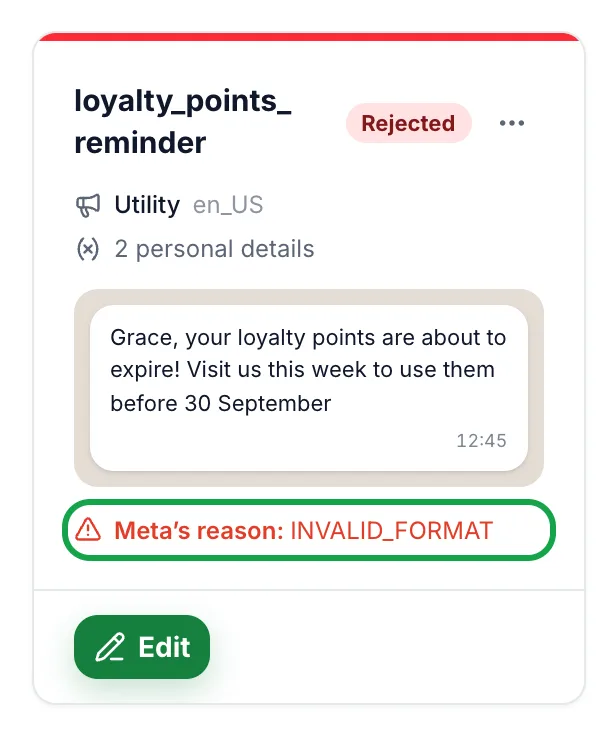
That line is the single most useful thing on the card. It is what Meta's reviewer decided, and it tells you what to change. If the Rejected tab was already open when the decision arrived, press Refresh to load it.

The Rules Most Often Broken
These are the causes SmartEngage sees most often, and what to do about each.
- The category does not match the content. A promotion submitted as utility is refused. If the message sells something, choose Marketing.
- Examples are missing or unhelpful. Reviewers read your message with the example values filled in. A blank or vague example makes the message impossible to judge.
- The message begins or ends with a variable, or two variables sit side by side. Write "Hi {{1}}," rather than "{{1}}, hi", and put words between variables.
- The wording is vague or pushy. SmartEngage's guidance names vague placeholders and ALL-CAPS urgency as the usual causes. Write the message exactly as you would send it.
- A marketing template without an easy way out. Marketing templates need an audience that opted in, and an opt-out line in the footer, such as "Reply STOP to opt out", is good practice.
- A link button points at an address Meta cannot reach, or at a domain that is not verified on your business.
- The name is already taken at Meta, including by a template you deleted in the last 30 days.
- The sample image, video or document is not a format Meta accepts for a header.
Several rules are checked by SmartEngage before submission, so you will rarely see them from Meta: numbered variables with no gaps, an example for each one, the character limits, a single-line header and footer, and the limits on buttons.
How to Fix and Resubmit a Rejected Template
Follow these steps from the Rejected tab:
- Read Meta's reason on the card and decide what needs to change.
- Select Edit. The composer opens with the template's wording, header, footer, buttons and examples already filled in.
- Make your changes. Keep an eye on the Customer Preview; if the message reads oddly with the examples in place, fix that too.
- Check the Language field. The composer starts on English (US), so set it back if your template was in another language.
- If the template has an image, video or document header, upload the sample file again. The composer needs a fresh upload before it will submit.
- Give the template a new name, for example by adding "v2" to the end. The rejected template still holds its name at Meta, and SmartEngage will not submit a second template with the same name and language.
- Select "Submit for Approval". The new version goes under In Review.
Once the new version is approved, you can delete the rejected one from its card menu with "Delete Template" to keep your list tidy. Meta will then lock that old name for 30 days, which does not matter if you have moved on to the new one.
Paused and Disabled Templates
The Rejected tab also shows templates marked Paused or Disabled. These were approved once, and Meta changed their status later because of quality problems.
- Paused: Meta paused it for poor quality. It cannot be sent until it recovers.
- Disabled: Meta disabled it after repeated quality problems.
Neither can be edited in place, because Meta approved those exact words. Use "Duplicate as New" from the card menu to start a fresh template from the old wording, and think about why recipients reacted badly before resubmitting. Sending only to people who opted in, and giving them a clear way to stop, does more for quality than any rewording.
If you appeal a decision through Meta, the template shows as In appeal, under the In Review tab, until Meta answers.
For how quality ratings work, read Understanding Quality Rating and Messaging Limits.
Avoiding Rejections Next Time
A few habits make approval far more likely:
- Start from one of SmartEngage's ready-made templates, then change the wording to sound like your business.
- Choose the category that honestly matches the message.
- Give every variable a realistic example, such as a real-looking first name.
- Read the Customer Preview as your customer would before you submit.
- Keep a clear opt-out line on marketing templates.
Keep Reading
If the problem is an upload or a variable rather than Meta's review, see Template and Media Upload Problems.
For a field-by-field walkthrough of the composer, read How to Create a Message Template.
For every status a template can have, see How WhatsApp Message Templates Work.
Still stuck? Our team can review a template with you. Get in touch through our contact page.
Tagged
ApprovalComplianceTemplatesTroubleshootingReady to send safely?
Start free — no new number, no setup fee, no card required.
Keep Reading
 Account & WhatsApp Setup5 min read
Before You Connect WhatsApp: What You Need
Most failed WhatsApp connections fail for a reason that could have been fixed beforehand. Here is what to have in hand before you click Connect With Facebook.
Read guide Troubleshooting6 min read
Fixing Contact Import Problems
Symptom-by-symptom fixes for SmartEngage contact imports: files that will not upload, wrong column mapping, rejected numbers, duplicates and imports that stop.
Read guide Account & WhatsApp Setup5 min read
How to Add a Payment Method for WhatsApp
Connected but nothing sends? Meta bills WhatsApp messages itself, and needs a payment method on the right business portfolio. Here is how to add one and confirm it in SmartEngage.
Read guide