
How WhatsApp Message Templates Work
Every WhatsApp campaign you send from SmartEngage starts with a message template that Meta has approved. This guide explains how templates work inside SmartEngage: the Templates page and its sections, every status a template can have, the categories you can write in, how personal details are filled in, and the approval flow from submission to Meta's decision.
SmartEngage
WhatsApp only lets a business start a conversation with wording Meta has reviewed first. That rule belongs to Meta, not to SmartEngage, and it applies to every business on the WhatsApp Cloud API.
What SmartEngage adds is a place to write, track and reuse those templates without leaving the app. Once you understand how that place is organised, you will always know which templates you can send today, which are still with Meta, and which need fixing.
Templates Belong to Your WhatsApp Business Account
A template is stored against your WhatsApp Business Account at Meta, not against your SmartEngage login. SmartEngage keeps a copy of each one so it can show you the list quickly and build campaigns from it.
That has two consequences. First, the Templates page stays empty until your number is connected: instead of a list, you will see "Connect WhatsApp First" with a button to the Connect page. Second, templates you created earlier in Meta's WhatsApp Manager can be brought into SmartEngage, so you never have to write them twice.
The Five Sections of the Templates Page
The Templates page splits your templates by where they stand with Meta. Each tab shows a count, so you can see at a glance whether anything needs your attention.
- All: every template on your WhatsApp Business Account, newest first.
- Approved: ready to send. These are the only templates a campaign can use.
- In Review: with Meta now. Approval usually takes minutes and occasionally up to 24 hours.
- Rejected: templates Meta turned down, paused or disabled, shown with the reason Meta gave.
- Drafts: saved in SmartEngage only. Meta has never seen them.
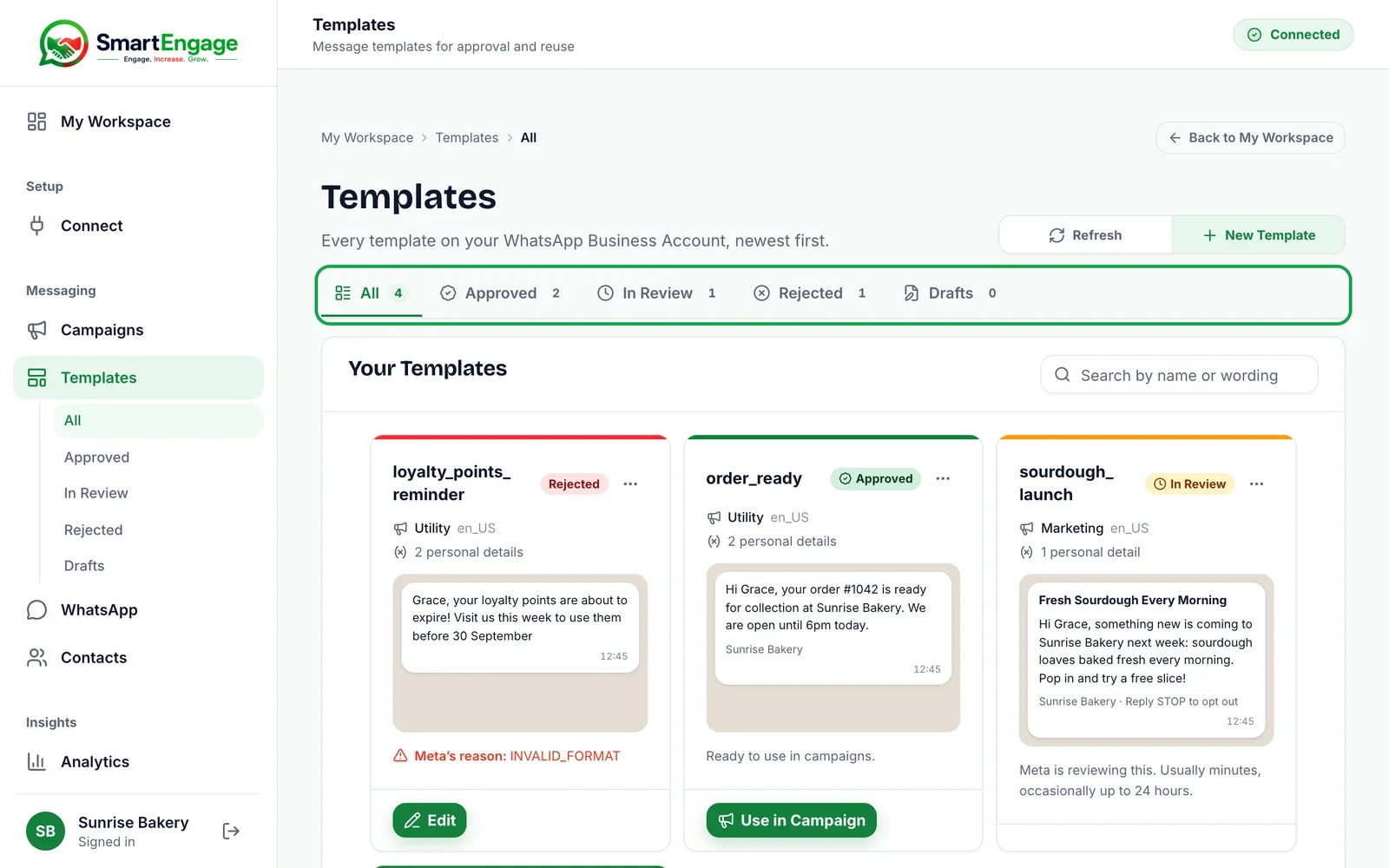
Each template appears as a card with a coloured band across the top. Green means it can be sent, amber means it is waiting on Meta, red means it cannot be sent, and grey means it has not been submitted. The card also shows the category, the language and a preview of the message filled in with its sample values.
Every Status a Template Can Have
The badge on each card uses one of seven statuses. They map directly to what Meta reports.
- Draft: saved in SmartEngage only and not yet sent to Meta for approval.
- In review: Meta is reviewing it.
- Approved: ready to use in campaigns.
- Rejected: Meta declined it. You can edit it and submit again.
- Paused: Meta paused it for poor quality. It cannot be sent until it recovers.
- Disabled: Meta disabled it after repeated quality problems.
- In appeal: you appealed Meta's decision and Meta is looking at it again.
Only Approved templates can be sent. A template that is paused or disabled sits in the Rejected tab, because like a rejected one it cannot go out until something changes.
Categories You Can Write in SmartEngage
Meta sorts every template into one of three categories: marketing, utility and authentication. The category decides the rules a template is reviewed against and the rate Meta charges for it.
When you write a template in SmartEngage, you choose between two of them:
- Marketing: promotions, offers and announcements. It needs opt-in and is billed at the marketing rate.
- Utility: updates about something the customer already did, such as orders, bookings and receipts.
Authentication is not offered in the composer. Meta writes authentication templates itself from fixed wording and refuses a custom one, so offering the option could only end in a rejection. If you need one, create it in WhatsApp Manager and bring it into SmartEngage with Refresh. It will then appear in your list like any other template.
For how the three categories differ and what each costs, read WhatsApp Message Templates Explained.
How Variables Work
A variable is a slot in the message that changes for each customer, such as their name or an order number. SmartEngage calls these personal details, and each card tells you how many a template has, for example "2 personal details".
Variables are written as numbers in double braces: {{1}}, {{2}} and so on. You do not have to type them. The "Add a Personal Detail" button inserts the next number in the right place, and if you delete one from the middle, SmartEngage renumbers the rest when you leave the message box so there are no gaps.
A few rules apply, and SmartEngage checks every one of them before anything reaches Meta:
- Numbers run in order from {{1}}, with none skipped.
- A message can hold up to 10 variables.
- Named variables such as {{name}} are not supported. Use numbers.
- The message cannot begin or end with a variable, and two variables cannot sit side by side.
- Every variable needs an example value, because Meta reviewers read the message with the examples filled in.
When you later build a campaign from the template, you fill in each variable for your recipients. The template itself never changes; only the values do.
The Approval Flow, Step by Step
This is what happens from the moment you finish writing a template:
- You press "Submit for Approval" in the composer.
- SmartEngage checks the template against Meta's rules first. If anything would be rejected, nothing is sent, nothing is used up, and each problem is marked on the field it concerns.
- If the checks pass, SmartEngage submits the template to Meta and it appears under In Review.
- Meta reviews it. This usually takes minutes and occasionally up to 24 hours. You do not need to keep the page open.
- Meta sends its decision back to SmartEngage, which updates the template's status. Approved templates move to the Approved tab; declined ones move to Rejected with Meta's reason.
If the Templates page was already open when the decision arrived, press Refresh to see it. Refresh reads your templates from Meta again, including anything approved since the page loaded.
Meta can also change a template's status later. If a template runs into quality problems, Meta can pause or disable it, and that status will show on its card.
How Rejection Reasons Are Shown
A rejected template's card shows Meta's own words under the preview, labelled "Meta's reason". That line is the most useful thing on the card, because it tells you what to change.
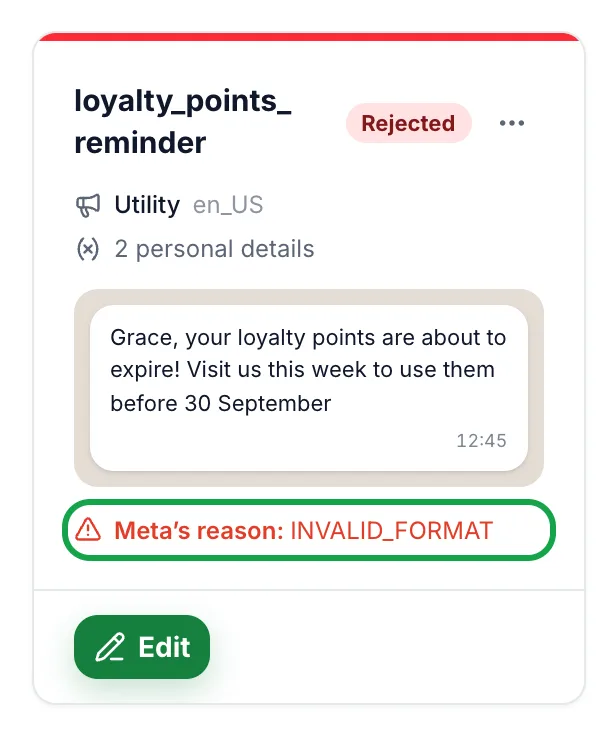
Templates in any other state show a short hint in the same place instead, such as "Ready to use in campaigns." for an approved template.
What You Can Do With Each Template
The actions on a card depend on its status:
- Drafts and rejected templates have an Edit button, which opens them in the composer.
- Approved and in-review templates offer "Duplicate as New" instead. Meta approved those exact words, so changing them means a new template and a new review.
- Approved templates also show "Use in Campaign".
- Every template can be removed with "Delete Template" from the card's menu.
Deleting is worth a moment's thought. Deleting a submitted template removes it at Meta as well, in every language, and Meta will not let you reuse the name for 30 days. A campaign that still uses it will no longer be able to send it. Deleting a draft only removes it from SmartEngage, because Meta never saw it.
Keep Reading
With the structure clear, the next step is writing your first template.
Follow the walkthrough in How to Create a Message Template.
Already have templates in WhatsApp Manager? See How to Sync Your Templates from Meta.
If one comes back declined, read Why Templates Get Rejected and How to Fix Them.
Ready to send safely?
Start free — no new number, no setup fee, no card required.
Keep Reading
 Account & WhatsApp Setup5 min read
Coexistence or API-Only: Choosing How to Connect Your Number
There are two ways to connect a WhatsApp number to SmartEngage. One keeps the WhatsApp Business app working; the other ends the number's life in the app for good. Here is how to choose.
Read article Contacts6 min read
Duplicates, Invalid Numbers and Opt-outs Explained
Why some rows in a SmartEngage import are skipped or refused, how duplicates are detected, what makes a number invalid, and what opting out actually does.
Read article Contacts6 min read
How Contacts and Contact Books Work in SmartEngage
What a contact holds, what a contact book is, and how the people you keep in SmartEngage become the audience for a WhatsApp campaign.
Read article