
How to Import Contacts from HubSpot or Mailchimp
Many businesses keep their best-qualified contacts in a CRM like HubSpot or an email tool like Mailchimp. SmartEngage lists both as import sources marked Coming soon. This guide shows how to bring those contacts in today with a CSV export, how to carry subscription status across, and what to check so the right number is imported.
SmartEngage
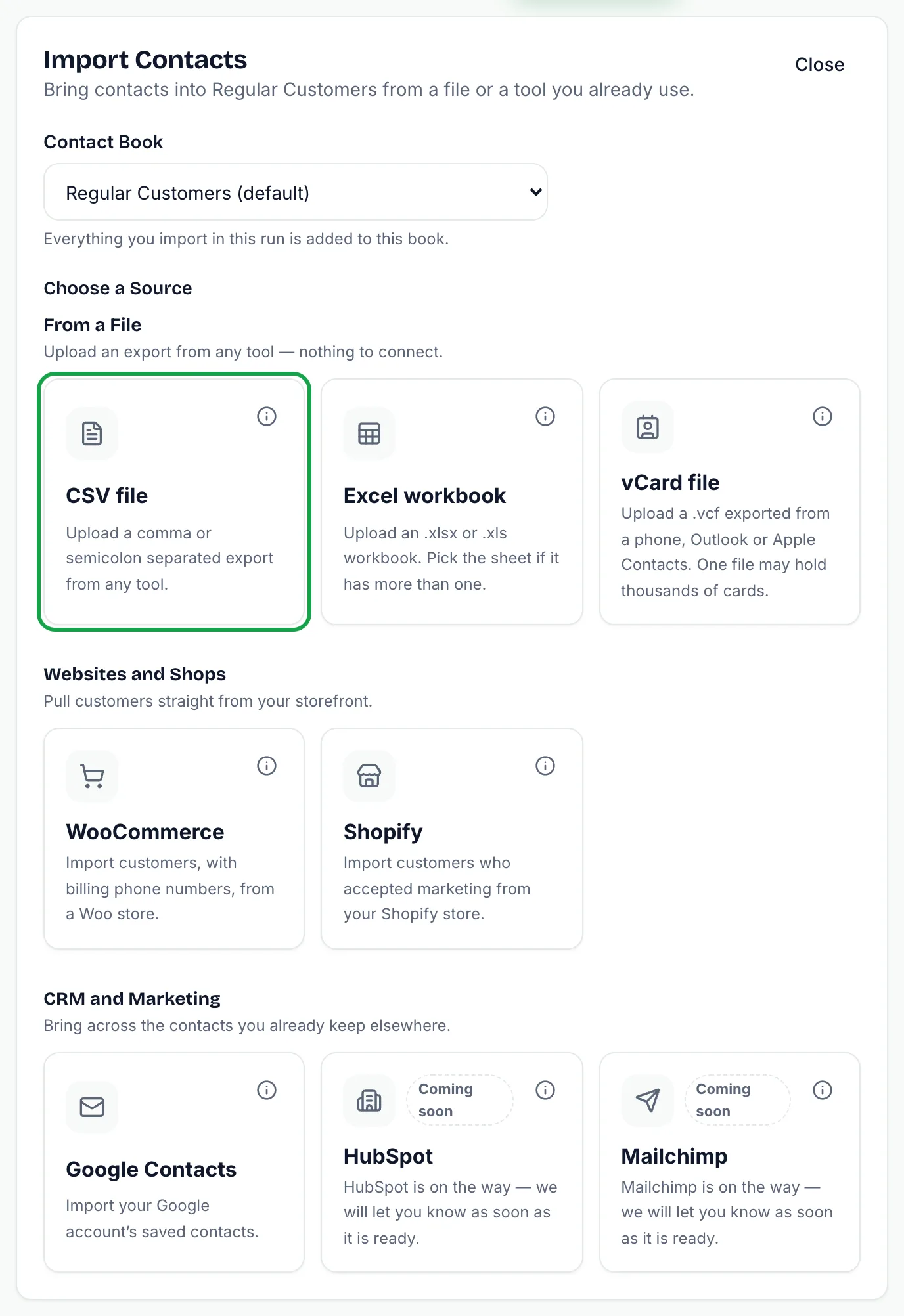
Open Import Contacts on the Contacts page and you will find HubSpot and Mailchimp in the CRM and marketing section, next to Google Contacts. Both cards carry a Coming soon badge and cannot be selected yet.
That does not mean waiting. Both tools can export your contacts to a CSV file, and SmartEngage imports CSV files with the same preview and duplicate checks as any other source.
The Route That Works Today: Export a CSV
Export the contacts you want from HubSpot or your Mailchimp audience as a CSV file, then import it into SmartEngage:
- Step 1: On the Contacts page, press Import Contacts and choose the Contact book to import into.
- Step 2: Under Choose a source, select CSV file in the From a file section.
- Step 3: Set the country for numbers without a country code. Numbers starting with + keep their own.
- Step 4: Press Choose file and pick your export.
- Step 5: Check the Column mapping. Columns with familiar names are matched automatically. If anything looks wrong, press Change columns, pick the right column for each field and press Apply mapping.
- Step 6: Review the preview, untick anyone you do not want, and press the Import button.
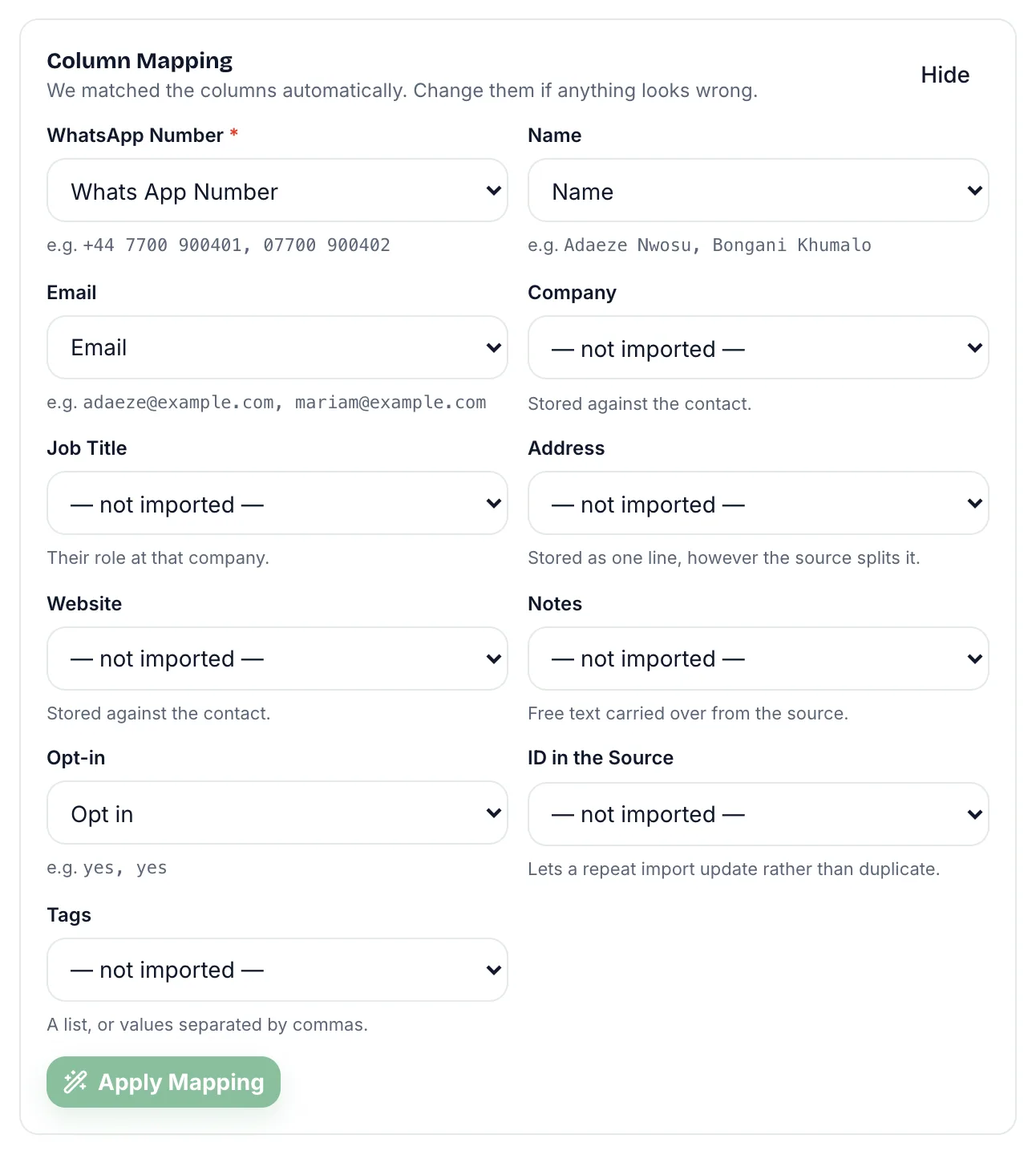
The only column your file must have is the WhatsApp number. Name and email are taken if they are there, and company, job title, address, website and notes columns are recognised too. A first-name column is enough for the name, because a surname column is joined on automatically.
Check the WhatsApp number field in particular. A HubSpot export can hold both a Phone Number and a Mobile Phone Number column, and SmartEngage picks the one called Phone Number. That is often an office line, so if your customers' WhatsApp numbers are in the mobile column, point WhatsApp number at it before importing.
For the full CSV walkthrough, see How to Import Contacts from a CSV File.
Carry Subscription Status Across
This matters most for a marketing list. The mapping step has an Opt-in field. Map it to the column in your export that records whether someone is subscribed.
It accepts yes or no, true or false, 1 or 0, or subscribed or unsubscribed. If you leave Opt-in unmapped, everyone in the file is imported as opted in. If a value cannot be read, that row is held back under Cannot import with the reason Opt-in value not understood, which usually means the wrong column was mapped.
Simpler still, export only your subscribed contacts in the first place. Someone who unsubscribed from your emails has not agreed to be messaged on WhatsApp either.
For how opt-in values and opt-outs are handled, read Duplicates, Invalid Numbers and Opt-outs Explained.
When the Direct Connections Arrive
HubSpot and Mailchimp will connect the same way Google Contacts does: you sign in on their own site and approve access, so no password is ever typed into SmartEngage. Until the Coming soon badge is gone, the CSV route above is the way in, and it goes through the same preview and duplicate checks.
Whichever route you use, a contact ends up in the same shape: a WhatsApp number, plus whichever of name, email, company, job title, address, website, notes and tags the source carried, and an opt-in status.
The Number Is What Matters
Email tools and CRMs are built around email addresses, and plenty of records have no phone number at all. SmartEngage messages people on WhatsApp, so a contact without a usable number cannot be imported. The preview counts these under Cannot import and shows the reason against each row, so you can see what your list is missing.
Contacts you already hold, matched on phone number or email address, appear under Duplicates and are skipped by default. Tick the option to update them if you want their details refreshed. Blank values in the source leave what you have alone, so a list without a company column will not erase a company you imported earlier.
Related Guides
Want a connection you can use today? Read How to Import Contacts from Google Contacts.
Unsure which route suits you? Start with What Contact Connectors Are and When to Use One.
To build a list people are glad to be on, read Growing a WhatsApp List That People Actually Want to Be On.
Tagged
ContactsIntegrationsOpt-InReady to send safely?
Start free — no new number, no setup fee, no card required.
Keep Reading
 Account & WhatsApp Setup5 min read
Before You Connect WhatsApp: What You Need
Most failed WhatsApp connections fail for a reason that could have been fixed beforehand. Here is what to have in hand before you click Connect With Facebook.
Read guide Troubleshooting6 min read
Fixing Contact Import Problems
Symptom-by-symptom fixes for SmartEngage contact imports: files that will not upload, wrong column mapping, rejected numbers, duplicates and imports that stop.
Read guide Account & WhatsApp Setup5 min read
How to Add a Payment Method for WhatsApp
Connected but nothing sends? Meta bills WhatsApp messages itself, and needs a payment method on the right business portfolio. Here is how to add one and confirm it in SmartEngage.
Read guide