
How to Organise Conversations with Your Team
Once a few campaigns have gone out, the WhatsApp page in SmartEngage can fill up quickly. This guide covers the tools that keep it manageable: the filter tabs, assigning conversations, stars, the archive, search and shared customer notes, and how they work when more than one person is answering from the same account.
SmartEngage
A busy inbox is a good problem to have, but only if nothing gets lost in it. The aim is simple: know at a glance who is waiting for an answer, keep the important threads within reach, and clear away the ones that are finished.
Everything below happens on the WhatsApp page, under Messaging in the sidebar.
How a Team Shares One Inbox
Your SmartEngage account has one inbox for your connected WhatsApp number. Colleagues who help answer customers sign in to the same account on their own computers. Each computer signed in counts as one device on your plan.
Everyone signed in sees the same conversations. When a customer writes in, the message appears for everyone at once. When one person stars or archives a conversation, or saves a customer's details, the change shows up for everyone else without them reloading the page.
If you need more people signed in at the same time, see How Plans, Devices and Billing Work.
Assigned: Say Who Is Answering
Assigning a conversation records who owns it, so two people do not answer the same customer and nobody assumes someone else has it in hand.
- Open the conversation and press Assign in the thread header. It shows a person icon, with the word Assign beside it on wide screens.
- The Assign To list shows everyone in your workspace, with your own name marked (You). Choose the person who will handle the customer.
- To take the owner off again, choose Unassigned.
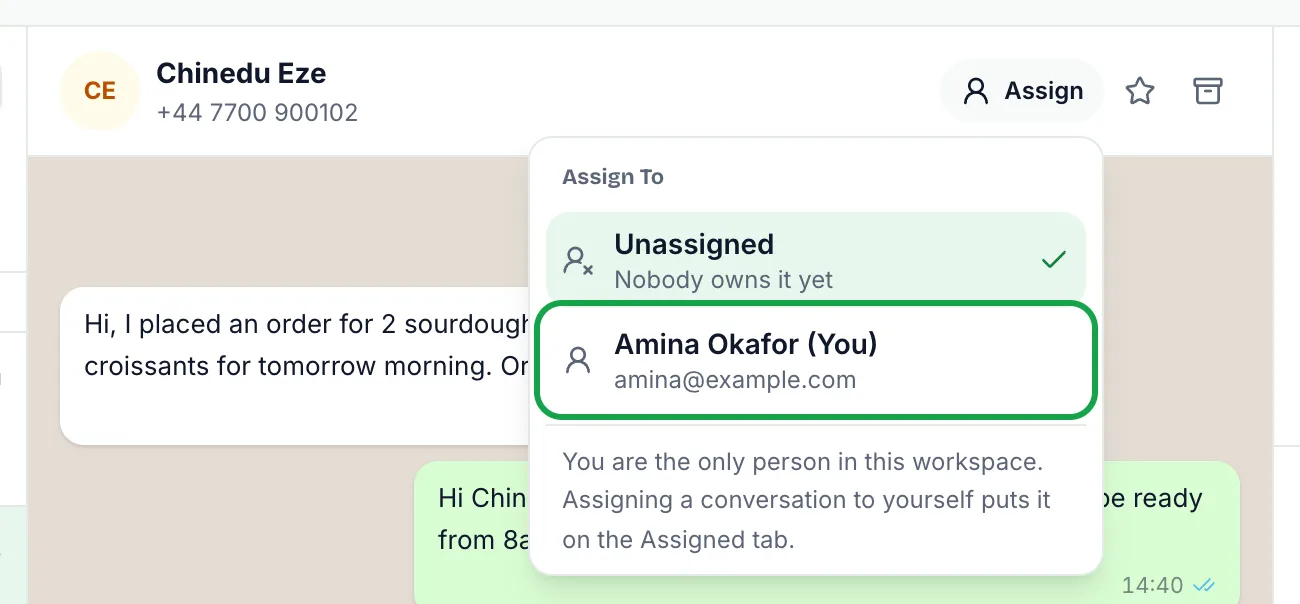
Once a conversation has an owner, their first name takes the place of Assign in the header on a wide screen; on a narrower screen it appears under the customer's name. Click the same control to hand the conversation to someone else or unassign it. Everyone signed in sees the change straight away.

The Assigned tab above the conversation list shows every conversation that has an owner, whoever it is, and its count tells you how many there are. Archived conversations are left out until they are moved back to the inbox.
If you are the only person in the workspace, the list shows just you and Unassigned. Assigning a conversation to yourself still works, and is a handy way to keep the threads you are handling together on the Assigned tab.
Unread: See Who Is Waiting
Above the conversation list is a row of tabs. The Unread tab shows only conversations with messages nobody has opened yet, and its count tells you how many there are. It is the best place to start each session in the inbox.
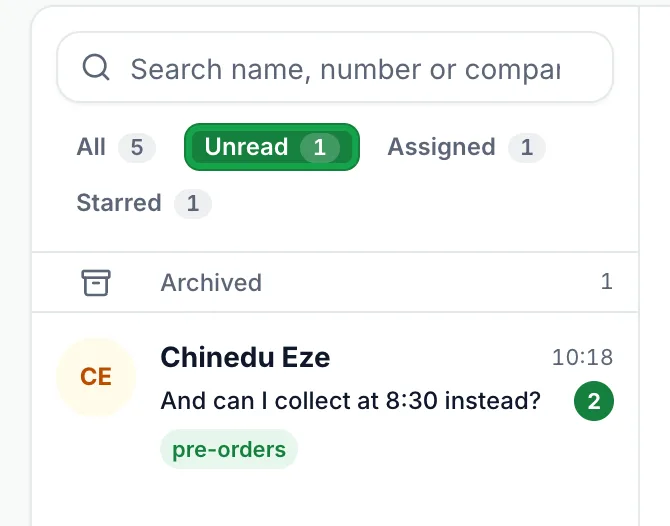
A conversation is marked as read when someone opens it. Opening a thread clears its unread count for everyone on the account and sends a read receipt to WhatsApp, so the customer sees their message has been read.
Because opening a thread is what marks it read, agree as a team that whoever opens an unread conversation either answers it or assigns it to the person who will. There is no button to mark a conversation unread again.
Starred: Keep Important Threads at the Top
Star a conversation you need to come back to, such as a large order in progress or a customer waiting on a quote. There are two ways to do it:
- Hover over the conversation in the list and click the star icon. On a phone or tablet the icons are always visible.
- Open the conversation and click the star in the thread header, labelled Star this conversation.

Starred conversations stay at the top of the list in every view except Archived, above newer threads, so they cannot slip down the page. The Starred tab shows only those conversations. To remove a star, click the star icon again; in the thread header it is labelled Remove star.
Archived: Clear Away Finished Conversations
Archive a conversation once it is dealt with. Archiving moves it out of your main list without deleting anything, so the history is still there if you need it.
- From the list, hover over the conversation and click the archive icon.
- From an open thread, click Archive this conversation in the header.
Archived conversations do not appear under All, Unread or Starred. To see them, click the Archived row at the top of the conversation list. It only appears when something is archived and you are not searching. Inside the archive, the back arrow returns you to the inbox.
An archived thread shows a banner reading This conversation is archived, with a Move To Inbox button to bring it back. You can also use the same icon on the row, or Move back to the inbox in the thread header.
You do not need to watch archived threads for replies. If a customer writes again, their conversation moves back into the inbox by itself, so an archived thread can never hide a new message.
Search: Find Anyone Quickly
The search box above the tabs matches the customer's name, phone number, email address or company. It searches within the tab you are on, so switch to All first if you are not sure where a conversation is. This is the fastest way to pick up a thread when a customer calls or emails about the same topic.
Shared Notes and Tags
The customer details panel beside each thread is the team's shared memory. Anything saved there is visible to everyone on the account.
- Notes: record what the customer asked for, what was promised and what needs following up.
- Tags: add labels such as vip or repeat buyer by typing and pressing Enter. Tags are saved on the customer's contact record.
- Name, email and company: fill in who the customer is, so the next person does not have to ask again.
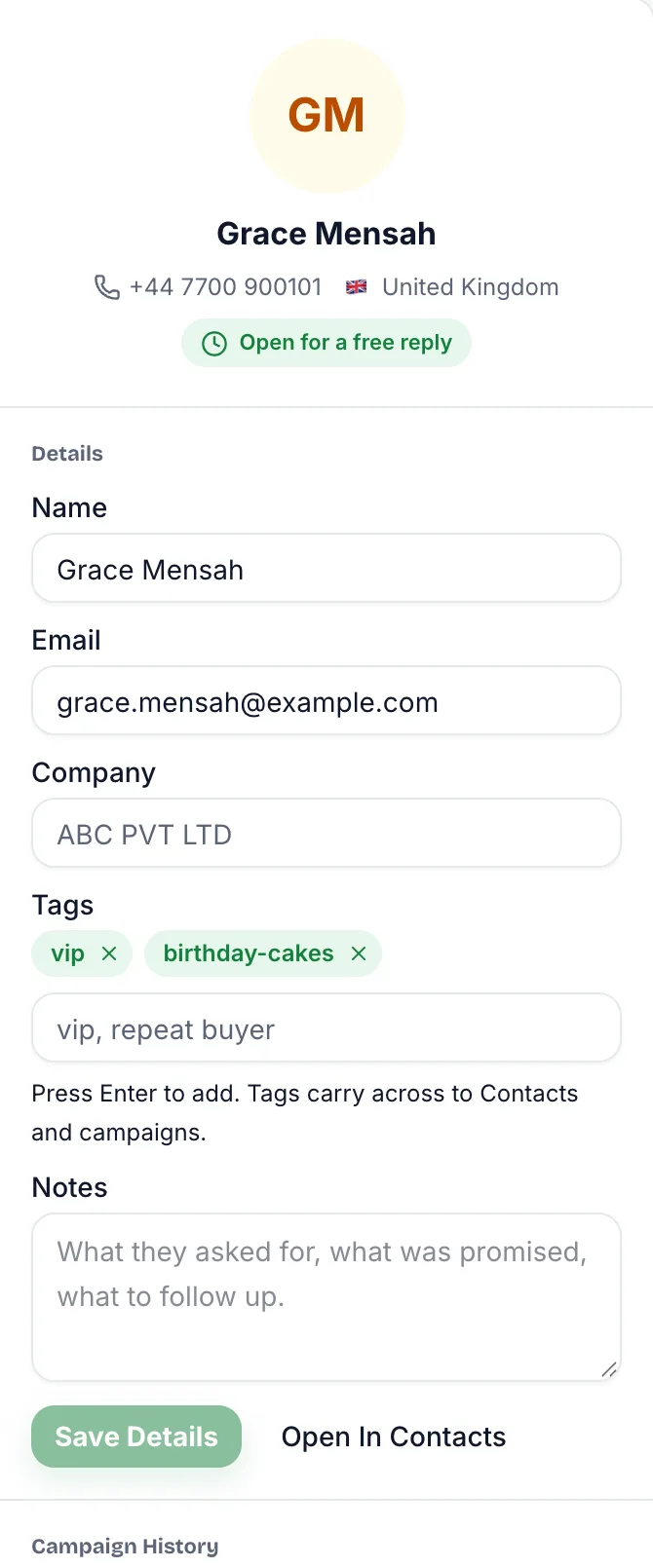
Press Save Details when you are done. If the number was not yet a contact, saving creates one in your default contact book. Tags also appear under the customer's name in the conversation list, which makes it easy to spot important customers at a glance.
Name and email can also be changed later from the Contacts page with the Edit button on the contact's row. See How to Add and Edit a Contact.
A Simple Routine That Works
Tools only help if everyone uses them the same way. A routine many teams follow:
- Start in Unread and answer the oldest waiting conversation first, watching the 24-hour reply window.
- Assign each conversation you pick up, so colleagues can see it is being handled.
- Star anything that needs a follow-up you cannot finish right now.
- Write a short note in the customer details panel whenever you promise something.
- Archive conversations that are resolved, so the main list shows only live work.
- Check Starred at the end of the day and clear what is done.
Related Guides
New to the inbox? Start with How the SmartEngage Inbox Works.
To understand why an older conversation needs a template, read The 24-Hour Reply Window Explained.
Tagged
ConversationsFollow-UpInboxReady to send safely?
Start free — no new number, no setup fee, no card required.
Keep Reading
 Account & WhatsApp Setup5 min read
Before You Connect WhatsApp: What You Need
Most failed WhatsApp connections fail for a reason that could have been fixed beforehand. Here is what to have in hand before you click Connect With Facebook.
Read guide Troubleshooting6 min read
Fixing Contact Import Problems
Symptom-by-symptom fixes for SmartEngage contact imports: files that will not upload, wrong column mapping, rejected numbers, duplicates and imports that stop.
Read guide Account & WhatsApp Setup5 min read
How to Add a Payment Method for WhatsApp
Connected but nothing sends? Meta bills WhatsApp messages itself, and needs a payment method on the right business portfolio. Here is how to add one and confirm it in SmartEngage.
Read guide