
How to Start, Pause, Resume or Cancel a Campaign
Once a campaign exists, four controls decide what happens to it: start, pause, resume and cancel. Each one affects messages differently, and some cannot be undone. This guide explains where to find each control, what it does to messages that are waiting or already sent, and what every campaign status in SmartEngage means.
SmartEngage
Most campaigns run from start to finish without anyone touching them. But plans change: a price turns out to be wrong, a link is broken, or a campaign needs to wait until tomorrow.
Knowing what each control does before you need it means you can act quickly and without surprises.
Where the Controls Are
You can control a campaign from two places:
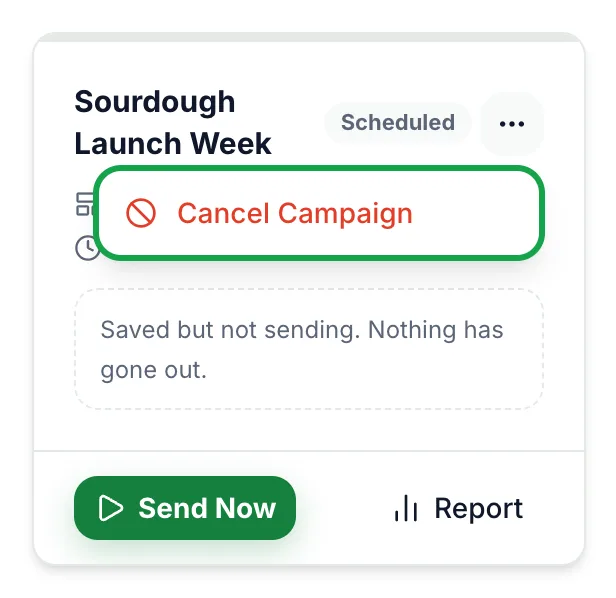
- The campaign card in your list. The main action for the campaign's current state is a button at the bottom of the card. Other actions, such as "Cancel Campaign", are in the ⋯ menu beside the status badge.
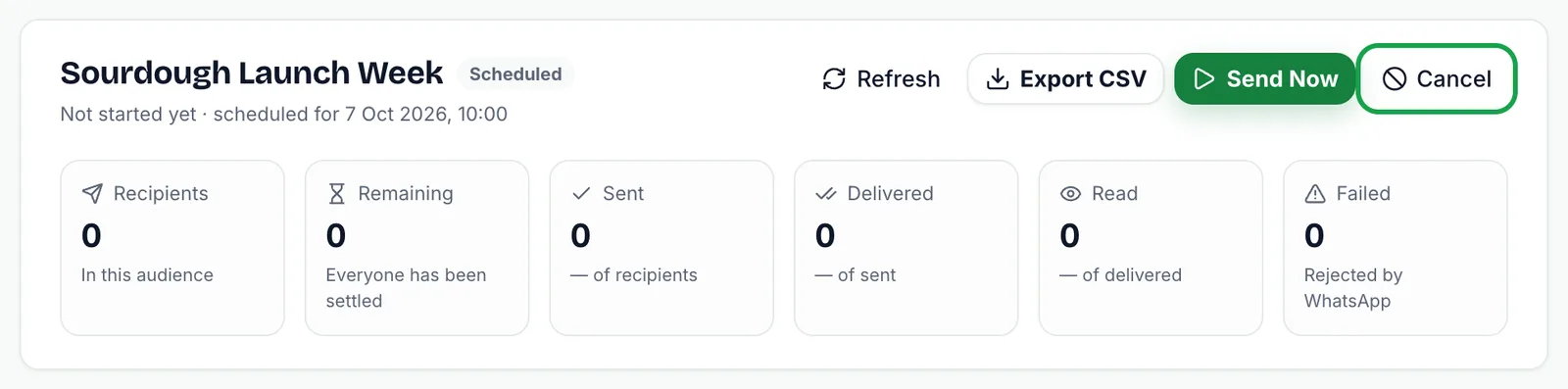
- The campaign report, opened with the "Report" button on the card. Its header carries the same controls alongside "Refresh" and "Export CSV".
Only the actions that make sense for a campaign's current status are shown. A completed campaign, for example, has no pause or cancel button.
What Each Campaign Status Means
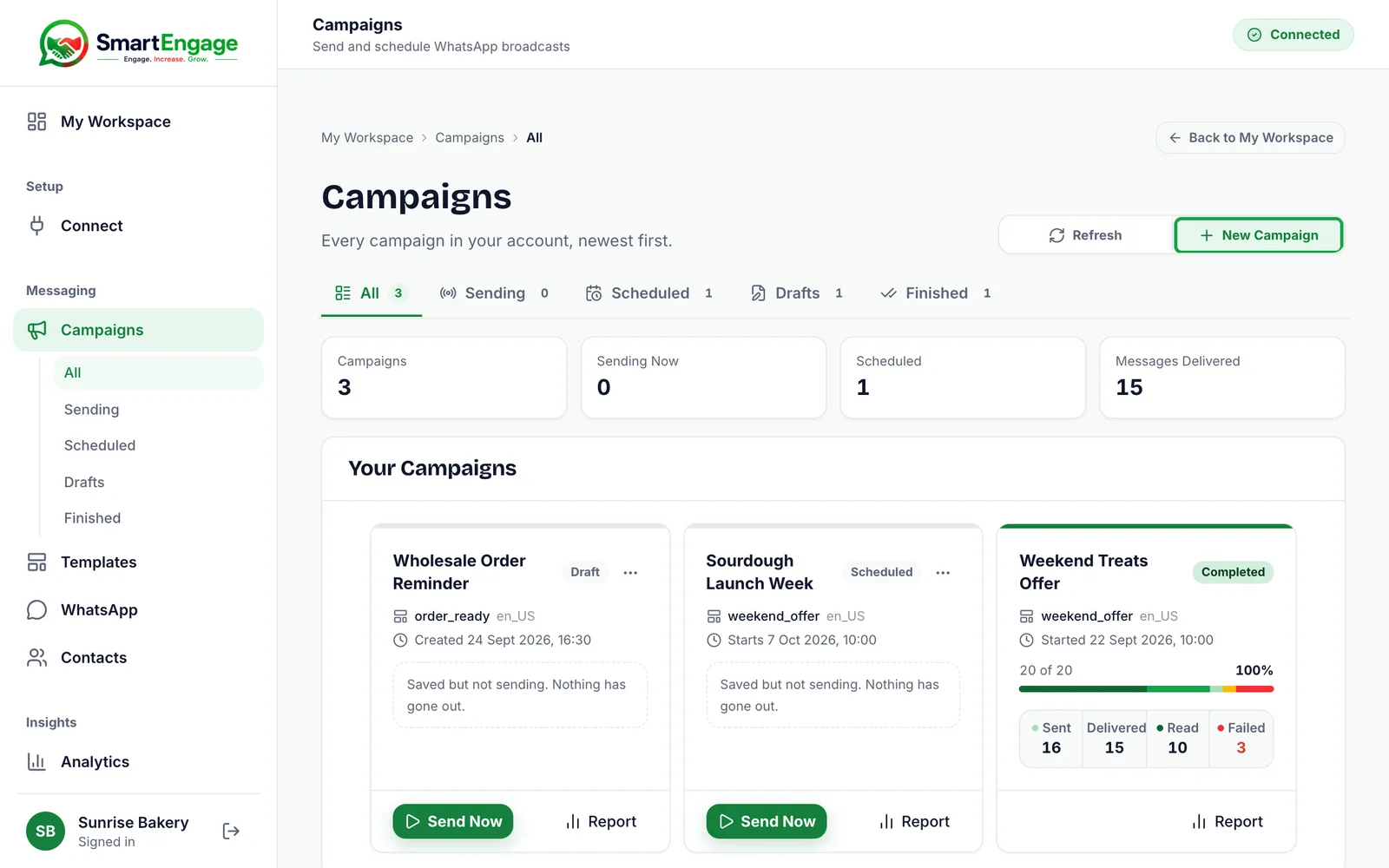
Every campaign shows one of these status badges. These are the labels you see and what they mean:
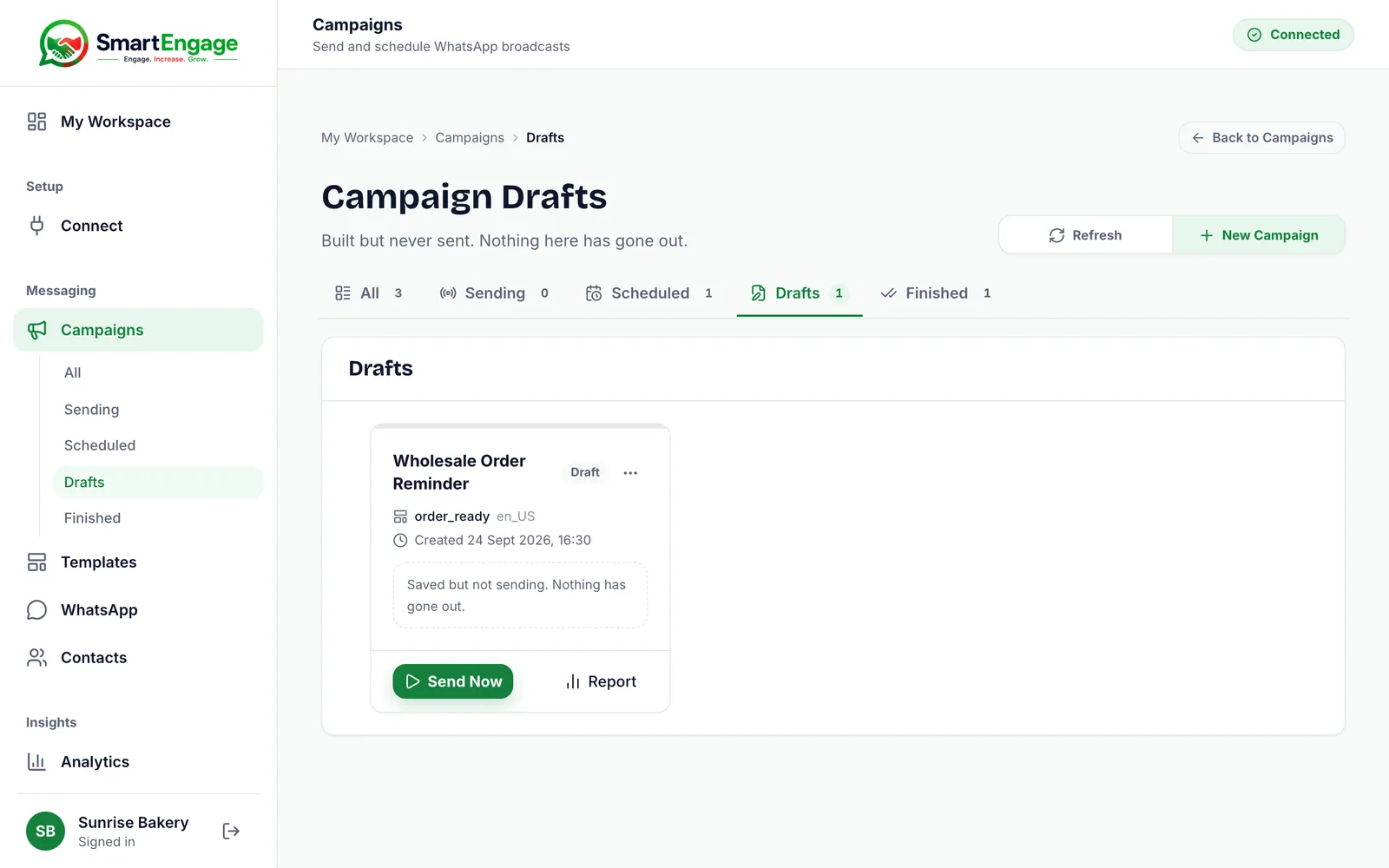
- Draft: saved without a send time, and nothing has gone out. It waits under the Drafts tab until you start it.
- Scheduled: waiting for the send time you chose, and nothing has gone out. It appears under the Scheduled tab and starts on its own. Its report says "Not started yet · scheduled for" followed by the date and time.
- Preparing: the recipient list is being built. Sending starts on its own.
- Sending: messages are going out now.
- Paused: stopped part-way. Resuming picks up where it left off.
- Completed: every recipient has been attempted.
- Failed: stopped by an error before finishing. The reason is shown on the campaign. A scheduled campaign that was due when your plan had no campaigns left is marked Failed with "Not sent: your plan had no campaigns left when it was due. Upgrade or renew your plan, then create the campaign again."
- Cancelled: stopped for good. Remaining recipients were skipped.
The campaign list groups these into tabs. Sending holds Preparing, Sending and Paused campaigns. Scheduled and Drafts hold campaigns that have not started. Finished holds Completed, Failed and Cancelled campaigns.
Starting a Campaign
Most campaigns start from the wizard, when you confirm "Send Now" on the last step, or automatically at their scheduled time. A draft saved for later is started with "Send Now" on its card or report. "Send Now" on a scheduled campaign starts it immediately instead of waiting.
Starting checks your plan first. If the plan period has ended, or the campaign would go past your campaign or recipient allowance, it is refused with a message saying so, and the draft is kept. A scheduled campaign that reaches its time with no campaigns left on your plan cannot wait in this way: it is marked Failed, and you create it again once your plan has room.
SmartEngage then builds the recipient list, leaving out anyone who has opted out, and the campaign moves through "Preparing" to "Sending". A double click cannot send the same campaign twice: the second request is refused because the campaign is already starting.
To build a new campaign from scratch, see How to Create a WhatsApp Campaign.
Pausing a Campaign
A "Pause" button appears on the card and in the report header only while a campaign is sending. Press it and messages still waiting in the queue are taken off it, and the status changes to "Paused".
Pausing stops sending at the next batch boundary rather than mid-message. A batch that is already being handed to WhatsApp finishes, so a few more messages may go out in the moments after you press the button. Nothing already sent can be recalled.
Every recipient not yet attempted stays as "Waiting" in the report, ready for when you resume. Only a sending campaign can be paused. If you try to pause one in any other state, SmartEngage tells you so.
Resuming a Campaign
Press "Resume" on a paused campaign's card or report. SmartEngage queues everyone who is still waiting and the campaign returns to "Sending". People who were already sent the message are not sent it again.
Resuming does not use another campaign from your plan's allowance, because the campaign was counted when it first started. It does need an active plan, though: if your plan period has ended, resuming is refused until you choose a plan.
Cancelling a Campaign
Cancel a campaign when you do not want it to finish at all. Choose "Cancel Campaign" from the card's ⋯ menu or "Cancel" in the report header. A confirmation box asks "Cancel this campaign?" and explains that everyone not yet messaged is skipped and that it cannot be undone. Confirm with "Cancel Campaign", or press "Keep It" to back out.
When you cancel:
- The status changes to "Cancelled" and the campaign moves to the Finished tab.
- Queued messages are removed, and every recipient still waiting is marked "Skipped".
- Messages already sent stay sent, and their delivery and read updates keep arriving in the report.
- The campaign cannot be resumed.
You can cancel a draft, a scheduled campaign, or one that is preparing, sending or paused. If you only need to stop for a while, pause instead.
When a Campaign Can No Longer Be Stopped
Once a campaign is "Completed", every recipient has been attempted and there is nothing left to stop, so it has no pause or cancel control.
More generally, no control can take back a message WhatsApp has already accepted. Pause and cancel only affect recipients who have not been attempted yet. The wizard says this plainly before you send: a campaign can be paused while it runs, but messages already delivered cannot be recalled.
Campaigns also cannot be deleted. A finished or cancelled campaign stays in your list with its report, which keeps your sending history complete.
When a Campaign Seems Stuck
Two situations can make a campaign look stuck when it is actually working as designed:
- Meta's messaging limit. Your number may only reach a certain number of different people in a rolling 24 hours. Recipients beyond that stay "Waiting" and are sent as the window frees up room, while the campaign stays "Sending".
- Temporary errors. If Meta asks SmartEngage to slow down, or has a brief problem, the affected messages are deferred and retried automatically. The report shows how many attempts were deferred, and those recipients are still waiting, not failed.
What About Failed Messages?
Failed messages are handled separately from these controls. When a campaign is not sending, its report offers a button to send again only to the recipients who failed, on the same campaign. This works for completed, failed and cancelled campaigns too.
Find out when that is worth doing in How to Retry Failed Messages.
Next Steps
To understand the numbers on a running or finished campaign, read How to Read Your Campaign Results.
If a campaign will not start at all, see Why Your Messages Are Not Sending.
Tagged
Bulk MessagingCampaignsProductReady to send safely?
Start free — no new number, no setup fee, no card required.
Keep Reading
 Account & WhatsApp Setup5 min read
Before You Connect WhatsApp: What You Need
Most failed WhatsApp connections fail for a reason that could have been fixed beforehand. Here is what to have in hand before you click Connect With Facebook.
Read guide Troubleshooting6 min read
Fixing Contact Import Problems
Symptom-by-symptom fixes for SmartEngage contact imports: files that will not upload, wrong column mapping, rejected numbers, duplicates and imports that stop.
Read guide Account & WhatsApp Setup5 min read
How to Add a Payment Method for WhatsApp
Connected but nothing sends? Meta bills WhatsApp messages itself, and needs a payment method on the right business portfolio. Here is how to add one and confirm it in SmartEngage.
Read guide