
How to Sync Your Templates from Meta
Your message templates live at Meta, on your WhatsApp Business Account. SmartEngage keeps a copy of them so it can list them quickly and build campaigns from them. This guide explains how that copy is kept up to date, what a sync changes, and when you should ask SmartEngage to read your templates from Meta again.
SmartEngage
Most of the time you will not think about syncing. Templates you write in SmartEngage are added to the list the moment you submit them, and Meta's approval or rejection is recorded when Meta sends it.
There are a few situations, though, where the list in SmartEngage and the list at Meta can drift apart. Knowing what they are saves you from hunting for a template that is sitting at Meta, or picking one that is no longer there.
Where Your Template List Comes From
Meta is the authority on your templates. It decides whether each one is approved, and it holds the definitive list for your WhatsApp Business Account, including templates created outside SmartEngage.
SmartEngage keeps its own copy of that list. Opening the Templates page reads from this copy, which is why the page loads quickly without calling Meta every time. The copy is kept current in three ways:
- When you submit a template, it is added as soon as Meta accepts the submission.
- When Meta approves, rejects, pauses or disables a template, it sends SmartEngage an update, and the status changes automatically.
- When you press Refresh, SmartEngage reads the full list from Meta and brings its copy into line.
How to Sync Your Templates
There are two places to do it.
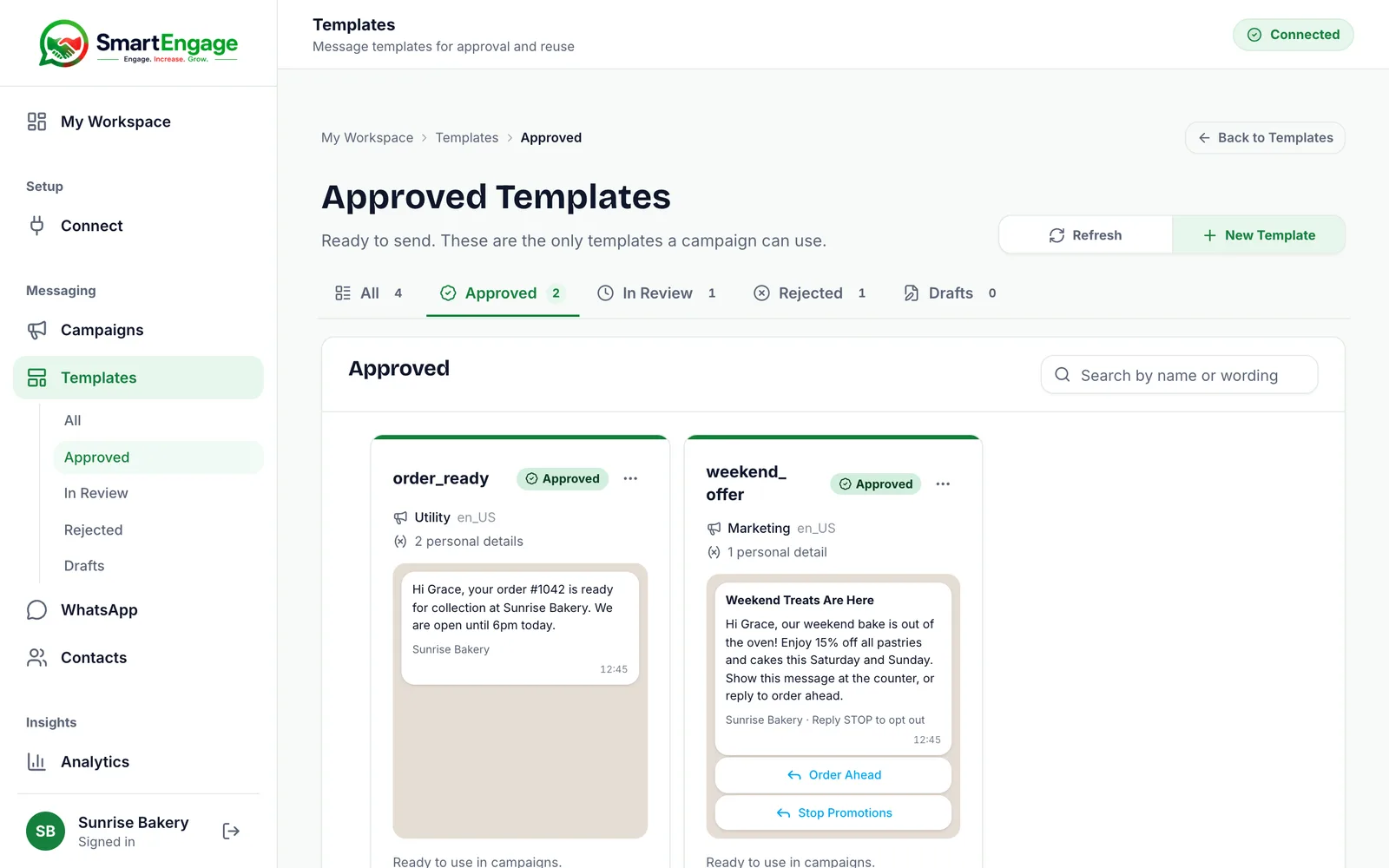
- On the Templates page, select Refresh at the top, beside "New Template". While it works, the button reads "Checking…". When it finishes, you will see "Up to date with Meta." and the list and tab counts update.
- While building a campaign, the Message Template section has its own Refresh button beside "Change Template". Use it when you have just created a template in another tab and want to pick it without leaving your campaign.

A sync only reads from Meta. It never submits, changes or deletes anything on Meta's side.
What a Sync Changes
When you press Refresh, SmartEngage fetches every template on your WhatsApp Business Account and compares it with its own copy:
- Templates that exist at Meta but not in SmartEngage are added, whoever created them.
- Templates that exist in both are updated with Meta's current status, category, wording and, for a rejected template, Meta's reason.
- Templates that SmartEngage has but Meta no longer returns are removed, so a template deleted in WhatsApp Manager does not keep offering itself to your campaigns.
- Drafts are left alone. Meta has never seen a draft, so a sync neither updates nor removes it.
Templates are matched by name and language together, which is also how Meta identifies them. The same name in English and in French counts as two templates.
When You Need to Sync
Press Refresh in any of these situations:
- You created a template in WhatsApp Manager, for example with the "Create in Meta" button, and it is not in your list yet.
- You need an authentication template. SmartEngage does not write these, because Meta composes them itself, so you create one in WhatsApp Manager and sync it in.
- The Templates page was already open when Meta approved something. The page shows what it loaded, so press Refresh to see the new status.
- You edited or deleted a template in WhatsApp Manager and want SmartEngage to match.
- A status looks out of date, for instance a template still under In Review long after you expected an answer. This can happen if Meta's updates are not reaching SmartEngage.
- A campaign warns that it has no stored definition for a template, or no file for its media header, and asks you to sync your templates from Meta.
If a status still looks wrong after a sync, send the template's name to our team through the contact page.
Templates Made in WhatsApp Manager
Once synced, a template made at Meta looks and behaves like one written in SmartEngage. If it is approved, it appears under Approved and can be chosen for a campaign.
Meta's own tool offers a few options that SmartEngage campaigns cannot fill in yet. If a synced template uses one of them, the campaign will tell you before anything is sent:
- Named variables such as {{order_id}}. SmartEngage fills variables by number, so use {{1}}, {{2}} and so on.
- A link button whose address changes per message. Use a button with a fixed link instead.
If you are building a template in WhatsApp Manager specifically for SmartEngage, stick to numbered variables and fixed links and it will work first time.
If the Sync Fails
A sync needs a working connection to Meta. If it cannot reach Meta, the Templates page shows "Could not reach Meta just now." and your existing list stays as it was. Wait a moment and try again.
Refresh is limited to a handful of presses a minute, because each one makes several requests to Meta. If you have pressed it repeatedly, give it a minute.
If your WhatsApp connection itself has expired, a sync cannot help until you reconnect. The Connect page shows your connection status.
For connection problems, read How to Check Your Connection and Sending Number.
To reconnect, follow How to Refresh or Disconnect Your WhatsApp Connection.
Keep Reading
To write a template in SmartEngage instead, follow How to Create a Message Template.
Once your templates are in, move on to How to Create a WhatsApp Campaign.
Tagged
ProductTemplatesReady to send safely?
Start free — no new number, no setup fee, no card required.
Keep Reading
 Account & WhatsApp Setup5 min read
Before You Connect WhatsApp: What You Need
Most failed WhatsApp connections fail for a reason that could have been fixed beforehand. Here is what to have in hand before you click Connect With Facebook.
Read guide Troubleshooting6 min read
Fixing Contact Import Problems
Symptom-by-symptom fixes for SmartEngage contact imports: files that will not upload, wrong column mapping, rejected numbers, duplicates and imports that stop.
Read guide Account & WhatsApp Setup5 min read
How to Add a Payment Method for WhatsApp
Connected but nothing sends? Meta bills WhatsApp messages itself, and needs a payment method on the right business portfolio. Here is how to add one and confirm it in SmartEngage.
Read guide