
How to Choose Who Receives a Campaign
The Audience step decides who receives your campaign. SmartEngage gives you three choices: everyone, one contact book, or specific contacts you name. This guide explains how each one works, how they differ, and how to read the count that tells you how many people will really get the message.
SmartEngage
Sending to the wrong people is the fastest way to lose customers and damage your number's standing with Meta. Sending to too few means a campaign that underperforms for no good reason.
The Audience step makes the choice clear. It shows the number that matters before you commit, and it removes people who should not be messaged without you having to remember them.
Where to Find the Audience Step
Audience is the second of the four steps in the campaign wizard, after "Campaign & Message". You reach it by pressing "Next: Audience" once the campaign has a name, an approved template and a value for every placeholder.
If your account has no contacts yet, the step shows "No Contacts Yet" with an "Import Contacts" button. Your draft campaign is kept in this browser, so you can import a list and come straight back.
New to contacts? Start with How Contacts and Contact Books Work in SmartEngage.
The Three Audience Options
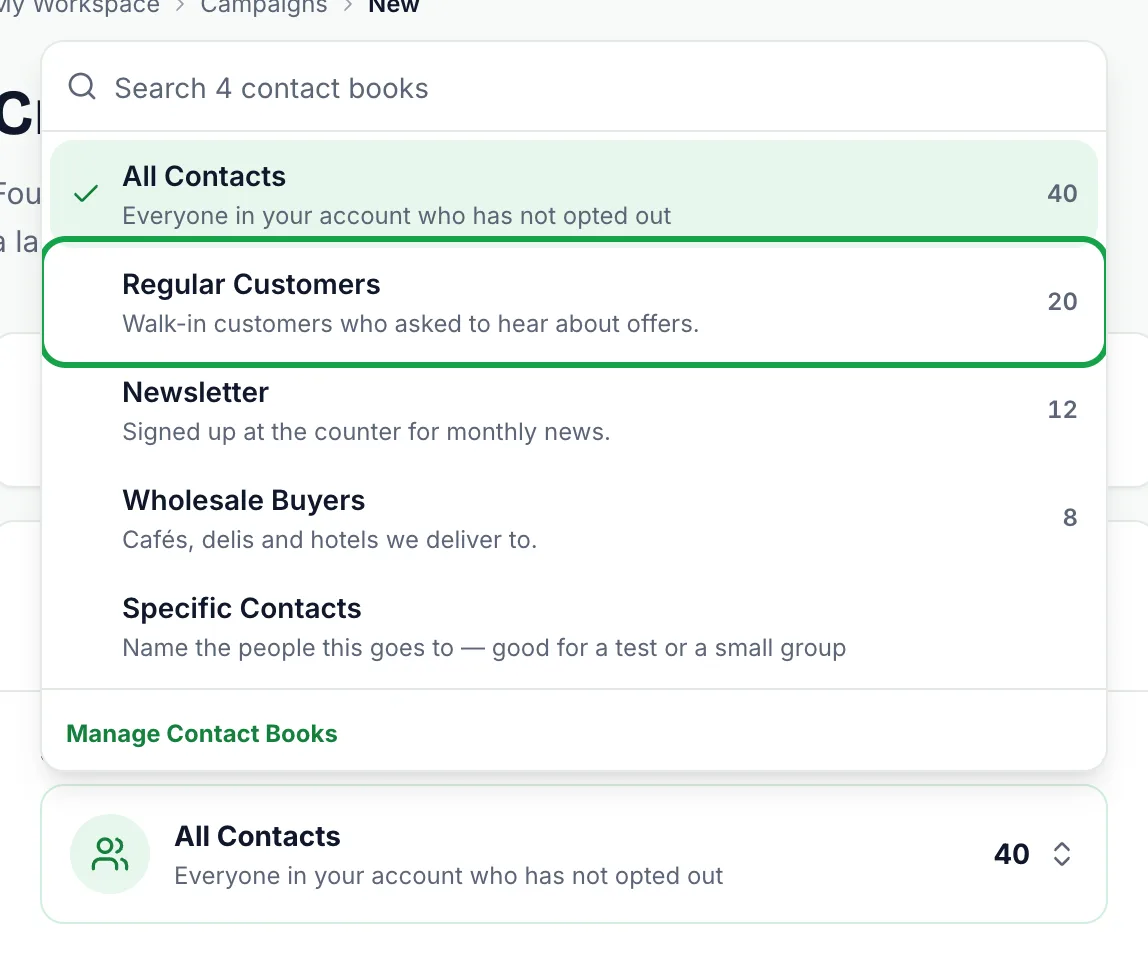
Open the "Send To" selector. It lists these choices, each with its size:
- All Contacts: everyone in your account who has not opted out.
- Each of your contact books, with your default book at the top, then the rest by size.
- Specific Contacts: people you name one by one, which is useful for a test or a small group.
A search box at the top of the selector lets you find a book by name. You can also move through the list with the arrow keys and press Enter to choose.
Sending to a Contact Book
A contact book is a named list, such as "Wholesale Buyers" or "Newsletter Subscribers". Choosing one sends the campaign to every contact in that book who has not opted out. Choosing All Contacts does the same across every book.
The recipient list is built when the campaign starts, not when you create it. For a campaign you send straight away, that makes no difference. For a scheduled campaign, it means contacts added to the book before the send time are included, and anyone who opts out in the meantime is left out.
To set up books that match the way you market, read How to Create and Manage Contact Books.
Sending to Specific Contacts
Choose Specific Contacts and a picker appears. Search by name, number or email, then click people to add them. Each one appears as a chip that you can remove with its cross.
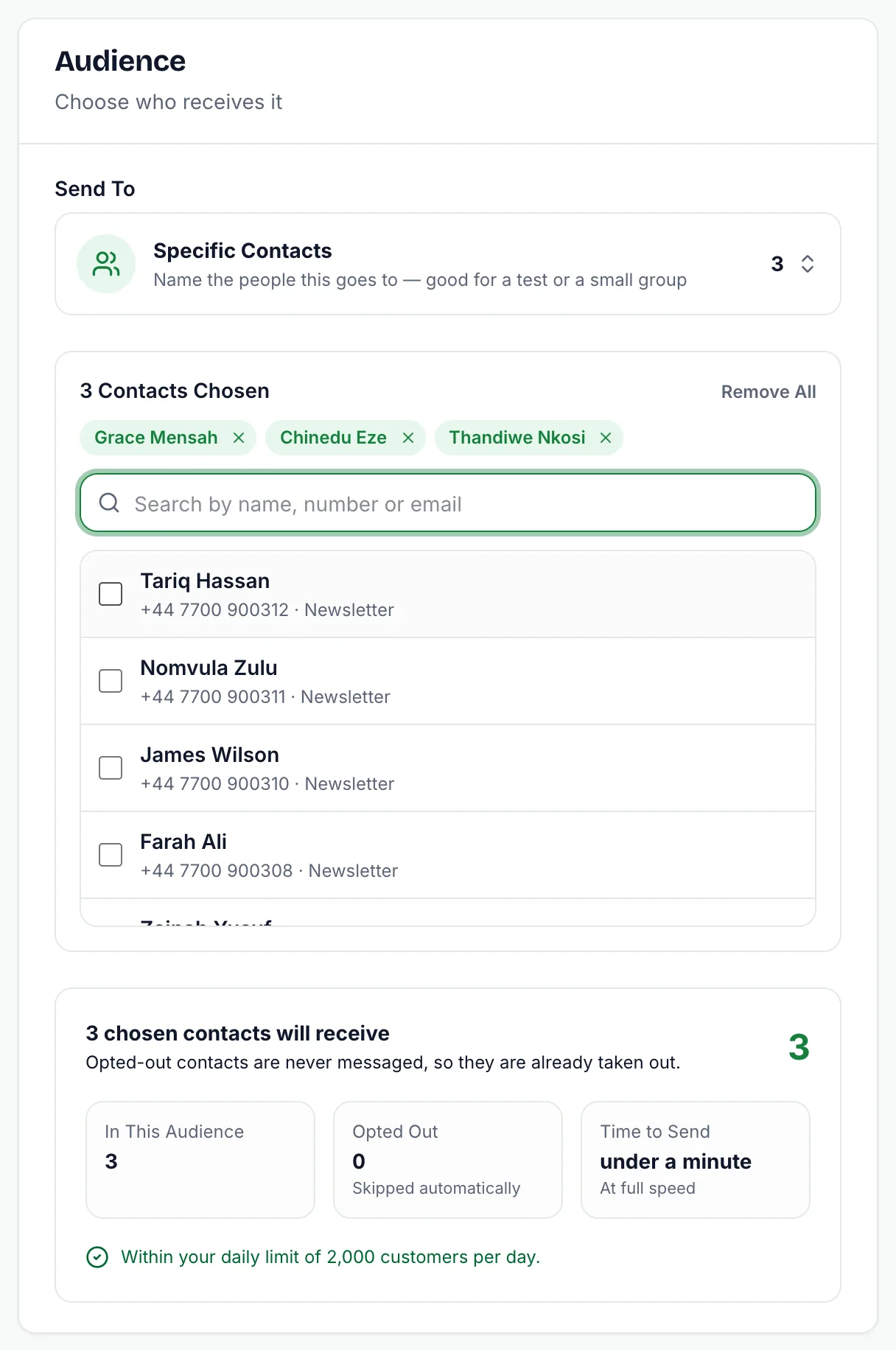
A few rules apply:
- You can name up to 500 contacts. For anything bigger, a contact book is the right tool.
- Only opted-in contacts are listed. People who have opted out never appear in the picker.
- You must pick at least one person. Otherwise the step asks you to choose a contact or send to a contact book instead.
SmartEngage checks your choices again when you create the campaign. If a chosen contact has since been deleted or has opted out, the campaign is refused with a message such as "1 of the 3 chosen contacts has opted out and cannot be messaged. Reopen the audience step and choose again." Nothing is sent until the list is correct.
Books and Specific Contacts Are Alternatives
The two approaches do not combine. You cannot send to "this book, but only these three people". A campaign goes either to one contact book (or all contacts) or to a named list, never to a mix.
This is deliberate: a campaign should always be explainable later from its report. If you need a narrower group regularly, create a contact book for it.
Reading the Audience Count
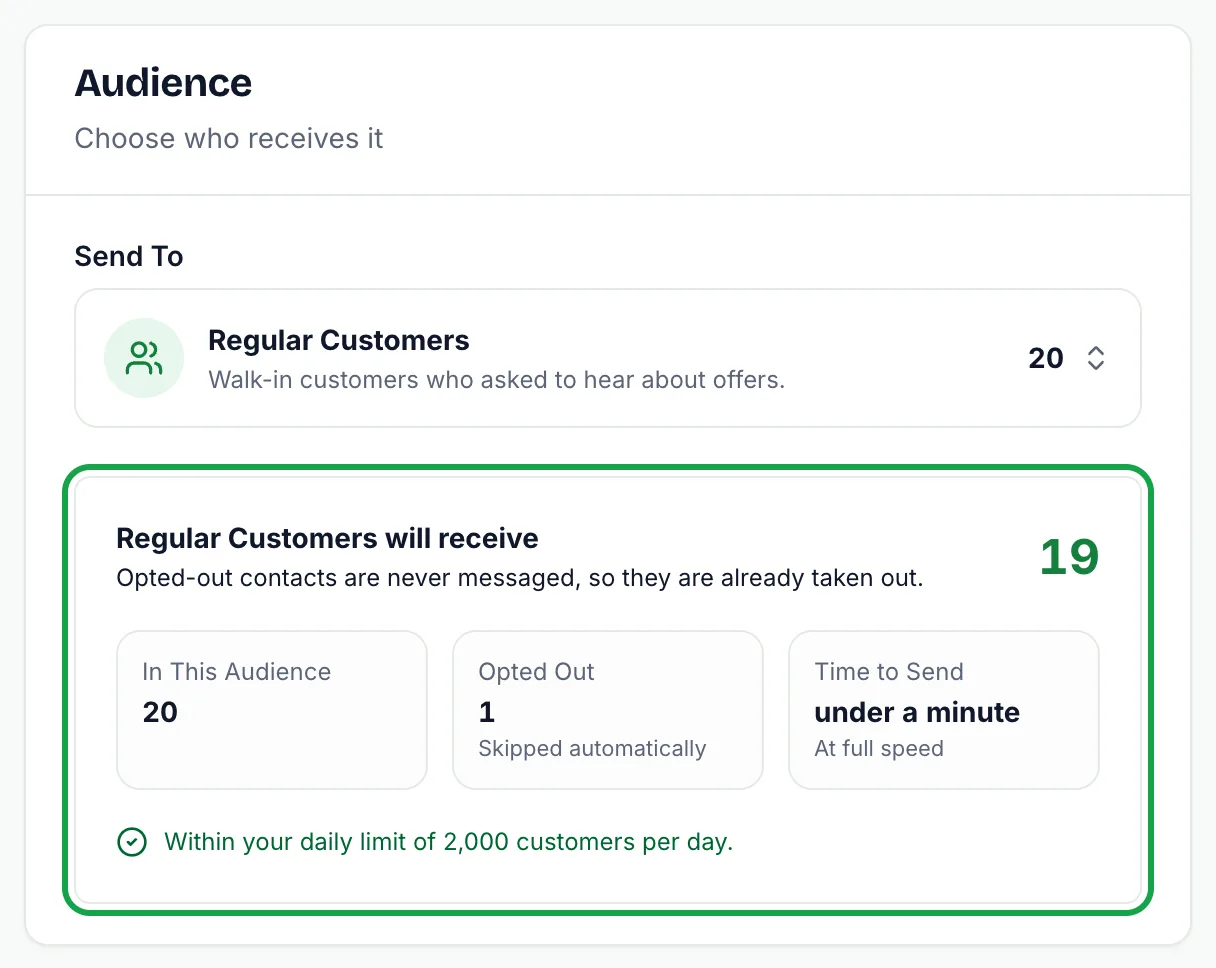
Once an audience is chosen, a panel headed with its name and "will receive" shows the number of people who will actually get the message. It is counted on the server, using the same rule the send itself uses.
Underneath are three figures:
- In This Audience: everyone in the book or list, including those who opted out.
- Opted Out: contacts who will be skipped automatically.
- Time to Send, or Plan Allowance Left: an estimate of how long sending takes or, where your plan limits campaign recipients, how many you have left this period.
The size shown next to a book in the selector is the book's full size. The "will receive" figure is the one to trust, because opted-out contacts are already taken out of it.
Warnings You Might See
The panel ends with one line that tells you whether the send can go ahead as it stands:
- A green note that you are within your daily limit, when all is well.
- An amber note when the audience is larger than Meta currently lets your number reach in 24 hours. Messages past the limit are not failed. They stay waiting and go out as the rolling 24-hour window frees up room.
- A red note when the audience is larger than your plan's remaining recipient allowance. This one does stop the send, and the fix is a smaller audience or a plan with more room.
- "Nobody in this audience can be messaged" when everyone in it has opted out, or the book is empty.
The daily limit is set by Meta and rises as your number builds a record. It is explained in Understanding Quality Rating and Messaging Limits.
How Opt-Outs Are Handled
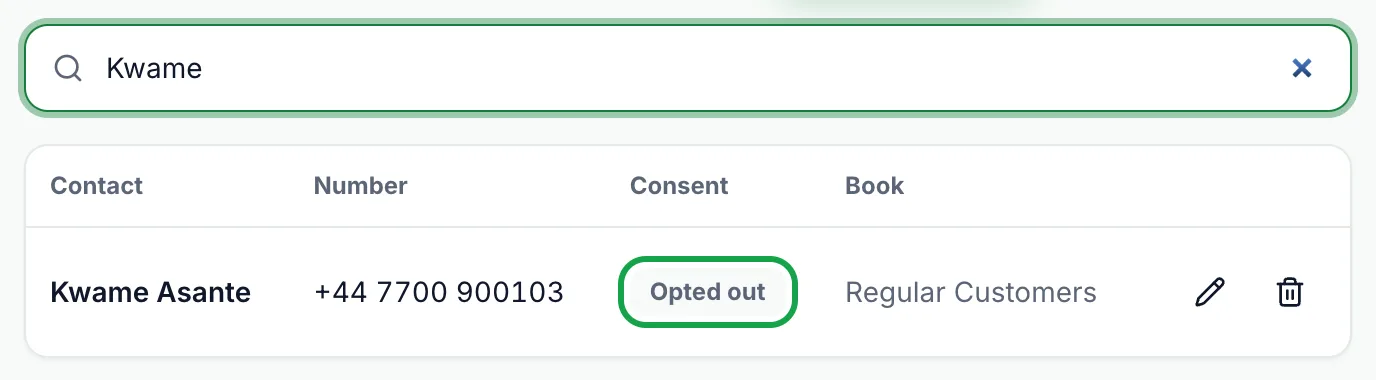
Opted-out contacts are never messaged by a campaign, whichever audience you choose. When a customer replies STOP or UNSUBSCRIBE, SmartEngage marks them as opted out and they are left out of every later send. If they reply START, they are opted back in.
Opted-out contacts are left off the recipient list when the campaign starts, so they are never attempted and cost you nothing. They stay in your contacts, marked as opted out.
For how duplicates and opt-outs are treated on import, see Duplicates, Invalid Numbers and Opt-outs Explained.
Tips for Choosing Well
- Send a first campaign to Specific Contacts, such as yourself and a colleague, to see the message on a real phone.
- Keep books meaningful. "Customers Who Bought in Spring" makes a better audience than one giant list.
- Watch the Opted Out figure. A book where it keeps growing is telling you something about what you send it.
- Only message people who agreed to hear from you. That is what keeps your quality rating healthy.
Next Steps
With the audience chosen, the next step is deciding when the campaign goes out.
Next: How to Schedule a Campaign.
Tagged
AudienceCampaignsOpt-InReady to send safely?
Start free — no new number, no setup fee, no card required.
Keep Reading
 Account & WhatsApp Setup5 min read
Before You Connect WhatsApp: What You Need
Most failed WhatsApp connections fail for a reason that could have been fixed beforehand. Here is what to have in hand before you click Connect With Facebook.
Read guide Troubleshooting6 min read
Fixing Contact Import Problems
Symptom-by-symptom fixes for SmartEngage contact imports: files that will not upload, wrong column mapping, rejected numbers, duplicates and imports that stop.
Read guide Account & WhatsApp Setup5 min read
How to Add a Payment Method for WhatsApp
Connected but nothing sends? Meta bills WhatsApp messages itself, and needs a payment method on the right business portfolio. Here is how to add one and confirm it in SmartEngage.
Read guide