
How to Use the Analytics Dashboard
The Analytics page in SmartEngage shows how your WhatsApp campaigns are performing across the board: how many messages went out, how many arrived, how many were read and how many failed. This guide explains every figure on the page, how to change the period it covers, and how it differs from the report for a single campaign.
SmartEngage
A single campaign's report tells you how one send went. The Analytics page answers a bigger question: across everything you have sent, what lands and what does not? It is the place to spot trends, compare campaigns side by side and decide what to send more of.
Open it from the sidebar, under Insights, by clicking Analytics.
Before You Start
Delivery and read figures come from WhatsApp, so the page needs a connected number. If yours is not connected yet, Analytics shows "Connect Your Number First" with a button to the Connect page.
Once you are connected but have not sent a campaign, the page is empty apart from a "Nothing Sent in This Period" message and a "Create a Campaign" button. Figures appear as soon as your first campaign starts sending.
To send your first one, follow How to Create a WhatsApp Campaign.
Choosing a Reporting Period
Under the page heading is a row of tabs that sets the period the page reports on:
- All Time, the default, covering your whole history
- 7 Days
- 30 Days
- 90 Days
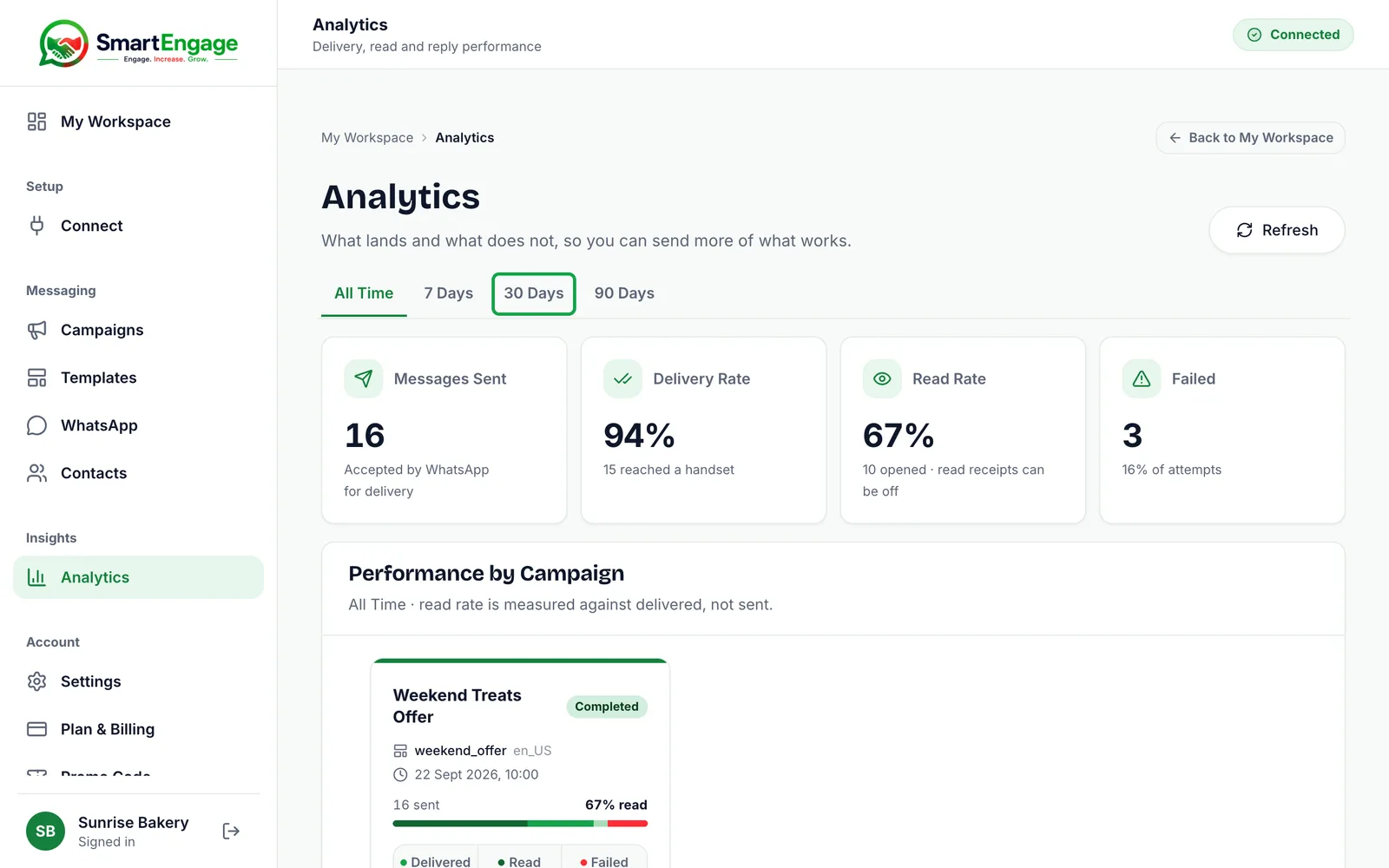
The period is based on when each campaign was created. A campaign created within the last 30 days is counted in full under 30 Days, including messages that were delivered or read later.
The figures do not update by themselves while the page is open. Press "Refresh" at the top of the page to load the latest numbers, for example while a campaign is still sending.
The Four Headline Figures
At the top of the page are four cards that add up every campaign in the period.
- Messages Sent: the number of campaign messages accepted by WhatsApp for delivery.
- Delivery Rate: the share of sent messages that were delivered to a phone. The line underneath gives the actual number that reached a handset.
- Read Rate: the share of delivered messages that were read, with the number read underneath.
- Failed: the number of messages WhatsApp rejected, with the share of all attempts that failed.
Read Rate is measured against delivered messages, not sent ones. A message that never arrived cannot be read, so counting it would make your wording look worse when the real problem was delivery.
Why Read Rate Is a Minimum
WhatsApp only reports a message as read if the recipient has read receipts switched on. Many people turn them off. When they do, their reads are never reported, and the message stays counted as delivered.
That is why the Read Rate card reminds you that read receipts can be off. Treat the figure as a floor rather than an exact count, and use it to compare campaigns with each other rather than as an absolute measure.
Performance by Campaign
Below the headline figures, Performance by Campaign shows one card for each campaign that sent at least one message in the period, newest first. Each card shows:
- The campaign name, which links to its full report, and its status
- The template it used and the template's language
- When it started sending
- How many messages were sent and its read rate
- A coloured bar showing the split between read, delivered, sent but not yet delivered, and failed
- Delivered, as a percentage of sent, with the count
- Read, as a percentage of delivered, with the count
- Failed, as a count, with the number skipped where there were any
Skipped recipients are people the campaign never sent to, for example those still waiting when a campaign was cancelled. They are not failures and are not counted as sent.
Cards are shown twelve to a page, with page controls underneath when you have more.
How Analytics Differs From a Campaign Report
Each card has a "Report" button that opens that campaign's own report. The two screens answer different questions.
Analytics compares. It shows totals and rates across campaigns, so you can see which templates, audiences or timings work best.
A campaign report investigates. It goes down to the individual recipient and is where you act on problems:
- Every recipient with their own status, which you can filter and search
- Why Messages Failed, grouping failures by the reason WhatsApp gave
- Export CSV, to download the recipient list for the current filter
- Resend to failed, to retry only the messages that failed without messaging anyone twice
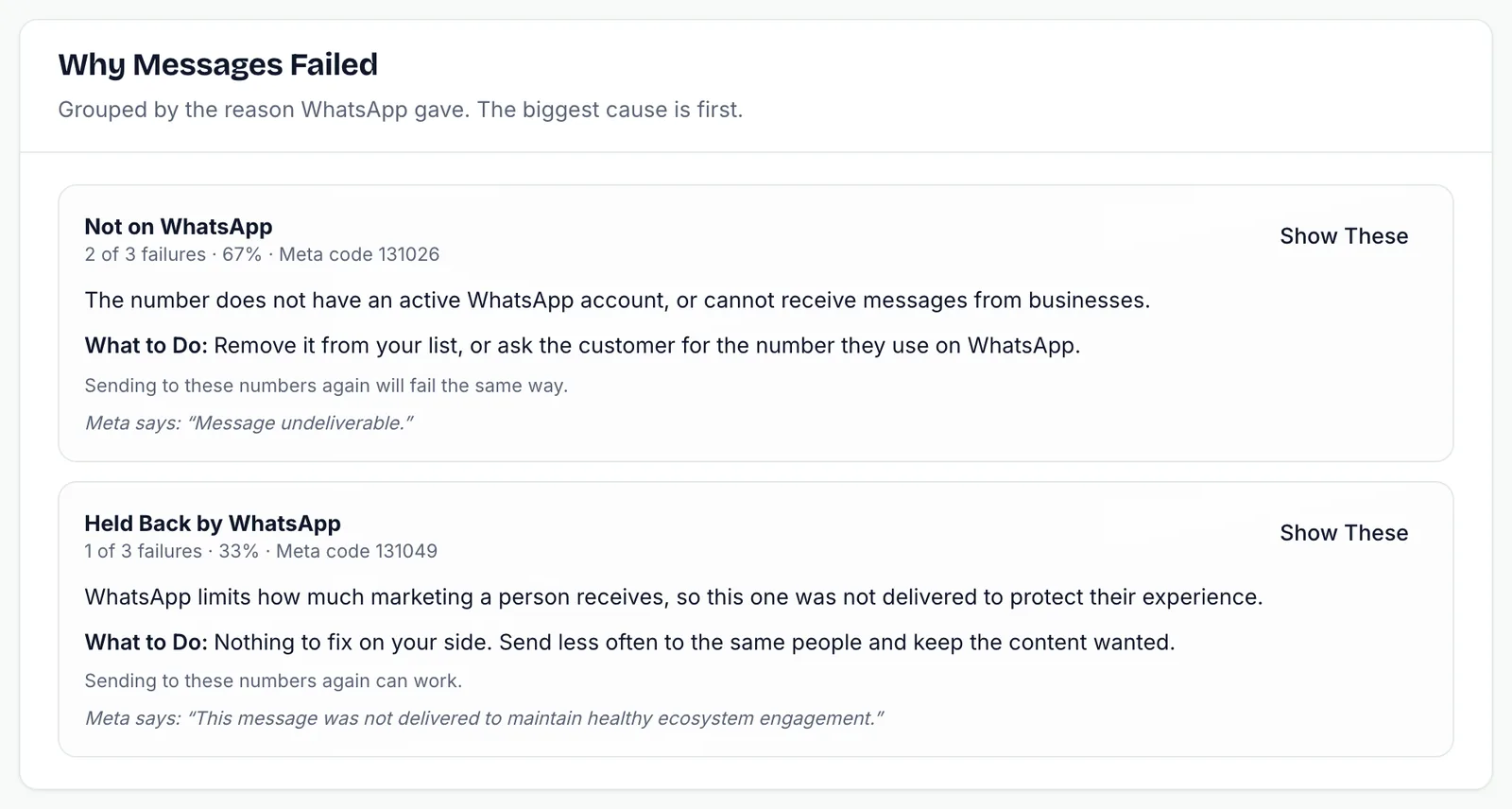
For a walk-through of a single report, read How to Read Your Campaign Results.
What Analytics Does Not Include
The Analytics page is about campaigns. It does not count one-to-one messages you send from the WhatsApp inbox, or templates sent from a conversation. It also has no day-by-day chart: figures are totals for the period and per campaign, because the campaign is the thing you can change next time.
Conversations are handled in the inbox. See How the SmartEngage Inbox Works.
Using the Figures to Improve
- A low delivery rate usually points to the audience rather than the message: numbers that are wrong, not on WhatsApp, or unreachable. Open the campaign report and check Why Messages Failed.
- A healthy delivery rate with a low read rate points to the message or the timing. Try a clearer opening line or a different send time.
- A Failed count that keeps rising across campaigns is worth investigating quickly, starting with Why Messages Failed in each campaign report.
- Compare campaigns that used different templates to see which wording gets read.
Related Guides
When messages fail, see How to Retry Failed Messages.
For a deeper look at what the numbers mean, read Reading Your WhatsApp Campaign Analytics: What Actually Matters.
Tagged
AnalyticsCampaignsReportingReady to send safely?
Start free — no new number, no setup fee, no card required.
Keep Reading
 Account & WhatsApp Setup5 min read
Before You Connect WhatsApp: What You Need
Most failed WhatsApp connections fail for a reason that could have been fixed beforehand. Here is what to have in hand before you click Connect With Facebook.
Read guide Troubleshooting6 min read
Fixing Contact Import Problems
Symptom-by-symptom fixes for SmartEngage contact imports: files that will not upload, wrong column mapping, rejected numbers, duplicates and imports that stop.
Read guide Account & WhatsApp Setup5 min read
How to Add a Payment Method for WhatsApp
Connected but nothing sends? Meta bills WhatsApp messages itself, and needs a payment method on the right business portfolio. Here is how to add one and confirm it in SmartEngage.
Read guide